How to Add Your Own Text to a Video for Free in Studio
By Modisign
- Published
- Updated
- Last tested
To add your own text to a video for free, sign in to Modisign Studio with Google, add your clip, open Text and click Add title at playhead. Type up to 120 characters, choose a bundled font, color, size, position and timing, then export. A basic title, including free motion, needs no Pro. Changing the wording of a catalog overlay such as Hook title is a different route, and it needs Pro unless it matches the free preset.
What does a free title look like?
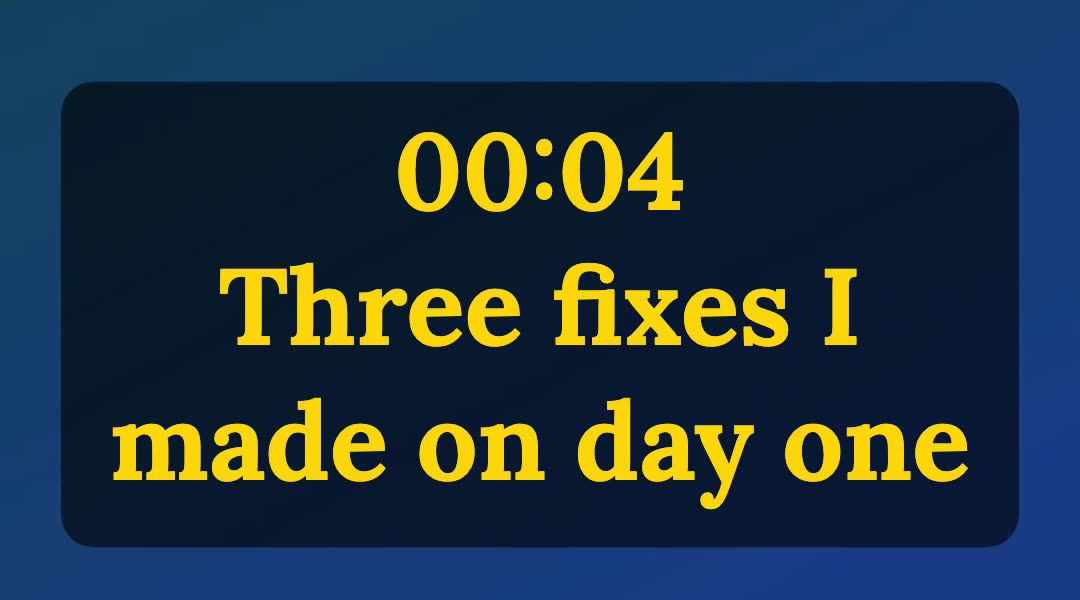
This is a crop of a frame we exported on a simulated free account: Lora, weight 700, gold, size L, Backing on, with a Timeline time label above the text. The gradient is a generated test clip, and the wording is ours. You need a local video (or photo), a free Google account for Studio and a desktop browser. Studio edits and exports in your browser, and your media is not uploaded.
How do you add, style and time a title?
Open Studio and import your clip. Continue with Google (free), click Import, then use the plus button on the media tile to add it to the timeline. Put the playhead where the title should start.
Open Text and click Add title at playhead. A title with the text "Title" appears, labelled "Explicit time". On a phone-sized screen use More and then Text; the sheet is called Titles.
Type your wording. The Title text field stops at 120 characters; we typed 130 and it kept 120. Write for people who may have the sound off. Press Enter to finish.
Choose the look under Style. Font offers Montserrat, Lora and Roboto Mono, all bundled. Weight lists the weights each family has (Lora: 400, 600, 700), and Italic appears for Lora only. Pick a Color swatch or the custom picker, and Size S, M, L or XL, which are 5, 7, 10 and 14 percent of the output's shorter side. Backing adds a dark plate behind the text. Position has Top, Center and Bottom, and Horizontal and Vertical sliders place it freely.
Set Timing. Under Shows, Explicit time gives the title its own start and duration, which you can drag on the timeline or set with the numbers and frame-step buttons. Bound to clip ties it to one clip: it shows for the clip's whole span and follows trims, reordering and splits.
Add a time label if you want one. With a bound title, Timestamp can show Source time (where the shown part starts in the original file) or Timeline time (where the clip starts in your edit). In our test the second clip began at 4.2 seconds, so Timeline time drew "00:04" above the words. Photos have no source time: Studio disables Source time and says "A photo has no source time. Use the timeline time."
Export. Click Export, keep 1080p or choose 720p, and click Export MP4. Open the file and check each title at phone size before you post. Our 12.23-second export was 1080×1920 H.264 at 30 fps with audio, and the frames showed the titles where we placed them.
On a narrow screen, below 1024 px, select a clip, press Back, then More, Text, Add title at playhead. The title opens a Title text sheet, and the toolbar reads Back, Text, Style, Timing and Delete. We checked those labels in an emulated 390×844 touch viewport in desktop Chrome, not on a phone.
Is it a native title, a catalog overlay or captions?
| Studio title | Catalog overlay (such as Hook title) | Speech captions | |
|---|---|---|---|
| What it is | Your own text, drawn by Studio | A prepared animation with its own text fields | Timed words generated from speech |
| Where | Studio, Text | Studio Overlays, or the overlay editor | Studio, Captions |
| Your wording | Free, up to 120 characters | Pro, unless the result equals the free preset | Free to edit |
| Export | Free after Google sign-in | Free only if unchanged | Free in Clean, Boxed or Minimal with no styled word |
| Motion | Free | Any non-identity motion key on it is Pro | Not available |
The caption workflow covers speech, and Mixed fonts covers styled caption words. A title is typed by you, so it does not depend on the audio.
What happens when you change a catalog overlay's text?
We added the free Career truth Hook title unchanged and Export offered Export MP4. After we changed Punch words to "your desk", the overlay showed a Pro badge and Export showed the Pro prompt. Reset to preset made the export free again. A catalog overlay is free only while its configuration equals a free preset, so custom wording needs Pro.
If a prepared animation is what you want, browse the free Hook title. That filter listed one card, Career truth. For guidance on what the words should promise, read the hook title writing guide. For your own wording at no cost, use a native title.
What are the limits?
- A title holds 120 characters, and a project holds 100 titles. This is a short-text tool, not a full desktop typography editor.
- Fonts are the three bundled families. Studio cannot upload fonts.
- Studio requires Google sign-in. Calling it "no sign up" would be wrong.
- Titles also offer Reveal and Behind person. Both are free to preview and need Pro to export, so leave them Off for a free export.
- Save is a Pro feature. It stores title text, style and timing with the project, and never your media.
- Basic title motion is free. The Motion section on a title offers Smooth zoom, Slide left and Fade in recipes; we tested Fade in.
What do CapCut and Canva offer instead?
CapCut documents Text, then Add text on desktop and in its mobile app, plus a text template option. CapCut text guide. Canva documents a free online editor where you choose which part of the video gets text and change font style, color and size, with free and premium fonts and text animations. Canva add text to video. Both offer broader template and animation libraries than Studio's three fonts. We did not test either, or compare cost, watermarks or export limits. Pick them when you need that range; pick Studio when a quick local title with a free export is enough.
Where should the text go?
These are design suggestions, not measured results:
- Hook at the start: a bound title on your first clip stays for the whole shot. If the shot is long, use Explicit time and a duration of 2 to 3 seconds so the words leave before the explanation starts.
- Step labels: bind one title per clip with Timeline time to number sections without typing timestamps. See the step title guide.
- Keep clear of the edges: use Center or the Vertical slider, then check the safe-zone guide. Bottom, which we used here, can sit under platform controls.
Frequently asked questions
Do I need to sign in to add text in Studio?
Yes. Studio at /studio/edit needs a free Google sign-in before you can edit. Adding, styling, timing and exporting a basic title costs nothing; there is no separate account for text.
Is a Studio title the same as a catalog overlay?
No. A title is your own text drawn by Studio with bundled fonts. A catalog overlay such as Hook title is a prepared animation. Changing a catalog overlay's wording needs Pro to export unless the result still equals the free preset.
How long can a title be, and how many can I add?
A title holds up to 120 characters, and a project holds up to 100 titles. The text field stops at 120 characters.
Does Pro Save keep my titles?
Yes. Titles are saved with a Pro project, including their text, style and timing, and the Studio panel says so. Speech transcripts are not saved. Media never leaves your device.
Can I add motion to a title for free?
Yes. Motion on footage and on basic titles stays free. A reveal or Behind person effect on a title is free to edit and preview but needs Pro to export, and so does any motion on a catalog overlay.
Related reading


Sources and test details
- Canva documents a free online editor that adds text to chosen parts of a video (start, middle, end or the whole clip), with font style, color and size changes, free and premium fonts, and text animations. — accessed
- CapCut documents Text then Add text for your own text and a Text template option for pre-designed text, on desktop and in the mobile app. — accessed
Tested in Modisign Studio Local Modisign site, October 2026 on Desktop Chrome on macOS, 1440 px wide window: On October 23, on a simulated free account on the local development site, imported three generated files (a 4.24-second synthetic speech clip, a 5-second clip and a 1080×1350 photo) and added them to V1. Opened Text, added a title, typed Three fixes I made on day one, and typed 130 characters to confirm the field stops at 120. Set Lora 700, a gold color, size L, Backing on and Bottom position, then Timing Bound to clip on the second clip with Timeline time, which showed 00:04. The Export dialog offered Export MP4 with no Pro prompt, also after applying the Fade in motion recipe to the title. A second title bound to the photo had Source time disabled and the hint A photo has no source time. Exported the result: 1080×1920 H.264 MP4 at 30 fps, 12.23 seconds, with AAC audio, and inspected frames at 4.0, 5.5 and 10.5 seconds. In a separate run added the free Career truth Hook title overlay unchanged (export free), changed its Punch words text (Pro prompt, Pro badge) and used Reset to preset (free again). Confirmed that /overlays?type=hook-title&free=true lists one card, Career truth. Did not test Save, a real account, a payment or a posted video.
Tested in Modisign Studio Local Modisign site, October 2026 on Emulated 390×844 touch viewport in desktop Chrome, not a physical phone: On October 23, added two clips and opened More, then Text: the Titles sheet, Add title at playhead, and a Title text sheet with the Timestamp choices None, Source time and Timeline time. The selected-title toolbar read Back, Text, Style, Timing and Delete. Did not export from the phone layout.
Found an error or a changed control? support@modisign.app.