How to Put Text Behind a Person in a Video in Your Browser
By Modisign
- Published
- Updated
- Last tested
To put text behind a person in Modisign Studio, add a title, bind it to your clip, set Behind person to On and select Prepare people masks. Studio finds the people in that clip on your device and draws the title behind them. Editing, preparing and previewing are free after Google sign-in; exporting the MP4 needs Pro. It hides text behind every person it detects, not one chosen person and not objects.
What does the result look like, and where does it fail?
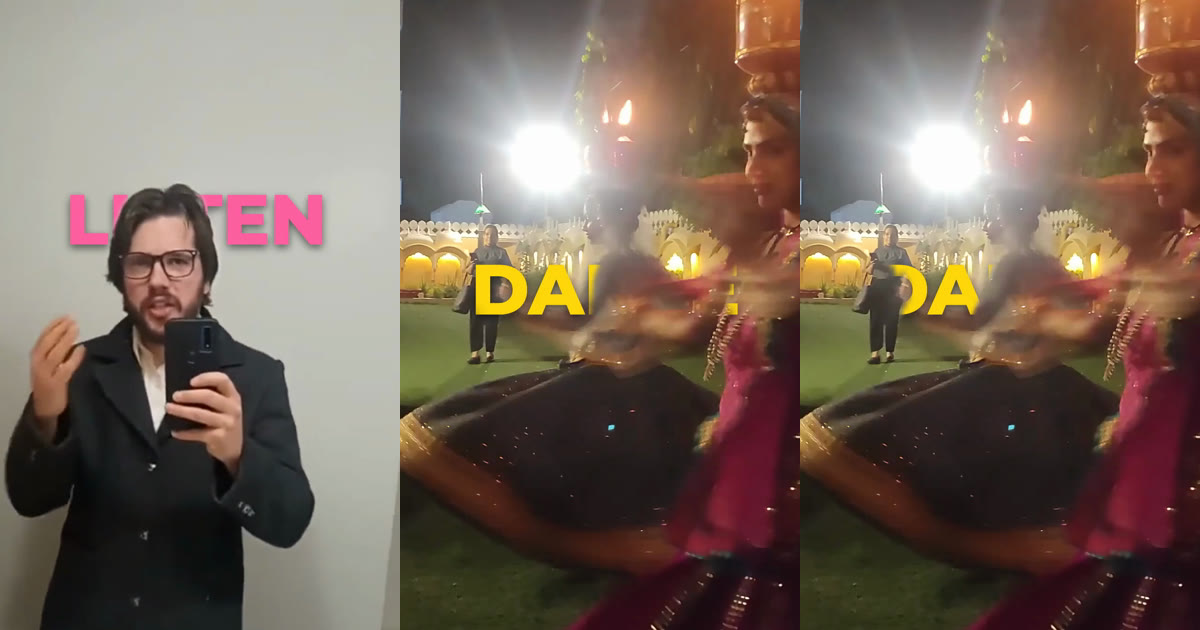
The left frame comes from an 8-second selfie clip: the pink title LISTEN passes behind the speaker's head and shows beside it. The middle and right frames are the same moment of a 5.5-second night clip with a dancer, a motion-blurred second dancer and a distant bystander. At the default Threshold of 50%, the yellow D is drawn over the bystander. At 20% she is detected and the D goes behind her, but the outline around the blurred dancer gets softer.
Both clips are CC0 on Wikimedia Commons (selfie clip, night clip) and served only as local test inputs. The selfie clip has a YouTube Shorts mark burned into its lower corner, which the image crops out.
The usual workaround stacks text, a duplicate of the video and a background-removal tool. CapCut's guide describes it with Smart tools, then Remove background; its online steps upload your video to CapCut's servers, and it warns that low-light footage can make automatic masking fail. CapCut guide. Studio stores one title with a Behind person setting, prepares the masks on your device and has no manual mask.
You need a desktop browser, a free Google sign-in and a clip where the person is visible. Pro is needed only to export. Our tests used a simulated Pro session on the local development site, not a purchase. Modisign publishes this guide and sells Pro.
How do you put text behind a person, step by step?
- Import the clip. Open Studio, choose Import, then add the clip to V1 with its plus button.
- Add the title. Open the Text tab, select Add title at playhead and type up to 120 characters in Title text. Choose a large Size such as XL and a contrasting color. Position and the Horizontal and Vertical numbers put the words where the person will overlap them.
- Bind it to the clip. Under Timing, choose Bound to clip and pick the clip from the Clip list. The title then follows the clip's trims, order and splits. Explicit time sets Start and Duration yourself, and Person clip lists the clips the title overlaps.
- Turn on Behind person. Choose On. Program stops drawing the title and says "Not prepared. Prepare the people masks to see this title in Program."
- Prepare the masks. Select Prepare people masks. You see "Preparing people model...", then "Preparing people masks: N of M pictures" with Cancel. At "Prepared 241 pictures" the Mask sample tints the detected person. M counts the pictures where the title shows: 241 for our 8-second bound title, 60 for the default 2-second one.
- Check the edges and tune. Scrub and play. If a person is missed or an edge looks rough, change Threshold, Feather or Smoothing and check the same frame again.
- Export. Click Export, choose 1080p or 720p and Export MP4. With Behind person on, a free account sees a Pro notice instead. Our file was 1080x1920 H.264 at 30 fps, 241 frames, matching the 8.03-second clip.
On a phone-size layout the same controls sit in sheets: press Back if a clip is selected, then More, Text, Add title at playhead, type and Done. With the title selected, Style lists Motion, Reveal and Behind person ("Hide the title behind people · Pro to export"), which opens the same On/Off, three numbers and Prepare people masks. We read these labels in an emulated 390x844 touch viewport in desktop Chrome, not on a physical phone.
Which settings change the edge?
| Setting | Default | Allowed | What Studio says it does |
|---|---|---|---|
| Threshold (%) | 50 | 10 to 90 | How sure Studio must be that something is a person |
| Feather (px) | 1 | 0 to 4 | How soft the edge is, in pixels of the 256-pixel mask |
| Smoothing (%) | 20 | 0 to 50 | How much the two previous pictures count, which calms flicker |
Lowering Threshold accepted weaker detections: it caught the distant bystander at 20% and at 10%, and it blurred the outline around motion. We looked only at those frames, so we cannot say how often a low value hides the title behind a non-person. We did not test Feather and Smoothing systematically; compare them at playback speed.
What does Behind person not do?
- It masks every detected person in one clip. Only people in the title's own clip count. You cannot pick one person, and objects, pets and products are not masked.
- It is prepared, not live. Studio computes a mask for each picture first; until then Program does not draw the title.
- Masks stay in the session. The project bar says projects save "title text, timing, reveal settings and person-effect settings (never masks or pictures)", so prepare again after reopening.
- Memory is limited. A very long title may need preparing in sections. Our clips were far below that limit.
- Speed varies. On this Mac, the 8-second clip took 4.5 to 11 seconds across four runs and the night clip 4 to 31 seconds, depending on other load. That is one machine's spread, not a promise.
What is free and what needs Pro?
| Action | Free account | Pro |
|---|---|---|
| Add a plain title and export | Yes | Yes |
| Edit, prepare masks and preview Behind person | Yes | Yes |
| Export a title with Behind person (or Reveal) on | No | Yes |
| Export again with Behind person set to Off | Yes, if nothing else is Pro | Yes |
The Pro check reads the stored setting, not what is visible, so a title with the effect stored but never shown still needs Pro. In our free-account test, On gave the Pro notice and Off restored the normal export dialog. Pro is $9 per month plus applicable tax (pricing); saving a project is a separate Pro feature. Why preparation stays local: editing video online without uploading.
Where should you put the text?
These are suggestions from our two tests.
- A short hook at head height. Let the head cross the middle letters while the first and last stay clear. Our LISTEN lost "LI" when the speaker leaned, so pick words that read with letters hidden.
- A large word across the shoulders. The outline is simple there, so the edge is easier to judge than around fast hands.
- Away from small or distant people, unless you lower Threshold and check the frame. See the safe-zone guide and write a clear hook first.
For a ready-made animated graphic, browse hook title overlays; those are catalog overlays and do not get Behind person.
What should you check when it goes wrong?
| Problem | Check | Fix |
|---|---|---|
| The title is missing in Program | The panel says "Not prepared" | Select Prepare people masks |
| A person does not hide the text | Is the person small or in low light? | Lower Threshold, move the title, or accept the limit |
| The text hides behind the wrong clip | Person clip or Timing | Bind the title to the right clip, or use Explicit time and choose it |
| Preparation fails | The status names a failure | Select Retry; Cancel stops it |
| Export asks for Pro | Behind person or Reveal is On | Subscribe, or set both to Off |
Frequently asked questions
Can I put text behind only one person in the clip?
No. Behind person hides the title behind every person it detects in the title's clip. There is no control for choosing one person or for painting a mask by hand. If the shot has several people and you want only one, this setting will not isolate them.
Can the text go behind a car, a product or a pet?
No. Behind person looks for people only. Objects, animals and products are not masked, so the title stays in front of them.
Do my video and the masks leave my device?
Preparation runs on your device and nothing is uploaded; the exported MP4 is also rendered in your browser. The masks live only in the editor session. A saved Pro project keeps the title text, timing and effect settings plus which clip it uses, never the masks or pictures, so reopened work needs Prepare people masks again.
Is Behind person free?
Editing, preparing masks and previewing are free after Google sign-in. Exporting a title with Behind person or Reveal needs Pro, which is $9 per month plus applicable tax, even if the effect is stored but not visible. Setting Behind person to Off makes the export free again, provided nothing else in the edit is Pro.
Did you test it on a phone?
Only in an emulated 390x844 touch viewport in desktop Chrome, which showed the same controls in sheets. We did not test a physical iPhone or Android phone, so check preparation and export on your own device before relying on it.
Related reading
Sources and test details
- The selfie test clip is dedicated to the public domain under CC0 1.0 by its uploader, JohnTheBaptist1, who lists it as own work; its picture carries a burned-in YouTube Shorts mark. — accessed
- The night dance test clip (5.6 seconds, 1080x1920) is dedicated to the public domain under CC0 1.0 by its uploader, Kasyap, who lists it as own work. — accessed
- CapCut's September 17, 2026 guide: text on one track, a duplicate of the video above it, then Smart tools, Remove background; the online steps upload the video to CapCut's servers; it says low-light footage can make automatic masking fail. — accessed
Tested in Modisign Studio Local Modisign site, October 2026 on Desktop Chrome on macOS, Apple silicon: On October 23, 2026, in a simulated Pro session on the local development site, imported an 8-second 720x1280 clip cut from a CC0 Wikimedia Commons selfie video, added a title (LISTEN, XL, pink) bound to the clip, set Behind person to On and selected Prepare people masks. Studio reported Prepared 241 pictures; four runs took 4.5 to 11 seconds on this Mac while other work was running. Exported a 1080x1920 H.264 MP4 at 30 fps, 241 frames, 8.03 seconds; frames from 1 to 7 seconds show the title hidden behind the head and visible beside it. Repeated the flow on a 5.5-second night clip from another CC0 Commons video: at the default Threshold of 50% a distant bystander did not hide the letter D; at 20% and 10% she did, with a softer outline around a motion-blurred dancer. In a free-account session the export dialog said title effects need Pro with Behind person On, and showed the normal Export MP4 dialog with it Off. No platform upload or receiving-editor test.
Tested in Modisign Studio Local Modisign site, October 2026 on Emulated 390x844 touch viewport in desktop Chrome, not a physical phone: On October 23, 2026, read the phone-layout labels: More, Text, Add title at playhead, then with the title selected Back, Text, Style, Timing, Delete; Style lists Motion, Reveal and Behind person, and Behind person opens the same On/Off, Threshold, Feather, Smoothing and Prepare people masks controls. Prepared 60 pictures for the default 2-second title in 2.3 seconds. No iPhone, Android, Safari or Windows test.
Found an error or a changed control? support@modisign.app.