How to Add Captions to a Reel for Free in Studio
By Modisign
- Published
- Updated
- Last tested
To add captions to a Reel for free, sign in to Modisign Studio with Google, import your video, generate English captions, correct the transcript and export with Clean, Boxed or Minimal selected. You can change caption text, position and size on the free plan. Speech recognition runs on your device; the first use needs an approximately 43 MB model download, and other spoken languages are not supported yet.
What do you need, and what did we test?
Have your local video with English speech, a Google account and a desktop browser ready. Studio supports a sequence up to 180 seconds. Your video, audio and caption text are never uploaded; the downloaded speech model is cached in the browser and can be removed from the Captions panel.
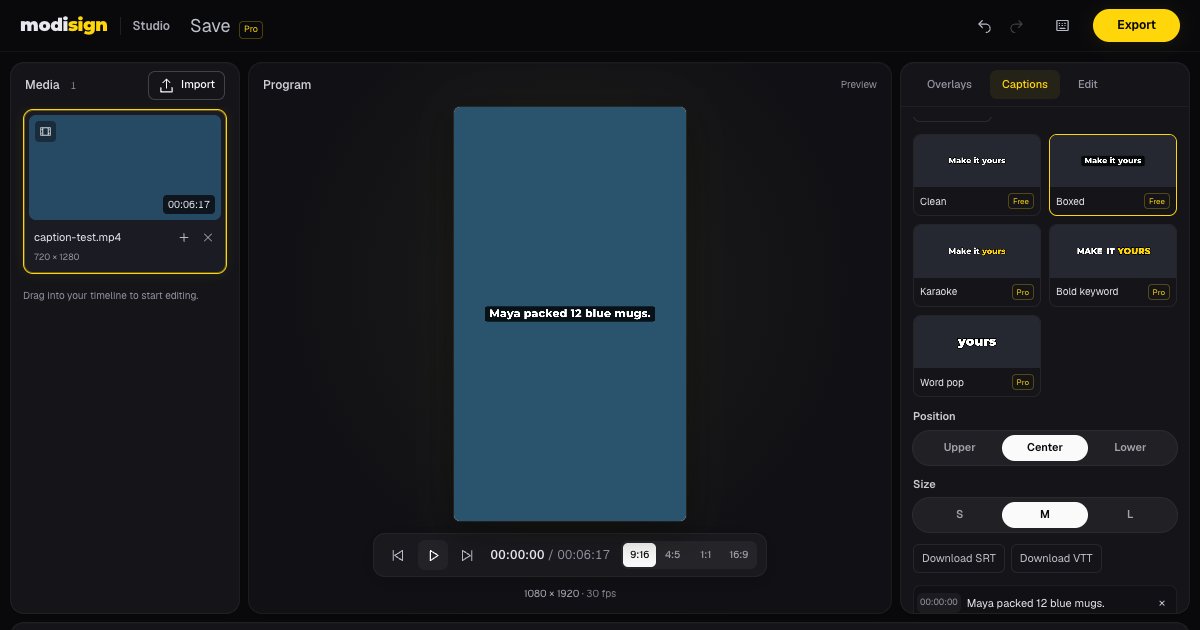
On October 12, 2026, we tested a short synthetic speech clip in desktop Chrome on macOS. The blue picture is test footage. The spoken opening was “Maya packed twelve blue mugs”; the generated text began “Myiopac 12 Blue Mugs.” We corrected the words, downloaded both subtitle formats and exported Boxed captions on a free account.
The resulting MP4 contained 1080×1920 video at 30 fps with audio. A frame check showed the corrected sentence inside its black box. We did not post to Instagram or test noisy recordings. Modisign publishes this guide and sells Pro.
How do you add the captions, step by step?
Open Modisign Studio and continue with Google. Sign-in is free. In the Studio editor, click Import, select your local video and wait for its thumbnail. Click the media item’s plus button to add it to the timeline. Choose 9:16 under Output aspect for a portrait edit, and check the crop.
Open Captions and click Generate captions. On first use, allow the speech model download to finish, then wait for transcription. Generated lines appear in the transcript and on the captions track. Keep the tab open while it works. If there are no lines, check that the source contains audible English speech.
Correct wrong words in the transcript. Click a line’s time to preview that point, listen, then edit its text field. Press Enter or click outside the field to apply the change. In our test, we replaced “Myiopac” with “Maya packed” and kept “Check the” at the end of the same field. Preserve neighboring words when fixing a name; Studio can regroup the lines after an edit. Replay the sentence to check both wording and timing.
Select Clean, Boxed or Minimal. These three export free. Clean uses white lettering with a dark outline; Boxed adds a dark background behind the words; Minimal uses lowercase lettering with a soft shadow. Try them against your actual footage. Studio offers thirteen styles: these three plus Karaoke, Bold keyword, Word pop, Highlight box, Neon, Pop-up, Typewriter, Outline, Editorial and Gradient. The other ten need Pro to export. Their previews and transcript editing remain free.
Choose a position and readable size. Position offers Upper, Center and Lower; Size offers S, M and L. Our example uses Center and M to make the controls easy to see. For your Reel, choose open space that clears the speaker and demonstrated action, then use the Reels, Shorts and TikTok text safe-zone guide to plan the destination check. These positions do not certify clearance from every platform’s interface.
Watch the sequence and Export. Play it with sound to compare captions with speech, then muted to judge readability. Click Export and keep the tab open until the MP4 downloads. Clean, Boxed or Minimal with no Pro overlay configuration is the free route. Open the downloaded file and check it before posting. Also use Download SRT or Download VTT if you need a separate timed-text copy; both downloads are free.
For cutting and ordering footage first, follow the free Reel editing workflow. Captions follow trims, splits and reorders, but replay each cut after editing.
What should you check before posting?
Treat the generated transcript as a first pass. W3C’s accessibility guidance says automatic captions need accuracy review and editing; captions also need to convey meaningful non-speech audio information. This speech-only test does not establish complete accessibility coverage. W3C caption guidance.
| Check | What to look for | What to do |
|---|---|---|
| Names | People, brands and specialist words | Compare with the audio and correct spelling |
| Numbers | Prices, dates, quantities and units | Verify the value, not only whether digits look tidy |
| Meaning | Missing words such as “not” | Replay the whole sentence after correction |
| Line length | Wrapping, smaller lettering or too much to read | Preserve every spoken word; try another size, position or style instead of shortening the transcript |
| Placement | Words covering a face, hands or platform controls | Try another position and inspect the destination preview |
| Export gate | A Pro caption style or overlay configuration | Choose Clean/Boxed/Minimal and remove or reset the Pro overlay |
Three layout suggestions: try Upper when a tutorial’s action fills the lower picture, Lower when it leaves the speaker clear, or Center over an uncluttered shot. Review the longest line and the next shot, rather than judging placement from one short sentence.
Studio also layers motion-graphics elements over your footage. If you add an opening title from the hook-title presets, check it alongside the captions so the two messages do not compete. Keep a free preset unchanged if you want the export to remain free; changing overlay wording requires Pro to export unless the resulting configuration matches a free preset, even when Clean, Boxed or Minimal captions are selected.
Should you use Instagram’s own captions instead?
Instagram’s iPhone help documents automatic closed captions: after selecting a Reel and proceeding through Next, open More options → Enable closed captions. Its computer help directs users to the mobile apps. If you only need captions within Instagram, that native route can spare you a separate export. These are documented instructions, not a phone workflow we tested. Instagram’s closed-caption instructions.
Burned-in captions are words drawn into the video picture and always visible; closed captions can be switched off by the viewer. W3C’s open-caption explanation. Check for overlapping native captions in the destination preview before posting.
For speech beyond English or more caption design controls, CapCut is stronger in scope: its official page documents multiple languages, translation and adjustable fonts, colors, effects and motion. We did not compare recognition accuracy, including on noisy audio. CapCut’s caption options.
Before closing Studio, export and download your subtitle copy. Pro projects save caption style, position and size when captions are present, but never caption text. To try the tested free route, open Studio, generate your transcript and keep Clean or Boxed selected.
Frequently asked questions
Are automatic captions free in Modisign Studio?
English caption generation, transcript editing and SRT/VTT downloads are free after Google sign-in. Clean, Boxed and Minimal captions export free. A Pro overlay configuration can still make the whole video’s export require Pro.
Can Studio caption speech in another language?
Studio currently supports English speech only. It does not offer caption translation. Use a tool with documented support for your spoken language and review its output before posting.
Will captions return when I reopen a saved project?
No. Caption text lives only in tab memory; Pro projects save style, position and size when captions are present and apply them after you generate captions again. Export the video and download SRT or VTT before closing or reloading.
Do captions follow trims, splits and reordered clips?
Yes. Studio projects captions onto the current clip sequence, so they follow trims, splits and order changes. Replay the edited sequence to check the words at each cut before exporting.
Related reading
Sources and test details
- Instagram’s iPhone help documents automatic closed captions from Reel speech and the new-Reel path through More options → Enable closed captions. The computer version says the feature is available on Android and iPhone rather than computers. Opened and read in a desktop browser with the iPhone help selected. — accessed
- CapCut documents caption generation in multiple languages, translation into a target language, and changes to caption font, size, color, effects and motion; supports its broader language and styling options, not an accuracy comparison. — accessed
- W3C explains that open captions are always displayed and cannot be turned off, and that automatic captions need accuracy review and editing; captions include speech and meaningful non-speech audio information. — accessed
Tested in Modisign Studio Local Modisign site, October 2026 on Desktop Chrome on macOS: On October 12, used a temporary local free account to import a 6.6-second synthetic English speech clip, add it to the timeline and generate captions. Corrected the mistaken Myiopac transcription to Maya packed, preserving the following words. Selected Clean and then Boxed, Center position and M size. Downloaded and opened SRT and VTT files containing the corrected text and timed cues. Exported Boxed captions without Pro: the MP4 contained 1080×1920 H.264 video at 30 fps and stereo 48 kHz AAC audio, with a 6.656-second container duration. Inspected a frame at one second showing the corrected caption in its black box. Confirmed that selecting Karaoke triggered the Pro export prompt. Captured the 1200×630 editor screenshot. No Instagram posting, mobile export, noisy-audio comparison or caption persistence test was performed.
Found an error or a changed control? support@modisign.app.