Burned-In vs Closed Captions: Which Should You Use?
By Modisign
- Published
- Updated
- Last tested
Burned-in captions become part of the video picture and stay visible; closed captions are a separate text track the viewer can show or hide. W3C’s caption definitions. Use burned-in captions when a fixed appearance matters; use a supported caption track when viewer visibility and display controls matter. Keep a corrected subtitle file alongside either delivery. Modisign Studio can produce a captioned video and a timed-text file from English speech after free Google sign-in.
What does the exported example show?
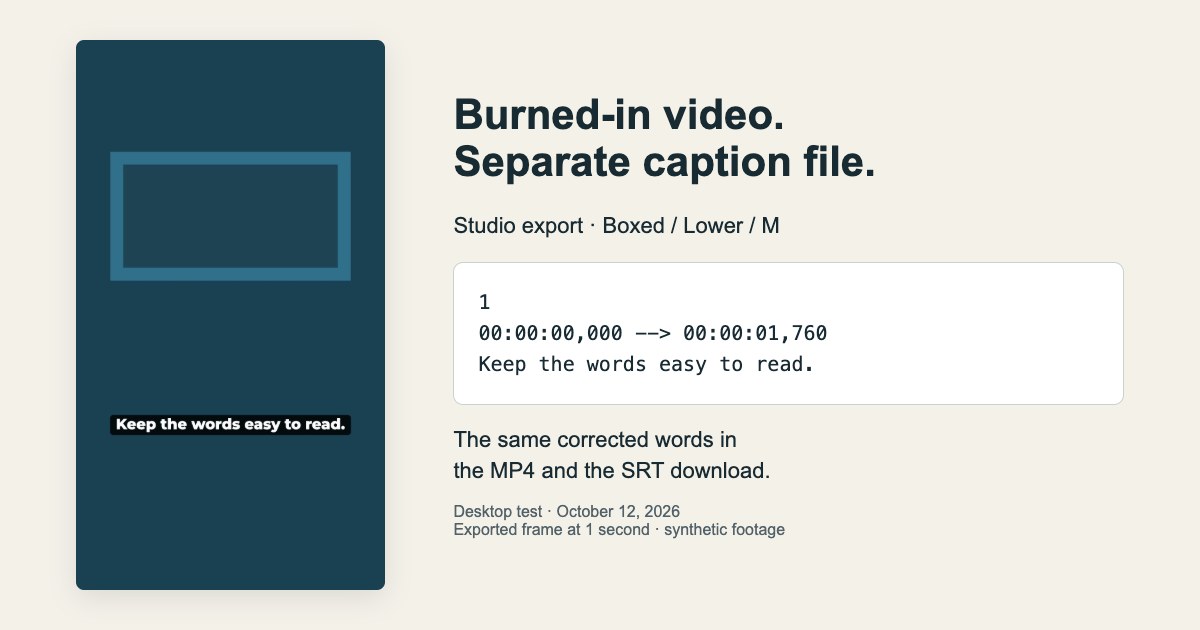
This is a frame from our October 12, 2026 desktop test, paired with its subtitle cue. We imported a six-second synthetic speech clip, generated captions, changed the first sentence’s final comma to a period, and selected Boxed, Lower, M. The free export produced a 1080×1920 MP4 at 30 fps with audio. At one second, the corrected words were visible in the black box; the downloaded SRT and VTT contained the same sentence and timing.
Have your local English-language video, a Google account and a desktop browser ready. This test verifies Studio’s outputs, not an upload to Instagram, TikTok or YouTube. Modisign publishes this article and sells Pro.
What changes when captions are burned in?
Burned-in captions are a form of open captions: the words and their design are fixed in the exported picture. You can choose their appearance before export, but a viewer cannot use a caption switch to remove them. Closed captions retain viewer control; W3C notes that some players also allow display preferences. W3C’s open and closed caption explanation.
| Decision | Burned-in video | Separate caption track |
|---|---|---|
| Keep Studio’s chosen appearance | The tested MP4 includes Boxed lettering and its background | The tested SRT carries text and times, without that design |
| Let viewers hide the words | Permanent in the picture | Available through the receiving player’s caption controls |
| Fix a mistake after export | Correct the transcript and export again | Edit the text file; replace the track where supported |
| Change size while watching | Lettering scales with the video | YouTube documents viewer size and style settings |
YouTube’s CC button turns an available caption track on or off, and its caption options include font size, color and background. Those controls do not erase text already in the video picture. YouTube caption settings.
How do you create captioned and caption-free video versions?
Prepare and correct the English transcript with the free caption workflow. Studio needs free Google sign-in, keeps recognition on your device and supports sequences up to 180 seconds. Pro projects save caption style, position and size when captions are present, but never caption text.
- Finish cuts and download the timed-text file. Choose Download SRT or Download VTT and check words and times against the final sequence. Keep it before removing any captions. Both downloads are free and omit Studio’s visual style.
- Export the captioned version. Select Clean, Boxed or Minimal for free video export when no overlay configuration requires Pro. Studio offers thirteen styles; the other ten need Pro to export. Our tested version used Boxed, Lower and M. Open the MP4 and check the words throughout.
- Remove captions and export a second MP4. Keep the same cuts and duration. We tested this second export too: its duration and media properties matched the captioned video, and the inspected frame had no lettering. This gives you a picture that can display a separate track without permanent duplicate words.
- Attach the saved file where supported. Use the SRT/VTT destination and upload guide for documented YouTube and Facebook routes. Verify synchronization and visibility controls in that player; our test stopped at Studio’s downloads, not platform delivery.
Name the two videos clearly, such as “captioned” and “without-captions,” and retain the matching subtitle file. Removing captions clears them from the edit; a separate file is not an automatic restoration path in Studio.
What should you check on the two deliveries?
Keep the subtitle file paired with the final cuts, rather than choosing it by filename alone. These are suggested delivery checks:
| Version | Check before handing it over |
|---|---|
| Burned-in MP4 | Correct words stay readable through the whole picture; no second caption set overlaps them |
| Caption-free MP4 plus file | The attached track starts and ends with the matching speech; visibility controls work in the receiving player |
A matching file duration alone does not establish cue synchronization. Replay the opening, a middle sentence and the last spoken line in the destination.
How should vertical captions stay readable?
These are layout suggestions, rather than platform limits or a guarantee of accessibility:
- Keep each displayed phrase short enough to read without pausing. Aim for one or two lines. Preserve the spoken meaning; do not delete words to squeeze a sentence into a decorative space. Inspect the longest phrase, not only the first one.
- Judge size at phone viewing width. Start with M, compare L if needed, and watch the moving video. Larger letters help only if the phrase still fits and stays clear of the subject.
- Use contrast that survives the next shot. Boxed adds a dark plate; Clean uses outlined white lettering. Check bright and dark footage. WCAG’s reference thresholds are 4.5:1 for ordinary text and 3:1 for qualifying large text. We did not measure this example’s contrast or certify the video’s accessibility. W3C contrast guidance.
- Place essential words above the platform UI you actually see. Try Lower for a clear talking-head shot, Upper when hands or tools fill the lower frame, or Center over an uncluttered cutaway. None of Studio’s position labels guarantees clearance. Use the Reels, Shorts and TikTok safe-zone guide, then inspect each destination preview with its description and controls present.
If you layer a motion-graphics element over your footage, such as an opening hook-title animation, keep it away from the caption area or show it at a different moment. An unchanged free preset can keep the export free; changing its text requires Pro to export unless the resulting configuration matches a free preset.
Are captions accessible just because the words appear?
Accurate timing and content matter in either format. W3C says captions convey speech and meaningful non-speech audio, and automatic output needs accuracy review. A speech transcript may omit an off-screen sound or speaker identity needed to understand the scene. Check those details before treating the result as complete captions. Our single-speaker test did not assess that coverage. W3C accessibility guidance.
When should you use the platform’s own captions?
Native captions are a valid choice when your edit will stay on one platform. Instagram’s iPhone help documents More options → Enable closed captions for a new Reel. Instagram’s closed-caption controls.
TikTok documents automatic captions for eligible uploaded videos, a video-language setting, and editable creator captions with font and color choices. TikTok accessibility tools. These are documented options; we did not test either phone workflow. If you also burn in text, inspect the preview for two competing sets of words.
For YouTube, a caption-free picture plus a supported subtitle file leaves visibility and display settings to the player. Follow the SRT/VTT file and YouTube upload instructions, documented rather than platform-tested here. Keep the burned-in version when its fixed appearance is the delivery you want; avoid assuming every destination accepts a file.
To create both picture versions, open Studio, keep the checked subtitle download and inspect each exported MP4 before closing the tab.
Frequently asked questions
Does downloading an SRT make my MP4 closed-captioned?
No. Studio downloads two separate outputs: a video with captions drawn into its picture, and a timed text file. The SRT becomes a selectable caption track only when you add it to a player or platform that supports it.
Can YouTube’s CC button hide words burned into the picture?
No. It controls the separate caption track. If you want a YouTube version with no permanent lettering, export a second video with captions removed after downloading the SRT, keeping the same cuts and duration.
Do Studio’s caption styles appear in the SRT?
The tested SRT contained text and timestamps, without the Boxed background or position. YouTube supports basic SRT and does not recognize its styling markup. Choose the burned-in MP4 when you need the Studio design in the picture.
Will my transcript survive reopening a saved project?
Caption text lives only in tab memory; Pro projects save style, position and size when captions are present and apply them after you generate captions again. Download the SRT or VTT and export your video before closing or reloading.
Related reading
Sources and test details
- Open captions are always visible; closed captions can be hidden or shown. Accessible captions convey speech and meaningful non-speech audio. Automatic captions require accuracy review; some players allow display preferences. — accessed
- WCAG 2.2 contrast guidance specifies at least 4.5:1 for ordinary text and images of text, or 3:1 for qualifying large text; these are reference thresholds, not proof of whole-video accessibility. — accessed
- YouTube viewers can turn available closed captions on or off and customize font, color, opacity, size and background through caption settings. Opened in desktop Chrome. — accessed
- YouTube Studio documents Subtitles → select video → add language and subtitles → Upload file → With timing → Continue → choose file → Save. — accessed
- YouTube supports basic plain UTF-8 SubRip (.srt) files and does not recognize their styling markup. — accessed
- Instagram’s iPhone help documents speech-generated closed captions for Reels and the More options → Enable closed captions toggle. Opened and read in desktop Chrome. — accessed
- TikTok help documents automatic captions for eligible uploaded videos with a chosen video language, editing/deleting automatic captions, and creator captions whose lines, font and color can be edited. Opened in desktop Chrome; the site served its Russian localization. — accessed
Tested in Modisign Studio Local Modisign site, October 2026 on Desktop Chrome on macOS: On October 12, imported a 6.06-second synthetic English speech video using a temporary local free account and generated three caption lines. Corrected the first line’s punctuation, selected Boxed, Lower and M, downloaded and opened SRT and VTT, and exported the MP4 without Pro. Verified 1080×1920 H.264 video at 30 fps, stereo 48 kHz AAC audio and a 6.123-second container duration. Inspected the frame at one second and confirmed the corrected words in both subtitle files. Exported a second MP4 after removing captions, confirmed identical duration and media properties, and inspected a frame without lettering. Captured a 1200×630 screenshot pairing the captioned export frame with its SRT cue. No platform upload, mobile workflow, noisy-audio comparison or trim/split/reorder test was performed.
Found an error or a changed control? support@modisign.app.