SRT vs VTT: Which Caption File Should You Download?
By Modisign
- Published
- Updated
- Last tested
Choose SRT for a basic YouTube subtitle upload or a destination that requests SubRip; choose VTT when a web player requests WebVTT. YouTube formats, WebVTT’s purpose. For the same selected caption style, Studio’s SRT and VTT downloads contain matching text and cue times; Word pop changes cue grouping. Neither file keeps the visible style. You can get both free after Google sign-in; Studio currently recognizes English only.
What did we download from Studio?
Our October 12, 2026 test used desktop Chrome on macOS, a free local account and a six-second clip with computer-generated English speech. The plain blue picture is test footage. We corrected punctuation, downloaded both formats, checked a split and exported Boxed captions. The MP4 had 1080×1920 video at 30 fps with audio; a frame check showed the first sentence in its black box. We did not upload to a social platform. Modisign publishes this guide and sells Pro.
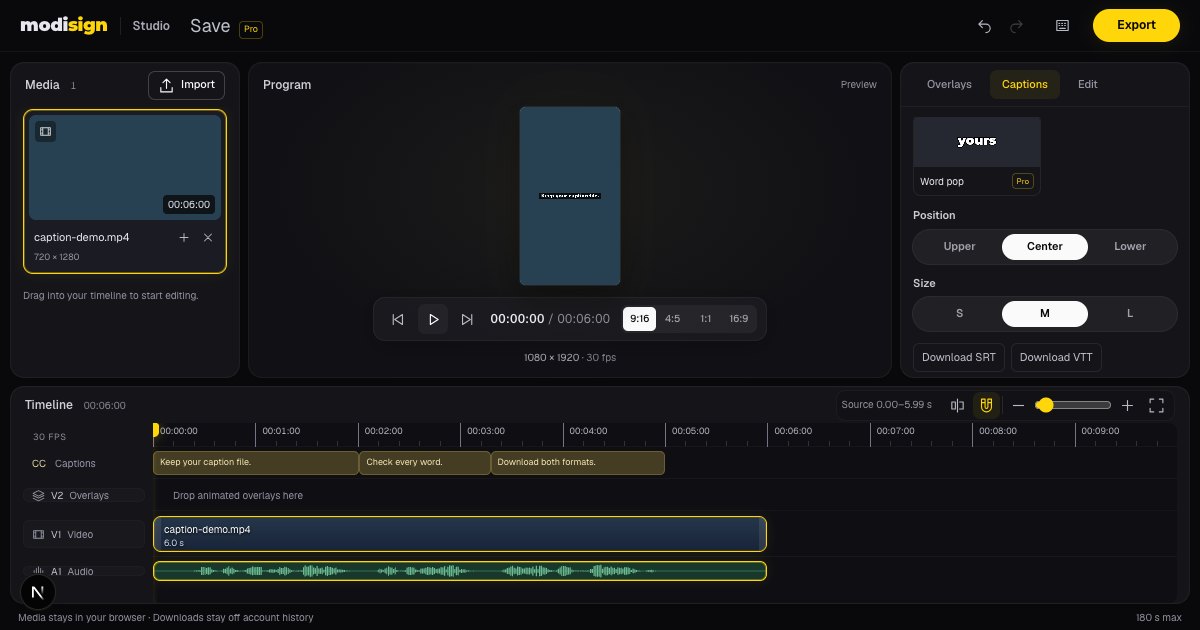
For the same workflow, have your local English-speaking video, a desktop browser and a Google account ready. Modisign Studio requires free Google sign-in. Its captions sit over your footage; you can also layer motion-graphics elements over it.
What are SRT and VTT files?
SRT, or SubRip, is a plain-text subtitle file containing numbered cues. A cue is one piece of text with a start and end time. YouTube recommends it as a basic caption format and requires plain UTF-8 text, without supported style markup. YouTube’s SRT guidance.
This is the three-cue excerpt from our Studio SRT download after punctuation edits:
1
00:00:00,000 --> 00:00:02,016
Keep your caption file.

2
00:00:02,016 --> 00:00:03,296
Check every word.

3
00:00:03,296 --> 00:00:05,000
Download both formats.
VTT, or WebVTT, is a timed-text format designed for web video text tracks. It starts with WEBVTT and uses a period before milliseconds. Cue identifiers are optional, although Studio includes numbers. The format can carry positioning and styling information; that does not mean every exporter includes it or every destination uses it. W3C’s WebVTT draft.
Here are the same three cues from our VTT download:
WEBVTT

1
00:00:00.000 --> 00:00:02.016
Keep your caption file.

2
00:00:02.016 --> 00:00:03.296
Check every word.

3
00:00:03.296 --> 00:00:05.000
Download both formats.
The wording and times match. Neither download contains the black Boxed background seen in the video export. Our first cue starts during the opening silence, so check synchronization as well as spelling.
| Difference | SRT | VTT |
|---|---|---|
| Opening | First cue number | WEBVTT, then a blank line |
| Milliseconds | Comma: 00:00:02,016 |
Period: 00:00:02.016 |
| Cue labels | Sequential numbers | Optional identifiers; Studio uses numbers |
| Web presentation | Basic text in this workflow | Format supports cue placement and styling |
| Studio’s download | Text and times | Text and times, without Studio styling |
The syntax and presentation distinctions follow Facebook’s SRT formatting guidance and the WebVTT specification; the last row comes from our downloads. Choosing VTT does not improve transcription accuracy.
Which platforms accept caption files?
These are official documented routes checked on October 12, 2026, rather than uploads we performed.
| Destination | What the documentation supports | What to use |
|---|---|---|
| YouTube, including Shorts | SRT and VTT uploads through YouTube Studio’s subtitle-file workflow | Either Studio download; SRT is the basic choice. Formats, upload captions |
| SRT uploads for videos; current Reel help also explicitly discusses uploaded SRT files | SRT with Facebook’s naming and formatting. VTT support is not established by these pages. Video uploads, Reel captions | |
| TikTok | Auto captions and editable creator captions generated inside the app; no SRT/VTT import step in this help | Native captions or a video with captions already burned in. TikTok accessibility tools |
| Instagram Reels | Automatic closed captions generated from speech, enabled through More options; no SRT/VTT import step in this help | Native closed captions or a captioned video. Instagram Reel captions |
For a YouTube Short, use desktop YouTube Studio: Shorts use its Upload videos flow. Then select the video under Subtitles, add English if needed, choose Add → Upload file → With timing, select your file and save. This applies YouTube’s documented subtitle route to your Short; it is not a separate file attachment in a mobile post description. Shorts upload instructions, subtitle instructions.
For Facebook, rename the download using its required pattern, such as caption-demo.en_US.srt for US English. Language letters are lower-case and country letters upper-case. Its computer help documents Edit post → Edit → Add captions → Upload, then Save. If an SRT is rejected, check UTF-8, cue numbering, comma timestamps and trailing blank lines against the current help. File naming, upload steps, formatting checks.
TikTok’s native creator captions offer line edits, font and color controls; Instagram’s native route creates closed captions from Reel speech. Use these when you prefer to finish in the destination app. The cited help does not establish SRT/VTT import in every publishing tool or account. TikTok, Instagram.
Which file does your destination accept?
Ask for the receiving platform or player’s supported format before downloading. Use SRT when its upload field requests SubRip, or VTT for a web text track that requests WebVTT. WebVTT is designed for external tracks through HTML’s track element. WebVTT’s intended use.
A subtitle file becomes a selectable track only when the destination supports and attaches it; it does not put words into the picture by itself. Closed captions can be shown or hidden, whereas burned-in text is always visible. W3C caption guidance. The related burned-in versus closed-caption guide covers that delivery decision.
How do you get both formats from Studio?
Generate and correct English captions with the free caption tutorial, then make the download-specific checks below. Google sign-in, transcript edits and both file downloads are free.
- Finish the sequence and choose cue grouping. Captions follow trims, splits and reorders. In our split check, “Check every word.” became two cues across the cut. Choose Clean or Boxed for the phrase-based example here; Word pop groups individual words. Download only after final cuts so times match the delivered video.
- Click Download SRT and Download VTT. Open both as plain text. Check matching words and times, sequential SRT cue numbers, the VTT header, timestamp separators and the first and last cue against the video. Visual font, position, size and motion do not travel in either Studio file.
- Keep the files with their matching video version. Pro projects save caption style, position and size when captions are present, but never caption text. Download before closing or reloading; keeping a file preserves timed text, not automatic Studio restoration. If you also need a captioned picture, export Clean, Boxed or Minimal when no overlay configuration requires Pro.
Before uploading, check corrections against the speech, including names, numbers and missing words. Automatic captions need accuracy editing and meaningful non-speech audio where relevant. W3C caption advice. Our synthetic single-speaker clip did not assess that wider coverage. For recognition and model-cache details, see captions without uploading video.
If the same edit includes an opening hook-title overlay, its appearance remains in the video and is separate from the subtitle file. Keep a free overlay configuration unchanged for free video export.
Download both caption files in Studio before closing the tab, then keep the version that matches your destination.
Frequently asked questions
Can I turn an SRT into a VTT by renaming it?
No. Renaming changes the filename, not the contents. VTT needs the WEBVTT header and dot-separated milliseconds. Studio downloads both formats directly, so use the matching button instead.
Does VTT preserve Studio’s Karaoke or Word pop animation?
No. Studio’s subtitle downloads contain cue text and times, without its font, placement or animated effects. Export the video to keep the visible style. Word pop also changes how Studio groups the downloaded cues.
Will downloading VTT make recognition more accurate?
No. Both downloads use the same corrected transcript. The format does not rerun recognition or fix a wrong name, missing word or inaccurate timing. Listen and edit before downloading.
Can I close Studio and reopen the captions later?
Pro projects save caption style, position and size when captions are present, but never caption text. Download your subtitle files and export the video before closing or reloading the tab. Keeping an SRT or VTT gives you a separate text copy, not automatic restoration in Studio.
Related reading
Sources and test details
- YouTube accepts basic UTF-8 SubRip (.srt) without style markup and WebVTT (.vtt) with positioning and limited bold, italic and underline styling. — accessed
- YouTube Studio provides Subtitles → select video → Add language → Add → Upload file, with With timing for timed caption files and Save. — accessed
- Shorts can be uploaded through the computer YouTube Studio Upload videos flow; the article applies the documented subtitle-file workflow to the selected Short, without claiming a tested platform upload. — accessed
- WebVTT’s draft defines UTF-8 timed text, the WEBVTT header, dot timestamps, optional cue identifiers, cue positioning/styling and HTML track use. — accessed
- Closed captions can be hidden or shown; open captions are always visible. Automatic captions require accuracy editing, and captions include meaningful non-speech audio. — accessed
- Opened in a desktop browser, redirecting to TikTok’s current accessibility help. Documents app-generated auto captions, video-language selection, and editable creator captions with font and color controls. The documented workflow includes no SRT/VTT file-import step; this does not prove absence in every TikTok tool. — accessed
- Opened and read in a desktop browser with iPhone help selected: Instagram Reel speech generates automatic closed captions, enabled in More options. This page documents no SRT/VTT import step. — accessed
- Opened and read in a desktop browser: Facebook documents SubRip upload for profile videos and links to Page-video captions; its computer instructions use Edit post → Edit → Add captions → Upload → Save. — accessed
- Opened and read in a desktop browser: Facebook’s current Reel-caption help explicitly discusses SRT uploads, sequential cue numbers, hh:mm:ss,fff timestamps, UTF-8 and no trailing spaces or lines after the final block. It states that all Facebook videos are now shared as Reels. — accessed
- Opened and read in a desktop browser: Facebook requires filename.[language code]_[country code].srt, with lower-case language and upper-case country; filename.en_US.srt is its US English example. — accessed
Tested in Modisign Studio Local Modisign site, October 2026 on Desktop Chrome on macOS: On October 12, imported a six-second synthetic English speech clip using a temporary local free account. Generated captions, corrected punctuation while preserving spoken words, selected Boxed and checked position and size controls. Downloaded and opened SRT and VTT; verified matching three-cue text and times, the SRT comma timestamps and the VTT header and dot timestamps. Split the clip at 2.8 seconds, downloaded the changed cues and undid the split. Exported Boxed captions without Pro. Verified 1080×1920 H.264 at 30 fps, stereo 48 kHz AAC and a 6.059-second container duration; inspected a one-second frame showing the first sentence in a black box. Captured the 1200×630 editor screenshot. No platform upload, phone export, noisy-audio comparison or saved-caption restoration was tested.
Found an error or a changed control? support@modisign.app.