How to Generate Auto Captions Without Uploading Video
By Modisign
- Published
- Updated
- Last tested
You can generate auto captions without uploading video in Modisign Studio: sign in with Google for free, add your local clip and choose Generate captions. The browser downloads a small English speech model, then processes the audio on your device and displays editable text over your footage. English is the only supported language, and the first run needs an approximately 43 MB model download.
What did we test?
Have an English-speaking video, a Google account and a desktop browser ready. Use a short clip first to check recognition and playback on your device.
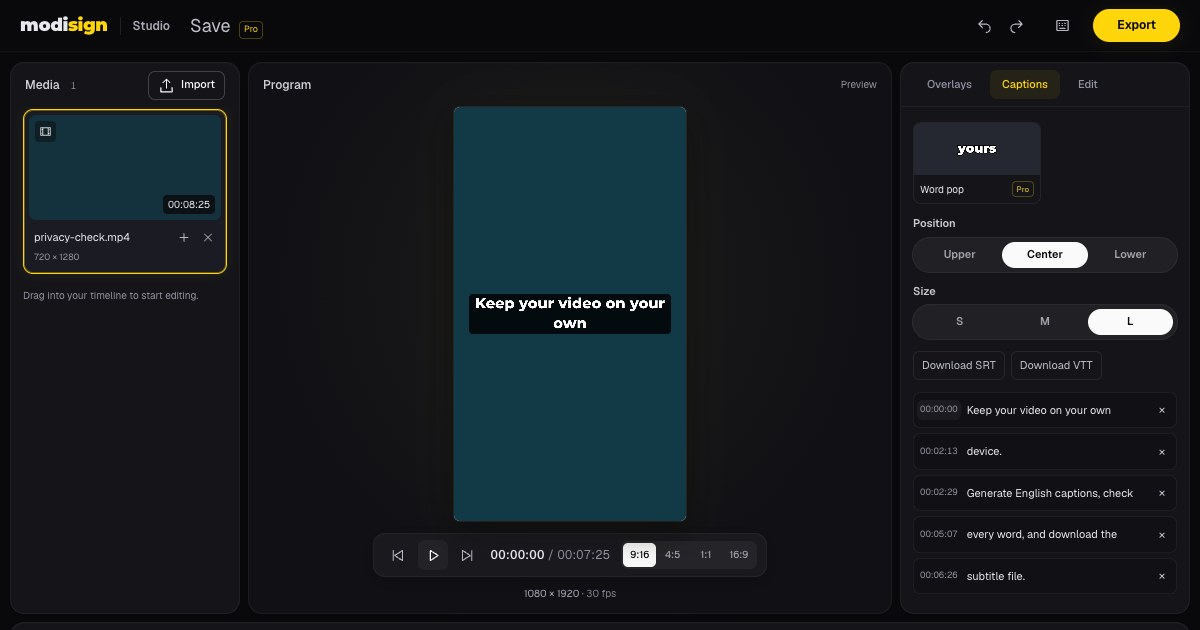
Our October 12, 2026 check used desktop Chrome on macOS and an 8.8-second clip with computer-generated English speech. The plain teal picture is test footage. We corrected punctuation, selected Boxed, Center and L, trimmed the end, checked a split and downloaded SRT and VTT files. The trimmed MP4 contained 1080×1920 H.264 video, AAC audio and visible captions; its container lasted about 7.9 seconds.
We also compared generation with an empty model cache and after reloading the same browser profile. The first run downloaded model files; the repeat made no requests to the model host. No video, audio or caption-text upload was observed. Global Privacy Control was enabled during the check, which also disabled Modisign's anonymous usage events. The first cue began during the opening silence, so check timing as well as words. We did not test noisy recordings or phones. Modisign publishes this guide and sells Pro.
How does on-device caption generation work?
A speech model is the software that turns spoken audio into text. In Studio, that software comes down to your browser from Hugging Face. Your selected video's audio stays on your device while the model processes it in the browser tab. The resulting transcript stays there too.
The model is cached in the browser for reuse. That is the exception to Studio's usual tab-memory storage: the cached item is the speech model, not your recording or transcript. Pro projects save caption style, position and size when captions are present, but never caption text. Download SRT or VTT and export the captioned video before closing or reloading. The subtitle file preserves timed text, not Studio’s caption settings or automatic restoration.
Local recognition does not mean the entire website makes no network requests. The interface needs loading, Google sign-in involves a server, and the first caption run fetches the model. For the broader editing workflow, read how to edit video online without uploading footage.
How do you verify local generation and keep the result?
Use the free caption workflow to import an English clip, generate and correct its transcript. Start with a short passage whose words you know. In our test, changing “device, generate English” to “device. Generate English” regrouped the following lines; a correct sentence still needs a timing check. W3C says automatic captions need accuracy review before they meet user needs. W3C caption guidance.
For privacy verification, leave Network open through import, generation, correction and download. Compare a first generation with a repeat using the cached model, as described below. Check request payloads as well as hostnames: a successful local preview alone does not show whether a recording was sent elsewhere.
Finish your cuts before downloading SRT/VTT so cue times match the sequence. Export Clean, Boxed or Minimal for free when no overlay configuration requires Pro. Keep both the checked timed-text file and captioned MP4; neither automatically restores the transcript and settings in Studio after the tab closes.
How can you check the network activity yourself?
Chrome's Network panel records requests while it is open. Open DevTools with Command+Option+J on macOS or Control+Shift+J on Windows, then select Network. Chrome documents the request log and the Domain column in its network-inspection instructions.
- Let Studio finish loading, then clear the request log. Keep Network recording and select All so you can see more than Fetch/XHR requests. Right-click the column headings to show Domain.
- Generate captions with no cached model. Look for downloads from huggingface.co and its delivery host. Inspect their URLs and request details: they are model files coming into the browser. In our fresh-cache run, these were downloads with no recording attached.
- Repeat with the cache intact. Download your work first, reload Studio, import the clip again and generate captions. Reloading clears the transcript, allowing a real second generation. Our repeat made no requests to Hugging Face. Studio may still load interface assets or send an anonymous generation-status event; none contains video, audio or caption text.
A blob: address refers to the local file in this workflow, rather than a server upload. Do not conclude that every request is an upload, or that filtering only for Hugging Face checks every destination. Inspect the full log and any request payloads.
What are the trade-offs?
| Need or problem | What to expect | What to do |
|---|---|---|
| Speech in another language | Studio supports English only | Choose a tool with that language documented |
| Names, unclear speech or background noise | This is a small speech model; our clear synthetic clip does not establish accuracy on those recordings | Listen through and correct every line; test representative audio before choosing the tool |
| First-run wait | Approximately 43 MB must download before recognition can run | Allow the download to finish; later runs reuse it while cached |
| Slow generation | Recognition uses your device's resources | Start with a short clip; we did not compare speed across devices or tools |
| Returning to a saved project | Pro saves caption style, position and size when captions are present, but never caption text | Keep downloaded subtitle files and the captioned MP4 |
Clipchamp is stronger when you need languages beyond English: Microsoft documents a language selector and multilingual support, plus editable transcripts and SRT downloads. Its autocaptions use Azure to process the video's audio, so local video editing there does not imply local caption recognition. Those are documented differences, not a head-to-head accuracy test. Microsoft's autocaption instructions.
How do you remove the cached speech model?
In Captions, find Speech model stored and select Remove beside it. Our check confirmed that the model cache was removed. The next generation will need to download it again.
Remove captions is a separate control for clearing captions from the edit. Removing the cached model does not erase captions already generated in the open tab. Finish and download your work before leaving.
What should you retain from a local-caption session?
Keep the original recording, final MP4 and checked subtitle file together. That gives you the source audio for later corrections, a playable captioned result and timed text for a supported destination. A cached speech model is reusable software, not a backup of those outputs. For layout and correction controls, return to the free caption tutorial.
If you also need motion graphics over your footage, hook-title overlays supply a separate opening message. The hook-writing guide covers that task; it does not replace the spoken transcript.
Try caption generation in Studio with a short English clip, then keep both the checked subtitle file and your finished video.
Frequently asked questions
Can Studio generate captions in another language?
No. Studio currently supports English only. Choose a tool that documents your spoken language; this article does not establish accuracy for other languages or noisy recordings.
Does caption generation work without any internet connection?
The first run needs an approximately 43 MB model download. Our repeat generation reused the cached model without requesting it again, but Studio still needs its interface and sign-in. We did not test launching or using the whole editor offline.
Does deleting the model also delete my captions?
No. Remove beside Speech model stored deletes the cached recognition software. Remove captions clears the captions in your edit. Pro projects save caption style, position and size when captions are present, but never caption text.
Do I need Pro to download the transcript?
No. Google sign-in, caption generation, text editing and SRT/VTT downloads are free. Clean, Boxed and Minimal video exports are free unless another part of the edit requires Pro. Studio offers thirteen styles; the other ten need Pro for video export.
Related reading
Sources and test details
- Chrome DevTools opens with Command+Option+J on macOS or Control+Shift+J on Windows; selecting Network records requests while the panel is open, and the request-table header can show Domain. — accessed
- Automatically generated captions require accuracy checks and usually editing before they meet user needs or accessibility requirements. — accessed
- Clipchamp autocaptions support multiple selectable languages, one language per video, editable transcripts and SRT downloads; Azure Cognitive Services processes the video audio to generate captions. — accessed
Tested in Modisign Studio Local Modisign site, October 2026 on Desktop Chrome on macOS: On October 12, used a temporary local free account to import an 8.8-second computer-generated English speech clip and generate captions. Corrected punctuation, selected Boxed, Center and L, downloaded and opened SRT and VTT files, trimmed the end by one second, checked a split and undid it, and exported an MP4. Verified 1080×1920 H.264 video, stereo 48 kHz AAC audio, approximately 7.9-second container duration and visible Boxed captions in an exported frame. With Global Privacy Control enabled, the DevTools Network panel showed model-file downloads from Hugging Face and its delivery host on a fresh-cache run, no model-host requests after reloading and generating again with the cache intact, and no media or caption-text uploads. Confirmed cached-model removal and the Karaoke Pro export gate. Captured the article screenshot at 1200×630. No phone, noisy-audio accuracy comparison, competitor export or project-caption persistence test.
Found an error or a changed control? support@modisign.app.