How to Edit an Instagram Reel Online for Free
By Modisign
- Published
- Updated
- Last tested
You can edit an Instagram Reel online for free in Modisign Studio: sign in with Google, import your clips, cut them into a sequence, add free animated overlays and export a vertical MP4 without a watermark. Nothing needs installing, and your footage stays in the browser rather than being uploaded. The finished timeline can be up to 180 seconds. Free export depends on the overlay configurations and caption style; Pro configurations, expressive caption styles and saved projects require a paid plan.
What do you need for the hook-and-subscribe example?
Have your local clips, a Google account and a desktop browser ready. An overlay is a visual layer above your footage, such as an animated opening title or follow reminder.
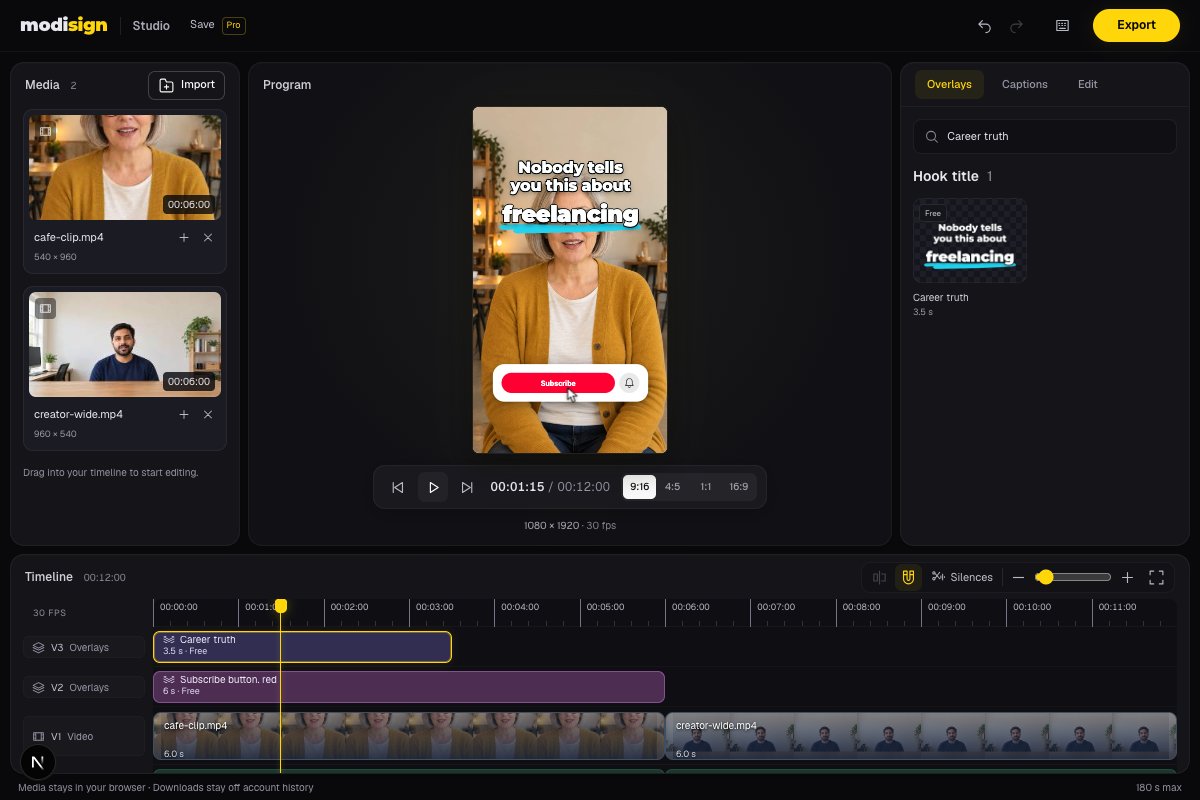
The screenshot shows two local sample clips made from AI-generated fictional creator illustrations, with the free Career truth hook and Subscribe button, red reminder. The tested exports are recorded in Sources and test details. Instagram upload and phone export were not tested. Modisign publishes this guide and sells Pro.
How do you make the Reel, step by step?
Open Modisign Studio and choose Start editing free. Continue with Google to reach the Studio editor. Sign-in is free; you do not need Pro for this workflow.
Import your clips. Click Import or drop local files into Media. Wait for thumbnails and durations, then click each clip’s plus button to add it to the timeline. You can also drag clips onto the video track. Import reads the files locally; it does not upload their contents.
Put the shots in order. Drag a timeline clip before or after another clip. Start with the shot that introduces your subject, then arrange the explanation and result. Press Play to check that the order makes sense with sound.
Trim pauses and split unwanted sections. Pull a clip’s left or right edge inward to shorten it. To cut inside a clip, select it, move the playhead to the cut and click Split or press S. Select an unwanted piece and press Delete; ripple editing moves later video clips together to close the gap. Use Undo if the cut removes too much. Our test checked trimming, splitting and restoration before export. For pause removal, open Silences, review the striped ranges and keep any pause you need before applying removal. Select a clip in Edit to adjust volume, mute and audio fades.
Add an opening hook that fits your footage. Move the playhead to the beginning, find the Hook title family row in Overlays and add a preset with a Free badge. Its animation appears above your video without a green background to remove. Browse the hook-title presets for wording that matches your subject. Our test used the unchanged free Career truth configuration, which mentions freelancing. Choose it only if that premise fits. Select an overlay and open Edit to change its text, look, colors and supported layout controls. Editing is free; exporting a configuration that no longer matches a free preset requires Pro. The tier in Edit describes the configuration now, while the library badge describes the original preset.
Place a subscribe or follow reminder after the useful part. Move the playhead to that point, find the Subscribe button or Follow button family row, and click a suitable free preset’s plus button. Drag the overlay along its track to adjust when it begins. We placed Subscribe button, red at four seconds, leaving room for its six-second animation. For an Instagram Reel, a follow reminder is usually clearer wording; check any handle or tagline before choosing it. These are visual reminders, not clickable Instagram controls.
Choose framing and captions, preview, then Export. Select 9:16 under Output aspect for a portrait Reel. Studio also offers 4:5, 1:1 and 16:9. Select each clip and use Fill with zoom/pan, or Fit to retain the full picture over a blurred backdrop. Check faces and important details in every shot. Instagram accepts ratios between 1.91:1 and 9:16, with at least 30 fps and 720-pixel resolution. Instagram’s size guidance. For English speech, open Captions → Generate captions, listen and correct the transcript, then choose Clean, Boxed or Minimal. The first run downloads a speech model; Pro projects save caption style, position and size when captions are present, but never caption text, so download SRT/VTT too. Play the whole sequence, click Export and keep the tab open until the H.264/AAC MP4 downloads. Export is free without a watermark when every overlay configuration matches a free preset and any captions use Clean, Boxed or Minimal.
Upload the downloaded MP4 to Instagram. On Instagram’s desktop site, its Help page says to choose Create → Post → Select from computer. Select your MP4, click Next, choose the cover and review trimming, then Next again to add a caption and settings. Check the final preview before Share. These are documented upload steps, not an upload we performed. Instagram’s desktop Reel instructions.
Studio’s 180-second cap is an editor limit. Instagram Help currently documents Reels up to 20 minutes, checked October 10, 2026. Instagram’s length guidance.
What should you fix before exporting?
| Problem | Check | Fix |
|---|---|---|
| A face is cut off | Each clip’s framing in the selected aspect | Adjust Fill pan/zoom or choose Fit |
| An animation stops early | Its full duration extends beyond the timeline | Move it earlier or leave more footage after it |
| Export opens the Pro prompt | The overlay’s current tier in Edit and selected caption style | Reset or replace Pro configurations; choose Clean, Boxed or Minimal |
| The title says the wrong thing | Current wording, handle and tagline | Edit the overlay; reset to a matching free preset for free export |
These are timing suggestions: show the hook with the opening shot, clear it before detailed action needs the space, and place the reminder after the payoff. Check the text safe-zone guide against Instagram’s final preview.
When is Studio the right choice?
Choose Studio for a short edit with local footage and built-in animated overlays for Reels, Shorts or TikTok. CapCut’s web editor also needs no installation and offers native text, automatic captions and effects. Its documented browser workflow uploads media into a signed-in workspace. CapCut offers broader caption languages and design controls. Studio generates English captions on your device, lets you correct them, and exports Clean, Boxed or Minimal captions free when no overlay configuration needs Pro. CapCut’s online workflow, caption languages and styling.
Studio keeps footage local and combines it with ready-made motion. For a free export without a watermark, every overlay must match a free preset and captions must use Clean/Boxed/Minimal or be absent. Exporting Pro overlay configurations or expressive captions and saving project structure require Pro at $9/month plus applicable tax, verified on the pricing page in our October 10 check. For the free route, check the current overlay tier in Edit and choose Clean/Boxed/Minimal captions and start your Reel in Studio.
Frequently asked questions
Can I use Studio without signing in?
Studio requires Google sign-in, which is free. Standalone unchanged free overlay downloads have a separate no-sign-up route; that does not remove the Studio editor’s sign-in requirement.
Can I change a free hook to my own words?
Select an overlay and open Edit to change its text, look, colors and supported layout controls. Editing is free; exporting a configuration that no longer matches a free preset requires Pro. The library badge describes the original preset; check the current tier in Edit.
Why is my export asking for Pro?
Check every overlay’s current tier in Edit and the selected caption style. Export is free without a watermark when every overlay configuration matches a free preset and any captions use Clean, Boxed or Minimal. Reset or replace Pro configurations and choose Clean, Boxed or Minimal. Both plans have the 180-second limit; saving projects requires Pro.
Will my edit remain when I close the tab?
Free edits and footage live only in tab memory. Export before reloading or closing. Pro projects save the timeline structure and settings, never your media or speech-caption text; keep the originals and relink them when reopening. Studio exports do not appear in account download history.
Related reading
Sources and test details
- Instagram Help, Computer Help: Create → Post → Select from computer, Next, cover/trim, Next, caption/settings and Share. The same page documents Reels up to 20 minutes. Opened and read in a desktop browser. — accessed
- Instagram Help accepts Reel aspect ratios between 1.91:1 and 9:16 and specifies at least 30 fps and 720-pixel resolution. Opened and read in a desktop browser. — accessed
- CapCut documents browser editing without a separate installation, a web workflow that uploads media to a signed-in workspace, and text overlays, auto-generated subtitles and effects. — accessed
- CapCut documents multiple caption languages, translation and editable caption font, color, effects and motion; no receiving-editor or accuracy test was performed. — accessed
Tested in Modisign Studio Local Modisign site, October 2026 on Desktop Chrome on macOS: On October 10, confirmed the anonymous Google sign-in gate and $9/month plus tax pricing. Using a temporary local free account, imported two six-second clips with audio, reordered and undid, split and undid, trimmed the first clip to four seconds, and checked undo/redo. Previewed and exported a 9:16 sequence with free Career truth and Subscribe button, red overlays. The MP4 contained 1080×1920 H.264 video at 30 fps, 300 frames and a ten-second video track, plus stereo 48 kHz AAC; container duration was 10.069 seconds including the audio tail. Inspected exported frames showing the hook, subscribe animation and centre-cropped second clip. No write requests were observed during editing/export with Global Privacy Control enabled. Confirmed the Pro overlay export gate, counted 166 listed catalog presets and checked Newest dates. Captured the 1200×630 editor screenshot. No Instagram upload, phone export, full three-minute export or competitor export was tested.
Tested in Modisign Studio Local Modisign site, October 2026 on Desktop Chrome on macOS: October 14: Imported two six-second local clips with audio, chose 9:16 and previewed the free Career truth hook and Subscribe button, red reminder. Downloaded a free 1080×1920 H.264/AAC MP4 at 30 fps, 360 frames and 12 seconds. Also tested photo Fill/Fit and Slow zoom, Crossfade and Dip to black, silence review with one-step undo, 720p output and temporary punch-ins. Free portrait export offers 1080×1920 or 720×1280. No competitor export, phone export, platform upload or full 180-second project was tested. The screenshot uses AI-generated fictional creators in still-based clips, not recorded footage. Look changes palette colors; Layout changes structure. Corrected the Career truth link to preserve its saved text styling.
Found an error or a changed control? support@modisign.app.