How to Add Subscribe or Follow Overlays
By Modisign
- Published
- Updated
- Last tested
Add the animation as an overlay, a separate layer above your own footage, then remove its green background with chroma key, which removes the selected color. Position and time the reminder so its words remain readable without covering the action. An unchanged free Modisign preset supplies the animation; it is a visual prompt, not a clickable subscription or follow control. CapCut’s layering guide, chroma-key explanation.
What do you need for the six-second subscribe reminder?
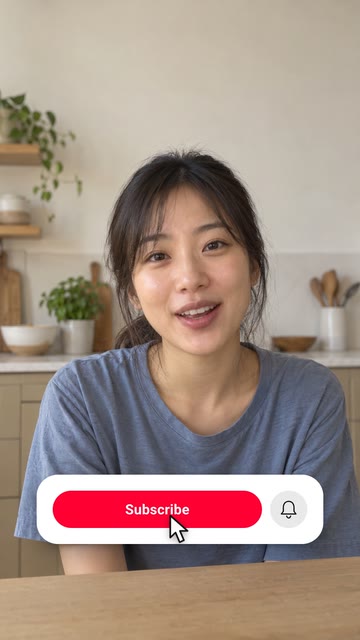
Illustration of the free Subscribe button, red preset over sample footage. The illustrative creator footage is not included in the download; this is not a receiving-editor or platform test.
Only the overlay file was exported; we did not test CapCut import or keying, transparent WebM, or posting in YouTube, TikTok or Instagram. The software instructions below follow the official pages listed below.
Have your footage, an editor with layers and chroma key, and room in the edit for the full animation. You do not need a green backdrop behind yourself.
How do you add the reminder over your footage?
Choose one action and decide whether you need a file. For plain wording, according to CapCut, use Text → Add text. According to YouTube, Shorts Text can carry calls to action, with Timeline controlling a text clip’s start and stop. Native text is a valid alternative when you want your own message without importing an animation. CapCut text instructions, YouTube editing tips.
Choose an animation whose existing wording fits. Browse subscribe-button animations, choose a Free badge, or open the exact tested free red Subscribe configuration. Free elements download as they are as green-screen H.264 MP4, without sign-up or watermark. Background and Format remain selectable; leave Green screen selected for this workflow and choose the format matching your project. Changing the text, look, colors or layout requires Pro for download.
Layer and key the downloaded graphic. Follow the documentation-based CapCut overlay import and green-removal workflow. Chroma key removes the sampled green background from the animation layer above your footage. Keep the two clips overlapping for the whole animation; skip this asset step if you chose native text. These receiving-editor steps were not tested here.
Move the complete card and preserve its animation. According to CapCut, drag and pinch an overlay on mobile; desktop uses corner points for resizing. Positioning instructions. My suggestion is to leave room for the cursor and bell too. The tested file lasts six seconds: place that interval over suitable footage, then watch entrance through exit instead of trimming solely around the word Subscribe.
Save and inspect the combined video. According to CapCut, Export saves the edited result. Export instructions. Replay your saved file at phone size. Check that green is gone, words are readable, subtitles remain clear and the reminder disappears cleanly. Then inspect your intended destination’s preview before posting; the render test does not establish platform clearance.
What should you check if the reminder looks wrong?
These are suggested checks, not receiving-editor test results. CapCut’s documentation supports color re-sampling and balancing removal controls for green edges. Keying troubleshooting.
| Problem | Check | Suggested fix |
|---|---|---|
| Green still fills the frame | Selected clip and sampled color | Key the animation layer and sample a clean green patch. |
| A green fringe or damaged edge remains | Button, cursor and bell during motion | Re-sample green and balance the removal controls. |
| The reminder covers a face or subtitles | Full interval, including the next shot | Move the complete layer or choose another moment. |
| The animation ends abruptly | Footage underneath and the graphic’s exit | Allow its full six seconds, or use shorter native text. |
| The download shows someone else’s identity | Handle or channel name before exporting | Choose a nameless asset, use native text, or customize honestly. |
Should it say Subscribe or Follow, and can it be clicked?
Match the action you want the viewer to take. YouTube calls its channel action Subscribe. Meta describes following on Instagram, and TikTok also uses that vocabulary. YouTube subscription help, Meta’s following guidance, TikTok’s official vocabulary. The TikTok explainer is older; it supports the term, not a current menu location.
My wording suggestions are “Subscribe for more repairs” for a channel tutorial and “Follow for more recipes” for an Instagram or TikTok version. Promise only what you plan to publish. Browse follow-button animations when that wording fits; inspect any sample handle before using a preset.
The rendered button cannot be clicked. Its cursor and changed label are animation, not a viewer action. Modisign does not connect the graphic to a subscription, account follow, link or DM.
If you want viewers to reach an existing next episode, that needs separate navigation. According to YouTube, Related Video supplies a clickable link in Shorts and requires advanced feature access. YouTube’s Related Video instructions. Follow YouTube’s instructions to configure that destination separately from the graphic.
Where should the reminder appear, and when?
Treat these as design suggestions, not platform rules or measured subscription gains:
- A repair tutorial: show the reminder after the completed repair is visible, away from hands and tools. Let the result stay on screen behind the full animation.
- A spoken explanation: use an open area beside the speaker after a useful point. Avoid showing a second message over the longest subtitle line.
- A closing recipe shot: place one reminder over the finished dish, leaving the food visible and enough footage for entrance, reading and exit.
Use the guide to placing text clear of platform controls for your destination check. No universal pixel rectangle or best-performing second is established here. Judge the whole moving graphic, keep readable contrast against changing footage, and avoid repeated flashes or competing CTAs.
Do you need a custom handle or a transparent reminder?
For your own channel name, handle, wording or styling, Modisign Pro is $9/month plus applicable tax and unlocks text, look, colors, size and position for every overlay where supported. Both demonstrated families have Size, Vertical and Horizontal controls. Anyone can preview custom configurations; downloading them requires sign-in and Pro.
Desktop also offers transparent VP9 WebM with alpha, the information storing transparency, including for unchanged free presets. Receiving-editor support was not tested here. Read transparent video versus green screen and verify import plus the saved composite in your exact editor version before relying on alpha.
Modisign supplies the element; your editor combines it with your recording. To check the simple route first, try an unchanged free overlay. The landing selection does not contain every family.
Frequently asked questions
Do I need a green screen behind me?
No. Green belongs to the animation file, not your recording. Key the downloaded graphic layer while keeping your footage underneath it.
Does the animated cursor subscribe or follow for the viewer?
No. The cursor, button and Subscribed or Following state are rendered graphics. They do not create a clickable control, follow an account, change a subscription or send a message.
Can I change the words in a free Modisign download?
Free elements download as they are as green-screen H.264 MP4, without sign-up or watermark; Background and Format remain selectable. Customized downloads require sign-in and Pro. Use native editor text when you need your own wording without customizing a Modisign overlay.
Can I resize or move the free animation after downloading?
Yes, in an editor that supports positioning a video layer. CapCut documents mobile drag/pinch and desktop corner-point resizing; this run did not test those controls. Moving the downloaded layer in CapCut is separate from editing a preset in Modisign. The standalone free editor locks preset controls; Studio allows edits, with Pro required when the edited configuration no longer matches a free preset.
Can I use a transparent download instead of keying green?
Modisign offers transparent VP9 WebM with alpha on desktop, including for unchanged free presets. Alpha stores transparency. Receiving-editor import and alpha preservation were not tested here; verify both in your exact editor version before choosing that route.
Related reading
Sources and test details
- CapCut: native Text/Add text, mobile Overlay/Add overlay, mobile drag/pinch positioning, desktop corner-point resizing, and combined-video Export. — accessed
- CapCut desktop: footage on the lowest track and green-screen clip above it; Video/Remove BG/Chroma Key, color sampling, Strength/Shadow controls and green-edge troubleshooting. — accessed
- CapCut mobile: select the clip, Edit/Remove BG/Chroma Key, sample the background color, then adjust Intensity and Shadow. — accessed
- YouTube: native Shorts Text for calls to action, Timeline start/stop controls for text clips, and review before publishing. — accessed
- YouTube uses Subscribe for its native channel subscription action; viewers subscribe through YouTube controls. — accessed
- Meta describes following on Instagram in its Friending and following section; supports the wording distinction, not fixed Reel placement or editing controls. — accessed
- TikTok uses follow/following terminology. This 2019 official explainer supports vocabulary only, not current menu locations, eligibility or placement. — accessed
- YouTube: Related Video creates a clickable link below the channel handle in Shorts; adding it requires advanced feature access. — accessed
Tested in Modisign modisign.app, October 2026 on Desktop browser: On October 9, 2026, exported the unchanged free Subscribe button, red preset with default Green screen: 1080×1920 H.264 MP4, 30 fps, 180 frames, 6 s. We checked the file; a frame at 1.6 seconds showed the red Subscribe button, white card, bell and cursor on green. No receiving-editor import, keying, transparent WebM or platform test was performed.
Tested in Modisign Local Modisign site, October 2026 on Desktop Chrome on macOS: October 14: Checked the Subscribe button, red illustration and free configuration. Corrected the placement labels to Vertical and Horizontal. Look changes palette colors; Layout changes structure and palette changes preserve wording and placement. Missing catalog images prevented the editor from loading, so no new export or receiving-editor test was completed. Earlier export measurements retain their original dates.
Found an error or a changed control? support@modisign.app.