Green-Screen MP4 vs Transparent WebM Overlays
By Modisign
- Published
- Updated
- Last tested
Download a green-screen MP4 if you are editing on a phone or have not verified your editor’s transparency support; remove its green background from the layer above your own footage. Choose a transparent overlay when your exact editor version preserves its alpha, the information describing which pixels are see-through. Modisign offers desktop VP9 WebM for that route, but this article tests only the green-screen MP4 export, not WebM import compatibility. Alpha definition.
What does the lower-third example tell you about backgrounds?
An overlay is a graphic layer placed over your recording. This example uses a name-and-role animation so you can distinguish the graphic’s background from the footage that will sit underneath it.
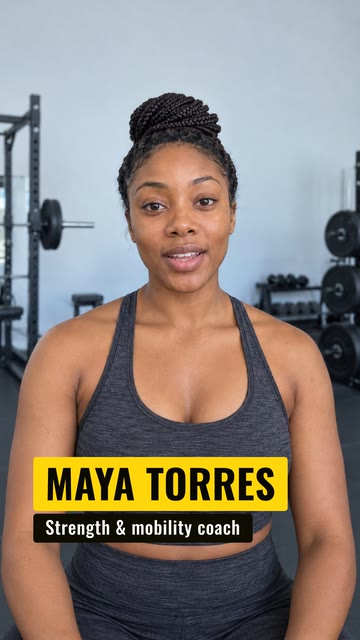
Illustration of the free Fitness coach preset over sample footage. The illustrative creator footage is not included in the download; this is not a receiving-editor or platform test.
Have your own footage, an editor with layers and chroma key, and the animation file ready. Chroma key removes a selected color from the graphic, revealing the layer below, according to CapCut’s keying guide. You do not need to film your footage against green.
What is the difference between green-screen MP4 and transparent WebM?
Green-screen output carries a visible colored background. Alpha output carries transparency information: the WebM Project describes an alpha value for each pixel, including fully transparent, opaque and intermediate values. WebM alpha explanation.
A file extension is only part of the description. MP4 and WebM are containers; H.264 and VP9 are codecs used to encode video inside containers. MDN lists these separately, so “my editor opens WebM” is an incomplete compatibility check. MDN video codec guide.
| Modisign download | What the file contains | What you must check |
|---|---|---|
| Green-screen H.264 MP4 | The graphic and an opaque green background | Your editor can key green from the upper layer without damaging the graphic. |
| Transparent VP9 WebM, desktop | The graphic with alpha transparency | Your exact editor/version imports the file and preserves alpha. This was not tested here. |
These are Modisign’s output choices, not a claim that either file works in every editor. Modisign’s MP4 output does not contain alpha. Its green becomes see-through only after keying in your editing project. Desktop transparent WebM is a separate download choice.
For a phone, use Modisign’s green-screen MP4 route: transparent download is offered on desktop only. CapCut documents mobile layering and chroma key, but the mobile keying route is documentation-based, not a device test. Browser playback also cannot certify editor support: MDN distinguishes VP9 playback support from alpha support. MDN VP9 details.
How do you choose a format and check it over a background?
Choose a representative graphic. Browse lower-third animations, or open the tested free Fitness coach preset. Its sample identity is useful for a format check, rather than introducing yourself. Free presets download unchanged without sign-up or watermark; Background and Format remain selectable.
Start with the route your editor documents. Choose Green screen for H.264 MP4 and remove the sampled green color from the upper layer with chroma key. CapCut documents that procedure, but we did not test it there. For a simple name and role, its native Text → Add text avoids a separate asset. CapCut keying, native text.
Try alpha separately on desktop. Select Transparent to download VP9 WebM, including from an unchanged free preset. Put the original file above a pale background, then a saturated one. Check that the lower layer shows through empty space and that plate edges remain intact. This is a proposed compatibility check, not a successful import demonstrated here.
Inspect the saved result before committing to that format. Check the entrance, readable state and exit after saving from the receiving editor. Retain the original download. If the transparent sample fails, use the documented green-screen route and verify its saved composite instead. A successful standalone preview is not enough to choose an alpha workflow.
Why does a transparent clip look black?
A black preview alone is not enough to diagnose the file. Because transparency is information separate from visible color, my suggested check is to place the overlay above an obviously different background in the receiving editor. If that background shows through the empty areas, the composite is behaving as transparent; if a rectangle covers it, the workflow has failed that check. This is a diagnostic suggestion based on the WebM alpha model, not an observed CapCut result.
Try both a pale background and a saturated one. Inspect empty space as well as the name card’s edges. Confirm that the lower layer is visible and overlaps the animation before blaming the file. Keep the original download so you can distinguish an import problem from a later conversion problem.
| Symptom | Check | Next action |
|---|---|---|
| Black in a standalone preview | Place it above a contrasting background | Judge the composite before concluding alpha is missing. |
| A solid rectangle remains in the editor | Check layer order, timing and the exact import format | If alpha still fails, return to the original or use the green-screen route. |
| Green edges remain after keying | Check the sampled color and removal strength | Re-sample green and tune the key while protecting the text. |
| Transparency disappears after conversion | Compare the converted file with the original | Check output codec and alpha/channel settings; retain the working original. |
The green-edge adjustment follows CapCut’s troubleshooting guide. The other rows are checks you can perform, not a compatibility chart for named editors.
Can conversion discard transparency?
Yes, when the output does not preserve alpha. Adobe’s export documentation states that not all codecs support alpha and that its RGB+Alpha channel setting produces alpha output. That illustrates why a conversion requires appropriate codec and channel settings; it does not establish that After Effects imports Modisign’s VP9 WebM. Adobe output settings.
My suggestion is to avoid conversion until you know why it is needed. If you try one, repeat the contrasting-background check on the converted asset. Separately, when saving your footage and overlay together as a finished opaque video, you want the footage to occupy the formerly empty areas; you do not need that finished composite to remain a reusable transparent overlay.
Where should the graphic appear, and when is customization useful?
These are design suggestions: introduce a speaker once there is open space beside or below their face; keep a tutorial title away from the hands demonstrating the task; and leave enough footage for the graphic’s complete entrance and exit. The tested lower third lasts five seconds. Check the words at phone size and against both bright and dark parts of your own recording.
For a visual reminder instead of a name title, browse subscribe-button animations. Those buttons are rendered graphics, not clickable subscription controls. For name-title placement, read the text safe-zone guide.
For your own name, wording or brand colors in the animation, Modisign Pro is $9/month plus applicable tax and unlocks text, look, colors, size and position controls for every overlay where supported. This lower-third family has Size and Horizontal (Left, Center, Right or Custom), rather than a Vertical control. Anyone can preview custom configurations; downloading them requires sign-in and Pro. Modisign supplies the element, while your editor combines it with your footage.
Start with an unchanged free overlay if you want to check the green-screen route before customizing.
Frequently asked questions
Do I need a green screen behind me when filming?
No. In this workflow, green belongs to the animation file layered over your own footage. Remove that color from the graphic layer; your original recording does not need a green backdrop.
Is a transparent download only available with Pro?
No. Modisign allows unchanged free presets to select Transparent on desktop too. The demonstrated free route here is green-screen MP4 without sign-up or watermark. Changing the preset’s text, look, colors or layout makes its download a Pro configuration.
Can I turn the downloaded green-screen MP4 into alpha video by renaming it?
No. Changing a filename does not remove the green pixels. Key the background in your editor, or download the desktop transparent version and verify that your editor preserves its alpha. Keep the original while testing any conversion.
Does choosing a larger file guarantee better transparency?
No. File size alone does not establish whether alpha is present or preserved. Check the exact format and inspect the imported overlay above a contrasting background; also check the saved result.
Can the free lower third display my own name?
The tested free Fitness coach preset contains the sample name Maya Torres and the role Strength & mobility coach. It downloads as it is. Use your editor’s native text for your own name, or customize the Modisign animation with Pro.
Related reading
Sources and test details
- MDN: codecs versus containers and VP9 browser playback versus alpha support — accessed
- WebM Project: alpha represents each pixel’s transparency — accessed
- CapCut: mobile Overlay/Add overlay, native Text/Add text, and combined-video export — accessed
- CapCut: desktop track order, Chroma Key controls and edge troubleshooting — accessed
- CapCut: mobile Edit/Remove BG/Chroma Key and Intensity/Shadow controls — accessed
- Adobe: preserving alpha requires suitable codecs and output channel settings — accessed
Tested in Modisign modisign.app, October 2026 on Desktop browser: On October 8, 2026, exported the unchanged free Fitness coach preset with the default Green screen background: 1080×1920 H.264 MP4, 30 fps, 150 frames, 5 s. We checked the file; a frame at 2.5 seconds showed the yellow name card and dark role plate on green. No receiving-editor import, keying or VP9-alpha test was performed.
Tested in Modisign Local Modisign site, October 2026 on Desktop Chrome on macOS: October 14: Checked the Fitness coach illustration and free green-screen configuration. The name and role plates sit over sample footage; no new alpha compatibility result was established. Look changes palette colors; Layout changes structure and palette changes preserve wording and placement. Missing catalog images prevented the editor from loading, so no new export or receiving-editor test was completed. Earlier export measurements retain their original dates.
Found an error or a changed control? support@modisign.app.