How to Reveal a Video Title with a Moving Mask
By Modisign
- Published
- Updated
- Last tested
In Modisign Studio, select a title and set Reveal to On. A moving edge uncovers the text, which stays still. Choose Direction, Start, Duration and Easing, scrub to check it, then export. Right means the edge travels from left to right. Reveal does not slide the text and does not mask a person. Editing and previewing are free after sign-in; exporting needs Pro.
What does the finished reveal look like?
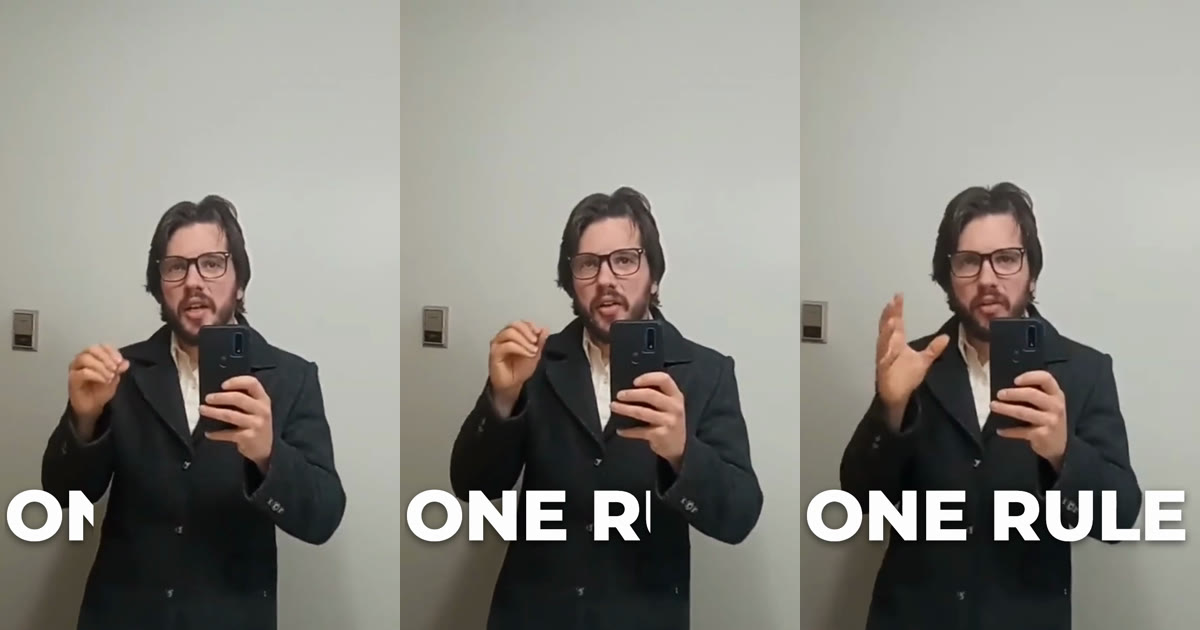
The frames come from a 6-second clip with a 4-second title. The title is set to Right, with Start 0.5 s, Duration 1.2 s and Ease in and out. At 0.9 s only "ON" is uncovered, at 1.2 s "ONE RU" and at 2.0 s the whole title. The letters never move; the edge does. The clip is a CC0 selfie video from Wikimedia Commons, used only as a local test input. It has a YouTube Shorts mark burned into a lower corner, which the image crops out.
Three effects get confused. A slide moves the text. A reveal keeps the text still and uncovers it. Behind person hides a title behind people Studio detects in the picture. This guide covers the reveal for exported video titles, not website text animation. You need a desktop browser and a free Google sign-in; Pro is needed only to export. Our tests used a simulated Pro session on the local development site, not a purchase. Modisign publishes this guide and sells Pro.
How do you reveal a title, step by step?
- Add the clip and a title. Open Studio and import a clip; in an empty timeline it joins V1 by itself. In the Text tab select Add title at playhead, type the words and pick a large Size. A new title has Explicit time and shows for 2 seconds, so set a longer Duration under Timing if the words need to stay after the wipe. We used 4 seconds.
- Turn Reveal On. Under Reveal, choose On. A readout appears: "Seconds on the title's own clock. It shows from 0 s to 4 s; the playhead is at 0.2 s and the reveal is 0% open." Reveal times count from the title's start, not the video's.
- Choose Direction. Up, Down, Left or Right. Studio names the movement: "Wipe right. The edge travels right from the left side of the box."
- Set Start and Duration. Start (s) is when the edge begins and Duration (s) how long it takes; the defaults are 0 and 0.4 s, and Duration runs from 0.03 to 10 seconds. Place the playhead inside the title and select Start at playhead to start there. We used 0.5 s and 1.2 s.
- Pick Easing. The list offers Linear, Ease in, Ease out, Ease in and out, Hold and Custom (four numbers from 0 to 1). The default is Ease out. We tested Ease in and out and Linear.
- Change the rectangle only if you need to. X (%), Y (%), Width (%) and Height (%) describe one rectangle inside the title box, 0, 0, 100, 100 by default. Reset to full title restores it.
- Scrub, then export. Move the playhead before, during and after the wipe and watch the percentage in the readout: it said 50% open at 1.1 s in our test. Then click Export, choose a quality and Export MP4. Our file was 1080x1920 H.264 at 30 fps, 180 frames, 6 seconds.
On a phone-size layout, select the title, open Style and choose Reveal ("Wipe the title in · Pro to export"). The Title reveal sheet holds the same controls, and Back to Title style returns to a list that now reads "Wipe up, 0.4 s". We read this in an emulated 390x844 touch viewport in desktop Chrome, not on a physical phone.
What does each setting do?
| Setting | What we saw |
|---|---|
| Direction Right | Edge moved left to right; ON, then ONE RU, then ONE RULE |
| Direction Left | Edge entered from the right: E first, then NE RULE |
| Start 0.5 s | Nothing visible at 0.4 s, first letters before 1 s |
| Duration 1.2 s with Ease in and out | Readout: 50% open at 1.1 s, 100% open at 2.5 s |
| Rectangle Width 60% | After the wipe only ONE R stayed visible (checked at 2.0 s and 3.0 s) |
| Reset to full title | Rectangle back to X 0, Y 0, Width 100, Height 100 |
The rectangle is the part of the title that can ever show. The edge crosses it, so a smaller rectangle leaves the rest hidden. Studio refuses a rectangle outside the box: "The reveal rectangle must stay inside the title box: X plus Width and Y plus Height at most 100%, Width and Height at least 1%." There are no mask handles on the monitor; you type the numbers.
How long should the reveal last?
These are suggestions from our test, not platform rules. Keep the wipe short enough to feel like part of the opening, then leave the finished title on screen for at least as long as it took to appear. In our 4-second title the wipe finished at 1.7 s, so the full words stayed for 2.3 s. Longer text needs longer on screen.
- A two-word hook: Duration around 1 s, then hold. Write the words with hook-title advice first.
- A label while you talk: a quick 0.4 s wipe with Ease out, the default, and a title that stays until the point is made.
- A dramatic opener: Right with Ease in and out over 1 to 1.5 s, but check that viewers can read the end state; see the safe-zone guide for platform interface areas.
What is free, and what needs Pro?
Editing, previewing and scrubbing a reveal are free after Google sign-in. Exporting a title with Reveal On needs Pro: in our free-account test the export dialog said title effects need Pro, and the normal Export MP4 dialog returned with Reveal Off. Pro is $9 per month plus applicable tax (pricing). Studio checks the stored setting, so a reveal that starts after the title ends still needs Pro; setting it Off removes the requirement. Saving a project is a separate Pro feature. The project bar says projects save "reveal settings" along with title text and timing.
What should you check when the reveal looks wrong?
| Problem | Check | Fix |
|---|---|---|
| Nothing shows | Studio says "The reveal starts after the title ends, so nothing shows." | Move Start earlier or lengthen the title |
| The title is cut off mid-wipe | "The reveal ends after the title does: the title ends at N% open." | Shorten Duration or lengthen the title |
| Only part of the title ever shows | Width or Height is below 100% | Select Reset to full title |
| Start at playhead is disabled | The playhead is outside the title | Place it inside, or type Start |
| The text should move | Reveal never moves text | Use the title's Motion section |
| Export asks for Pro | Reveal is On | Subscribe, or set Reveal Off |
Frequently asked questions
Which way does Right move the edge?
From left to right. Studio's own note reads: Wipe right. The edge travels right from the left side of the box. Left starts at the right side, Down starts at the top and Up starts at the bottom. We exported Right and Left; Up and Down follow the same note but were not exported in this test.
Does Reveal slide or move the text?
No. The text stays where you placed it and a moving edge uncovers it. To move the text itself, use the title's Motion section, which handles position, scale, rotation and opacity.
Can I draw or drag a mask shape?
No. The monitor has no mask handles. You type four percentages (X, Y, Width, Height) for one rectangle inside the title box. A rectangle smaller than the whole box means the rest of the title never shows, even after the wipe.
Is Reveal free?
Editing and previewing are free after Google sign-in. Exporting a title with Reveal needs Pro, $9 per month plus applicable tax, even if the reveal is stored but starts after the title ends. Turn Reveal Off to export that title for free.
How is Reveal different from Behind person?
Reveal uncovers stationary text with a moving rectangle edge and knows nothing about the picture. Behind person hides a title behind the people Studio detects in a clip. Both are title effects and both need Pro to export.
Related reading


Sources and test details
Tested in Modisign Studio Local Modisign site, October 2026 on Desktop Chrome on macOS, Apple silicon: On October 23, 2026, in a simulated Pro session on the local development site, imported a 6-second 720x1280 clip cut from a CC0 Wikimedia Commons selfie video and added a 4-second title (ONE RULE, XL, white, Vertical 58%). With Reveal On, Direction Right, Start 0.5 s, Duration 1.2 s and Ease in and out, the readout said 0% open at 0.2 s, 50% at 1.1 s and 100% at 2.5 s. Exported a 1080x1920 H.264 MP4 at 30 fps, 180 frames, 6 seconds: no title at 0.4 s, ON at 0.9 s, ONE RU at 1.2 s, the full title at 2.0 s and 3.0 s, and none at 4.5 s. With Width 60% the export kept only ONE R after the wipe. With Direction Left, Start 0.3 s, Duration 0.8 s and Linear, the edge entered from the right: E at 0.4 s, then NE RULE and the rest. Checked Start at playhead, Reset to full title and the refusal messages. In a free-account session the export dialog said title effects need Pro with Reveal On, and showed the normal Export MP4 dialog with it Off. Up, Down, Custom and Hold easing were not exported. No platform upload or receiving-editor test.
Tested in Modisign Studio Local Modisign site, October 2026 on Emulated 390x844 touch viewport in desktop Chrome, not a physical phone: On October 23, 2026, read the phone-layout route: with a title selected, Style lists Reveal (Wipe the title in, Pro to export); it opens a Title reveal sheet with Off/On, Direction, Start, Duration, Start at playhead, Easing, the rectangle fields and Reset to full title, and the Style entry then reads Wipe up, 0.4 s. No iPhone, Android, Safari or Windows test.
Found an error or a changed control? support@modisign.app.