How to Make a Before-and-After Video with Clear Labels
By Modisign
- Published
- Updated
- Last tested
A before-and-after video needs two real recordings of the same subject, one before a change and one after it. In Studio, play them one after the other with a cut or a short Crossfade, or show both at once in a split screen, then label each side. The free Room makeover preset of the Before / After overlay labels a side-by-side split; free native titles label the others. Neither creates the change.
What does the tested example look like?
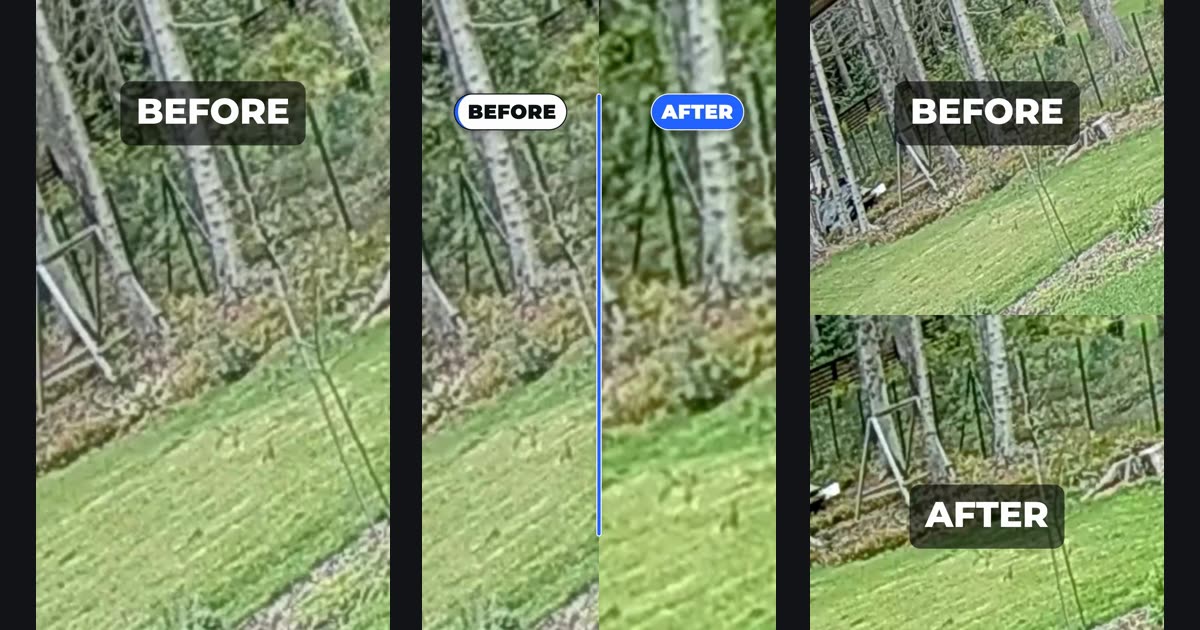
All three are frames from MP4 files we exported from Studio. The "before" is four seconds of a CC0 garden clip, filmed with the camera tilted (Commons file page). The "after" is our own edit of the same four seconds: rotated 10 degrees so the trees stand straight, cropped in, with more contrast, colour and warmth. It stands in for a real makeover, edit or repair.
- Left: sequential. The before plays full screen with a free BEFORE title, then the after.
- Middle: side by side. Before on the left, after on the right, labelled by the unchanged Room makeover preset.
- Right: stacked. Before on top, after below, labelled by two free titles.
You need a desktop or phone browser, a free Google sign-in for Studio and your two files. Nothing is uploaded. Modisign publishes this guide and sells Pro; this example used a free account.
Which arrangement should you use?
| Arrangement | What viewers see | Label that stays free | Suits |
|---|---|---|---|
| Sequential (cut or Crossfade) | Before full screen, then after | Two native titles | Any footage; a reveal moment |
| Side by side (Left and Right) | Both at once in two tall halves | Before / After, unchanged Room makeover preset | Portrait or close-up shots |
| Stacked (Top and Bottom) | Both at once, one above the other | Two native titles | Landscape footage |
A 9:16 frame split left and right gives each half 540 pixels of width, so our landscape clips showed only a narrow strip of the scene. Stacked halves are 1080x960 and kept far more of the shot. The overlay's Stacked Layout matches that arrangement but is a Pro configuration, which is why titles are the free label there.
How do you build it, step by step?
- Import both files together. Open Studio and pick the before file, then the after file. On an empty timeline they land on V1 in that order. Studio matched our landscape files with a 16:9 project, so we clicked 9:16 under Program.
- For a sequence, choose the cut. Click the transition control between the two clips and pick None, Crossfade or Dip to black, with 0.2 to 1.0 seconds of duration. Our 0.4-second Crossfade shortened the sequence from 8.0 to 7.6 seconds.
- For a split, use Split screen. Click the before clip, Shift-click the after clip and click Split screen in Edit. Studio puts the active clip at the Bottom on V1 and the other at the Top on V2, muted and aligned. Use Swap boxes to put the before on top, or select each clip and choose Left and Right under Layout. Track, audio and caption rules are in the split-screen guide.
- Label a side-by-side split with the overlay. Move the playhead to where the labels should appear (we used 0.3 seconds), open Overlays, search "before" and click the plus on Room makeover, the one card marked Free. Edit then reads "Before / After, Room makeover, Free". Leave it unchanged to keep the export free.
- Label the other arrangements with titles. Open Text, click Add title at playhead, type BEFORE, choose Size L, turn Backing on and set Position Top. Add AFTER the same way: over the second clip in a sequence, or at Position Bottom for a stacked split. The native title guide covers fonts, colours and timing.
- Check the label timing. The overlay lasts 3.5 seconds: the badges slide in within half a second, pulse at about 1.35 seconds and leave after about 3 seconds. Our export showed no badges at 0.2 seconds, both badges and a divider line on the split at 1.5 seconds, and nothing at 3.9 seconds.
- Export. Click Export, choose 1080p or 720p and click Export MP4. All three of our files were 1080x1920 H.264 at 30 fps: 4.0 seconds for the splits and 7.6 for the sequence. Our clips had no sound; each export still carried an AAC audio track.
You can find the same free preset in the Before / After catalog and download it on its own as a green-screen MP4 for another editor. We did not test that route for this guide.
What can go wrong, and how do you fix it?
| Problem | Check | Fix |
|---|---|---|
| BEFORE and AFTER print over each other | Both titles are Bound to clip and a Crossfade overlaps the clips (ours: 3.6 to 4.0 seconds) | Set the first title to Explicit time ending at 3.6 seconds, or use a cut |
| Export asks for Pro | The overlay's Edit heading says Pro | Reset to preset, or use native titles |
| Badges sit over the wrong picture | The free preset puts one badge at the top of each left and right half | Use a Left/Right split, or titles for top and bottom |
| Each picture is a thin strip | Landscape footage in a side-by-side split | Stack the clips or play them in sequence |
| The change is hard to see | Framing or light differs between takes | Film both from the same spot with the same light |
We switched the overlay's Layout to Stacked and its badge changed from Free to Pro. Typing "DAY 1" as the Before label did the same. In both cases Export opened the notice "Pro overlays and captions" with a See Pro link instead of the download. Reset to preset brought back Free.
How do you keep the comparison honest?
These are suggestions, not tested results:
- Repeat the framing. Mark where the camera stood and use the same lens and time of day, so the only difference is the change itself.
- Say what you edited. If the after includes colour grading or retouching, as ours did, say so in the caption.
- Give each side time. Our sequence held each clip for about four seconds; a busy scene may need longer before the cut.
Is it free?
Sequencing, transitions, Split screen, Swap boxes, native titles, both export qualities and the MP4 download are free after a free Google sign-in. The unchanged Room makeover preset is free too. Another preset, the Stacked or Labels only Layout, a new look or new label text makes that overlay Pro; Pro is $9 a month plus tax, described on pricing. Unchanged free overlays are licensed for your own channels under the licence terms.
This test used silent, short desktop clips. It did not export the Stacked overlay, use photos, run on a physical phone or include an upload to a platform.
Frequently asked questions
Does the Before / After overlay make the comparison for me?
No. It animates two labels over footage you already have. You still need a real before recording and a real after recording, arranged in sequence or in a split screen.
Is the Before / After overlay free?
The Room makeover preset is free while unchanged: Side by side Layout, BEFORE and AFTER, Blue on white. Changing the Layout to Stacked or Labels only, editing a label or choosing another look makes that overlay Pro. Studio's own titles are free.
Why did my Before and After titles overlap?
Both titles were bound to their clips, and a Crossfade overlaps the two clips. In our test both showed from 3.6 to 4.0 seconds. Make the first title explicit so it ends where the crossfade starts, or use a plain cut.
Which arrangement works for landscape footage?
Stacked or sequential. In a 9:16 side-by-side split each half is very narrow, so our landscape clips showed only a thin central strip. Stacked halves are 1080x960 and show much more of a wide shot.
Related reading


Sources and test details
- The garden test clip is the uploader's own work (author Sillerkiil), released under CC0 1.0. — accessed
Tested in Modisign Studio Local Modisign site, October 2026 on Desktop Chrome on macOS, simulated free signed-in session: On October 25, imported a 4-second CC0 garden clip and our own straightened, colour-graded version of it, both silent. Built three free 1080p MP4 exports at 9:16: the two clips in sequence with a 0.4-second Crossfade and two native titles (7.6 seconds, 228 frames); a Left/Right split with the unchanged Room makeover preset of Before / After starting at 0.3 seconds (4.0 seconds, 120 frames; no badges at 0.2 seconds, both badges and the divider at 1.5 seconds, none at 3.9 seconds); and a Top/Bottom split with two native titles. All were 1080x1920 H.264 at 30 fps with an AAC track. Bound titles overlapped during the crossfade until the first was made explicit. Switching the overlay's Layout to Stacked, or typing new label text, changed its badge from Free to Pro and the export dialog to the Pro notice; Reset to preset restored Free.
Found an error or a changed control? support@modisign.app.