How to Make a Split-Screen Reel from Two Videos
By Modisign
- Published
- Updated
- Last tested
To make a split-screen Reel in Studio, add both clips, select the one with the speaker, Shift-click the reference clip and click Split screen. The speaker becomes the bottom picture on V1, the reference becomes the top picture on V2, muted and aligned to the start. Sound and captions come from V1; the export is a free MP4.
What does the tested split screen look like?
A split screen shows two videos at the same time, each in its own box. A sequence shows them one after another. Studio keeps the main sequence on V1 and puts clips that play over it on V2.
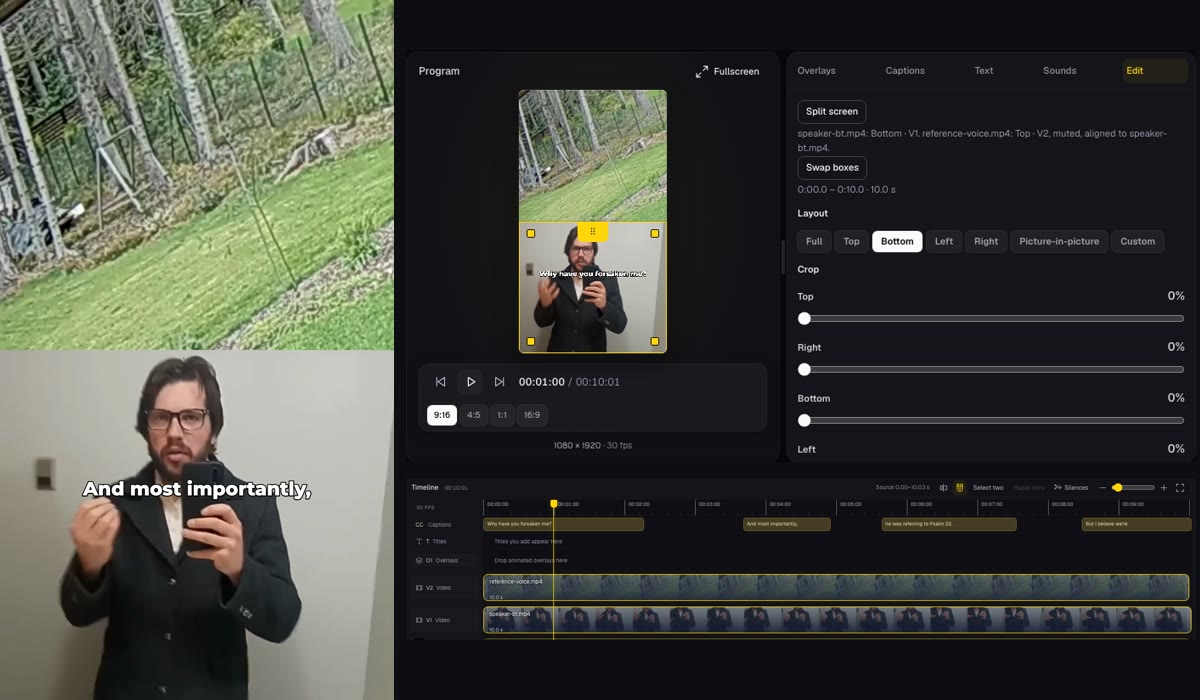
The left side is a frame from the downloaded MP4 at 4.5 seconds; the right side is a Studio screenshot. The bottom clip is a ten-second excerpt of a selfie-style talk, and the top is a ten-second garden clip. Both are CC0 test footage by their uploaders (talk clip, garden clip). The talk's original carries a platform watermark, so we framed it out. The garden clip had no sound, so we gave it a synthetic voice to see which audio survives.
You need a desktop or phone browser, a free Google sign-in for Studio and two local videos. Nothing is uploaded: media stays in the browser tab. Modisign publishes this guide and sells Pro; this example used a free account.
How do you stack two clips, step by step?
- Import both clips. Open Studio and pick both files, the speaker first: in an empty timeline, picked files join V1 in the order you pick them. Files you import later wait in the Media bin, where each clip's plus button adds them. In a half-height box, a landscape clip loses its left and right edges in Fill mode.
- Select the pair. Click the speaker on V1, then Shift-click the reference. The first clip stays the active one. The Edit tab now offers Split screen.
- Click Split screen. One undo step makes the active clip Bottom on V1 and the other Top on V2, muted and aligned to the active clip. The hint line says exactly that. Swap boxes appears afterwards.
- Reframe each box. Select one clip and drag it in Program to move its crop in Fill mode. A drag lowered the vertical centre from 0.50 to 0.36, which showed the upper part of the picture and moved the watermark out of the box. The exported frame uses a smaller move, 0.45, so the speaker's chin stays above the caption.
- Set the top clip's start if needed. Select the V2 clip and type a value under Start. We typed 1.5: the top box stayed black for 1.5 seconds and the total grew from 10 to 11.5 seconds. Undo restored 0.
- Generate captions, then export. Open Captions and click Generate captions, then Export, choose 1080p or 720p and click Export MP4. Our 1080p file was 10.03 seconds, 1080x1920, H.264 with AAC stereo.
On a phone-sized screen the order changes. Add the clips with Add media, tap the speaker on the timeline, choose More, then Split screen. The sheet says "1 of 2 · tap a second clip on the timeline." Tap the reference clip, read "2 of 2 · the pair is ready." and tap Split screen. Afterwards the toolbar shows Back, Split screen, Swap boxes, Roles and More. We tested this in an emulated 390x844 touch viewport on a desktop, not a physical phone.
Which sound and captions do you get?
| Question | What Studio does | What we measured |
|---|---|---|
| Whose audio plays? | V1. The shortcut mutes V2. | Export level -22.6 dB; speaker alone -22.5 dB; difference signal about -51 dB |
| Can the top sound play too? | Yes: select the V2 clip, open Audio and turn off Mute | Unmuted 720p test: -18.0 dB |
| Whose speech becomes captions? | V1 only | Four lines from the speaker; none from the top voice |
| Does Swap boxes change this? | No. It swaps boxes, not tracks. | After a swap the speaker was Top but still V1 |
Studio does not lower one clip under the other. If both talk, listen to the export before you publish.
Place in output or Crop source?
| Control | Works on | Use it to |
|---|---|---|
| Place in output (desktop: Layout) | The finished clip in the 9:16 frame | Choose Top, Bottom, Left, Right, Picture-in-picture or Custom |
| Crop source (desktop: Crop) | The original picture | Trim a source edge by percentage before it is placed |
| Frame, Zoom and Fill pan | The picture inside its box | Move or enlarge what the box shows |
We exercised Top and Bottom only. Place is the outer arrangement, Crop trims the file's edges, and a Fill pan moves the picture inside the box. For the watermark, a pan was enough.
What can go wrong, and what should you check?
| Problem | Check | Fix |
|---|---|---|
| Top box is black | V2 Start is later than the playhead, or the V2 clip ended | Set Start to 0 or extend what plays there |
| Start refused | The message reads "V2 clips must have nonnegative starts without overlaps or transitions." | Move the new clip after the other V2 clip |
| Start moves by itself | Our 175-second start for an 8-second clip became 172 seconds | Keep the V2 end at or before 180 seconds |
| Caption crosses the speaker's face | Lower captions sit at 70% of the frame height, near the top of a bottom box | Pan the speaker so the face is above that line, or move the captions |
| Pause removal is refused | A V1 transition is in the way | Remove the named transition, then retry |
Silences analyses V1 only and says "V2 is cut at the same times." In our test, three pauses (4.0 seconds) were removed and both tracks shrank together, from 10.03 to 6.02 seconds. For the full method see removing pauses without cutting speech.
Which layouts could you try first?
These are suggestions, not tested results:
- Reaction: put the reference on top for the whole speech and keep the speaker at the bottom, where the Lower caption sits.
- Before and after: set the top clip's start a second later so the lower clip speaks first.
- Name tag: if the speaker needs a label, browse lower-third overlays. An unchanged free preset keeps the export free; new text makes that overlay Pro.
Studio has no automatic synchronisation. A speaker and a screen recording that drift apart stay apart. Keep text inside the platform areas described in the text safe-zone guide.
Is it free, and can an assistant build it?
Split screen, Place, Crop, track moves, V2 Start, Silences, 1080p and 720p do not make an export Pro. Studio still needs a free Google sign-in, and any Pro overlay, non-identity overlay motion key, expressive caption style, manually styled caption word or title effect does make it Pro. Captions in Clean, Boxed or Minimal stay free; see adding captions for free. The basic editing flow is in editing a Reel online for free.
Modisign's local assistant tool takes the same arrangement as a request with a track on every clip and a start on V2 clips. We did not run it for this guide.
This test used short clips on a desktop. It did not measure viewer retention, upload to Instagram or exercise a physical phone.
Frequently asked questions
Which clip's sound plays in a Studio split screen?
The V1 clip's. The Split screen shortcut mutes the V2 clip. In our test the export's audio level matched the V1 clip alone (about -22.6 dB against -22.5 dB). Unmuting V2 mixes both clips; we measured a louder export, and there is no automatic ducking.
Do captions come from the top or the bottom clip?
From V1 audio only. The Captions tab says so. Our top clip had its own synthetic voice, and none of its words appeared in the transcript.
How long can the top clip be?
V2 clips have their own start time and cannot overlap each other, and the sequence is limited to 180 seconds. A V2 clip that starts later than V1, or ends later, extends the output; where nothing plays on V2, its box stays black.
Does Studio line up the two clips or fix drift?
No. Studio does not align clips by sound or correct recording drift. Set the V2 start number yourself and check both clips against each other in Program.
Is a split-screen export free?
Layout, crop, track moves, Silences, 1080p and 720p do not make an export Pro. Studio needs a free Google sign-in, and any Pro overlay configuration, expressive caption style or title effect still does.
Related reading


Sources and test details
- The talking-head test clip is the uploader's own work, released under CC0 1.0; the original carries a third-party platform watermark that our framing excluded. — accessed
- The garden test clip is the uploader's own work (author Sillerkiil), released under CC0 1.0. — accessed
Tested in Modisign Studio Local Modisign site, October 2026 on Desktop Chrome on macOS, simulated free signed-in session: On October 23, imported a 10-second selfie-style talking clip with real speech and a 10-second garden clip, both CC0 test footage; the garden clip carried a synthetic macOS voice as its audio. Shift-clicked both clips, used Split screen (one undo step), Swap boxes twice, dragged the bottom clip in Program, typed a V2 Start of 1.5 seconds (the top box stayed black for 1.5 seconds and the sequence grew to 11.5 seconds, then Undo), generated English captions, and exported free 1080p and 720p MP4 files. The 1080p file was 1080x1920 H.264 at 30 fps, 301 frames, with stereo AAC; its audio level matched the speaker alone (mean -22.6 dB against -22.5 dB) and the unmuted 720p test was louder (-18.0 dB). A third clip moved to V2 at 2 seconds was refused with a message, and a typed start of 175 seconds for an 8-second V2 clip was clamped to 172 seconds. Silences on a version of the speaker clip with a forced 2.2-second gap found three pauses totalling 4.0 seconds and cut both tracks, 10.03 to 6.02 seconds. Not tested: Left, Right, Picture-in-picture or Custom output, numeric Crop, the Select two button, a transition conflict during pause removal, recording drift, or an Instagram upload.
Tested in Modisign Studio Local Modisign site, October 2026 on Emulated 390x844 touch viewport in desktop Chrome, not a physical phone: On October 23, added the same two clips and followed selected clip, More, Split screen, tap the second clip, Split screen. The sheet read '1 of 2' and then '2 of 2 · the pair is ready', the clips became Bottom · V1 and Top · V2 (muted, start 0), and the toolbar then offered Back, Split screen, Swap boxes, Roles, More. Selecting the V2 clip and opening More, Timing showed Start seconds with 1-frame buttons. No iPhone, Android or Safari test.
Found an error or a changed control? support@modisign.app.