How to Fit a Horizontal Video into a Vertical Reel
By Modisign
- Published
- Updated
- Last tested
To fit a horizontal video into a vertical Reel in Studio, import the clip, set the output to 9:16 and choose a frame mode. Fill covers the whole frame and crops the sides, so drag the picture to keep your subject in view. Fit shows the entire shot over a blurred, darker copy of itself. Studio does not track a moving subject, and the MP4 export is free after Google sign-in.
What do Fill and Fit look like on the same shot?
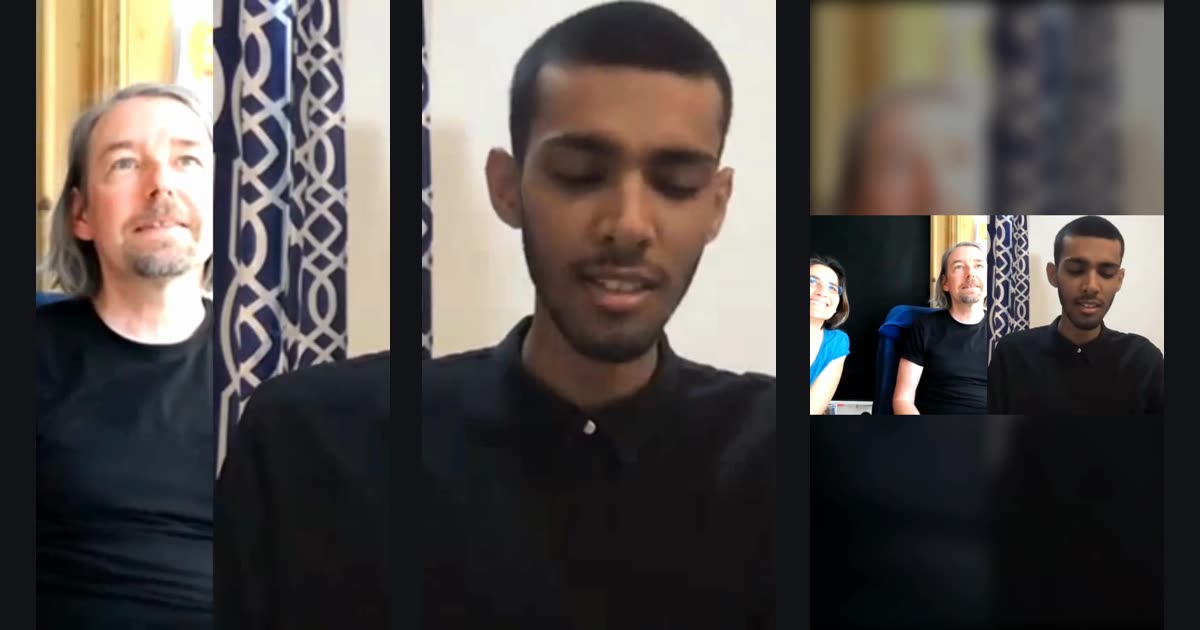
All three pictures are frames from MP4 files we exported. The source is an eight-second, 1280x720 excerpt of a video-call interview released under CC0 by its uploader (Commons file page). It has two people in the left tile, one of them at the very edge, and one speaker in the right tile.
- Left: Fill, untouched. Studio centres the crop, which here lands on the seam between the two tiles. The woman at the left edge is gone.
- Middle: Fill, dragged. We moved the crop onto the right-hand speaker, who now fills the screen.
- Right: Fit. All three people are visible, in a band about a third of the frame's height.
A 9:16 frame cut from a 16:9 picture keeps 31.6% of its width, so Fill always loses most of a wide shot. Fit keeps all of it, but the picture becomes small.
You need a desktop or phone browser, a free Google sign-in for Studio and a local video. Nothing is uploaded: the file stays in your browser tab. Modisign publishes this guide and sells Pro; this example used a free account.
How do you turn a wide clip vertical, step by step?
- Import the clip. Open Studio and use Import or drop the file. On an empty timeline, imported files go straight onto V1 in the order you pick them, so there is no extra button to press. A file you import later, when V1 already has clips, waits in the Media bin until you click its plus button.
- Set 9:16 after the clip lands. Studio matches the first clip on an empty timeline: our 1280x720 clip switched the project to 16:9. Click 9:16 under Program. The monitor turns tall and the export becomes 1080x1920.
- Select the clip and find Frame. Click the clip on V1 and open Edit. Under Frame, Fill is the default.
- Drag the picture in Program. In Fill, drag sideways to choose which part of the wide shot stays. Our drag moved the horizontal centre from 0.50 to 0.77, onto the speaker. A drag is one undo step.
- Zoom only if you need a tighter shot. The Zoom slider runs from 100% to 300% and crops further. Our 720-pixel-tall source was already enlarged about 2.7 times to fill 1920 pixels, so zoom makes it softer. Reset returns the centre to the middle and Zoom to 100%; Undo brought our framing back.
- Or choose Fit. Click Fit to show the whole picture over a blurred, darker copy. Zoom and Reset disappear, and Fit ignores the stored pan and zoom. Switching back to Fill restored our 0.77 centre and 120% zoom.
- Export and check the ends. Click Export, pick 1080p or 720p and click Export MP4. Both our 1080p files were 1080x1920 H.264 at 30 fps, 240 frames, 8.0 seconds, with stereo AAC at the same level as the source. Check the first and last frames: a subject who moves can leave a Fill crop.
On a phone-sized screen, open Format for the aspect, tap the clip and choose Frame. The sheet has Fill, Fit, Zoom and Reset, with the hint "Drag the picture in Program to reframe it." In Fit it says "Fit shows the whole picture. Switch to Fill to reframe it." A touch drag moved our centre to 0.75. We tested this in an emulated 390x844 touch viewport on a desktop, not a physical phone, and did not export there.
Fill or Fit: which should you choose?
| Your shot | Choose | What you get |
|---|---|---|
| One person talking in part of a wide frame | Fill, then drag | A full-screen face; the rest of the room is cut |
| A group, a landscape, a product or a screen where edges matter | Fit | Everything visible, smaller, with blurred bands above and below |
| A subject who moves across the frame | Fit, or split the clip and frame each part | No subject is lost, but it takes manual work |
| The subject is centred already | Fill, untouched | Nothing to adjust |
These choices are per clip. A Reel can open on a Fill close-up and cut to a Fit wide shot.
Fill, Crop source or Place in output?
Studio has three framing controls in the clip's Edit panel, and they change different things.
| Control | What it changes | When to use it |
|---|---|---|
| Frame: Fill or Fit, Zoom, drag | How the picture fills its box | Everything in this guide |
| Crop (phone: Crop source) | Cuts a percentage off the original file's edges before framing | Removing black bars or a watermark from the source |
| Layout (phone: Place in output) | Where the clip's box sits: Full, Top, Bottom, Left, Right, Picture-in-picture or Custom | Two clips on screen at once |
For one full-screen clip, leave Layout on Full and Crop at 0%. We did not export Crop or Layout changes for this guide. For two pictures in one frame, see making a split-screen Reel from two videos.
What can go wrong, and what should you check?
| Problem | Check | Fix |
|---|---|---|
| Program is still wide after import | The project matched your first clip (16:9) | Click 9:16 under Program, or Format on a phone |
| Fill cuts the subject in half | An untouched Fill is centred | Drag the picture, or switch to Fit |
| The subject leaves the frame mid-clip | Fill has one fixed centre per clip | Use Fit, or split the clip and drag each part |
| Your pan seems lost | Fit ignores pan and zoom | Switch back to Fill; they return |
| The picture looks soft | Fill already enlarges a wide source | Lower Zoom, or use a higher-resolution source |
Studio has no automatic subject tracking. It keeps whatever crop you set for the whole clip.
Do you need Studio for this?
If the video is already on your iPhone, the Photos app can crop it to 9:16: open it, tap Edit, then Crop, and choose a preset ratio (Apple's guide). That gives a Fill-style crop. We read Apple's instructions but did not test them on a phone. Studio adds Fit, several clips, captions and overlays in one export.
What could you add next?
These are suggestions, not tested results:
- Name the speaker. After a Fill close-up, a name tag helps. The free Fitness coach lower third keeps the export free while unchanged; new text makes it Pro.
- Use Fit's bands. A Fit shot leaves blurred space above and below the picture, which can carry a title or captions without covering faces. Check the platform areas in the text safe-zone guide.
- Mix framings. For a wide shot that has photos too, the Fill and Fit advice in making a Reel from photos and videos applies the same way.
Framing, both export qualities and the download are free. Studio still needs a free Google sign-in, and a Pro overlay, overlay motion, expressive caption style or title effect makes an export Pro. This test used one short clip on a desktop; it did not cover a physical phone, a moving subject or an upload to a platform.
Frequently asked questions
Does Studio follow a moving subject automatically?
No. Fill uses one fixed centre and zoom for the whole clip. If your subject walks across the shot, use Fit, or split the clip where the subject moves and reframe each part by hand.
Why did my project turn into 16:9 when I added a wide clip?
When the first clip lands on an empty timeline, Studio matches the output to that clip. In our test a 1280x720 clip switched the project to 16:9. Click 9:16 under Program (on a phone, in Format) after adding it.
Does Fit keep my Fill pan and zoom?
Fit ignores them and shows the whole picture, but Studio keeps them. When we switched back to Fill, our 0.77 centre and 120% zoom returned.
Is a vertical Studio export free?
Yes. Framing, both 1080p and 720p, and the MP4 download are free after a free Google sign-in. Only Pro elements you add, such as an edited catalog overlay or an expressive caption style, make an export Pro.
Related reading


Sources and test details
- The test interview clip is the uploader's own work (User:Acagastya, April 2020), released under CC0 1.0. — accessed
- The iPhone Photos app can crop a photo or video to preset aspect ratios, including 9:16, from Edit and Crop. — accessed
Tested in Modisign Studio Local Modisign site, October 2026 on Desktop Chrome on macOS, simulated free signed-in session: On October 25, imported an 8-second 1280x720 CC0 interview clip with three people and sound. It went straight onto V1 and Studio switched the project to 16:9; we chose 9:16. Default Fill centred the seam between two call tiles; a Program drag moved the centre from 0.50 to 0.77 onto the right-hand speaker. Zoom 120%, Reset and Undo worked; Fit hid Zoom and Reset and ignored the stored pan and zoom, which returned on switching back to Fill. Exported free 1080p Fill and Fit MP4s: each 1080x1920 H.264 at 30 fps, 240 frames, 8.0 seconds, stereo AAC at the source level. First and last frames showed the speaker filling the Fill version and all three people in the Fit version. A 720p default Fill export was 720x1280.
Tested in Modisign Studio Local Modisign site, October 2026 on Emulated 390x844 touch viewport in desktop Chrome (not a physical phone): On October 25, the imported clip landed on V1 and the project switched to 16:9; Format set 9:16. The clip's Frame sheet offered Fill, Fit, Zoom and Reset with the hint 'Drag the picture in Program to reframe it.'; a touch drag moved the centre to 0.75. No phone export was made.
Found an error or a changed control? support@modisign.app.