How to Remove Pauses from a Video Without Cutting Speech
By Modisign
- Published
- Updated
- Last tested
To remove pauses from a video in Studio, import the clip, open Silences, choose a sensitivity and shortest pause, then review the striped ranges before pressing Remove pauses. Click any proposed range you want to keep; removal cuts both picture and audio and closes the gaps. Use a free Google sign-in, and check the joins yourself because quiet speech can resemble silence.
What did the pause-removal test change?
We tested a 10.4-second local MP4 on desktop Chrome on macOS on October 14, 2026. It paired an AI-generated fictional creator’s still portrait with generated English speech and three deliberate pauses. This controlled sample checks the editing workflow; it is not evidence that every microphone, accent or noisy recording will produce the same result.
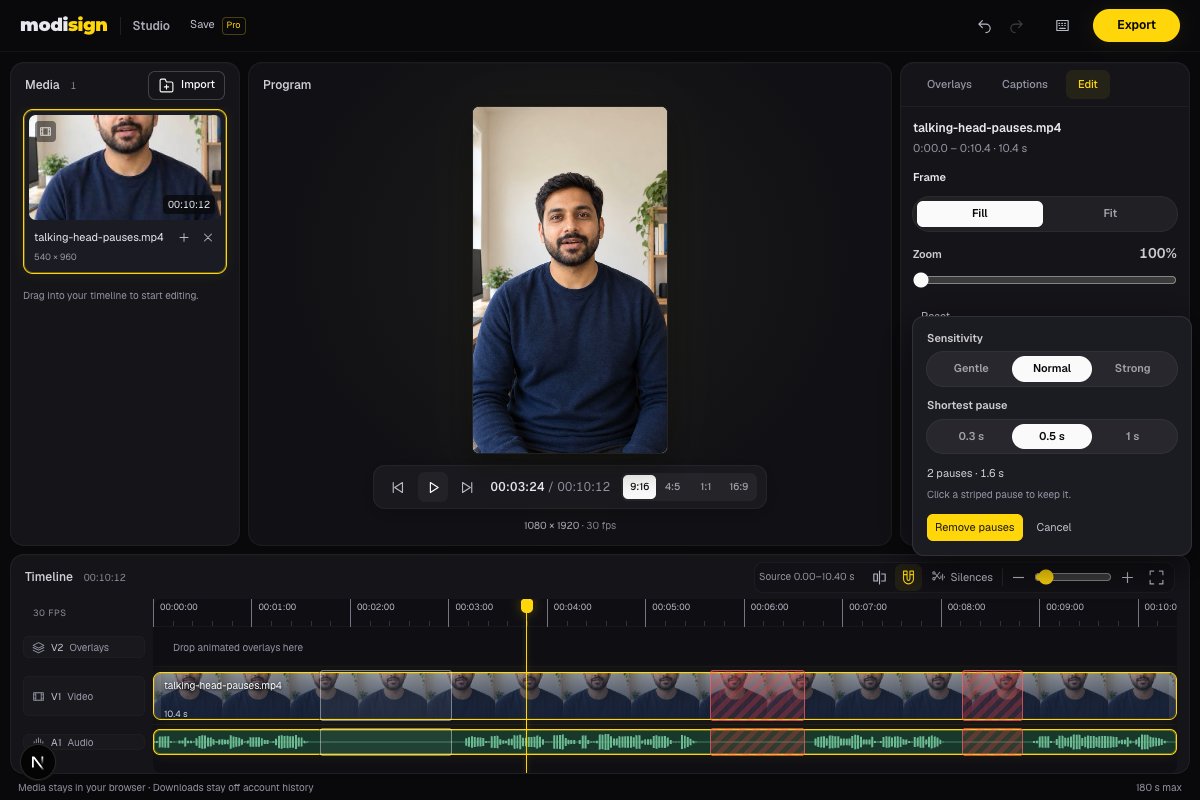
With Normal sensitivity and 0.5 s selected, Studio found three pauses. We kept the first, longer pause and removed the other two. The sequence shortened to 8.82 seconds; one Undo restored the original 10.4 seconds, and Redo restored the edited sequence. The 720p download contained 720×1280 H.264 video at 30 fps and stereo AAC audio. Its video track lasted 8.833 seconds, rounded to a whole frame.
An audio check found the retained long pause and the four retained speech passages in the export. It does not prove perfect speech preservation on an untreated human recording. Modisign publishes this guide and sells Pro; the test used a free account without overlays or captions.
How do you remove pauses, step by step?
- Import the original video. Open Studio, sign in and add your local clip to the timeline with its Media plus button. Keep the original file. Choose the output aspect and trim unwanted beginning or ending material before analysing the pauses; the review uses the trimmed video clips on V1.
- Listen to the uncut passage. Identify gaps that are expendable and gaps that give a sentence its meaning. A pause before a reveal, a breath or a moment to read an example may deserve to stay. Note their rough positions so you can recognise them in the review.
- Open Silences and start with Normal. The Silences button is above the timeline. Its panel offers Gentle, Normal and Strong sensitivity. These decide how quiet the source audio must be to count as a candidate. Strong can include more quiet material; it is not a quality score. For soft speech, compare Gentle before removing anything.
- Choose the shortest pause. The choices are 0.3 s, 0.5 s and 1 s. Start with 0.5 seconds, then use 1 second if you want to target only longer gaps. In our sample, 0.3 and 0.5 seconds each found three candidates; 1 second found two. The removable middle of a pause can be shorter than the threshold because Studio leaves speech padding at its edges.
- Review the striped ranges. Proposed cuts appear over both V1 picture and A1 audio. They start selected for removal. Click a striped range to keep it; click it again to include it in the cut. The panel’s count and duration describe the selected removals, not all quiet moments in the file. We kept the first candidate, changing the summary from three pauses to two pauses totaling about 1.6 seconds.
- Apply, then replay the joins. Click Remove pauses. Studio splits or trims the video, removes the selected picture and audio ranges, and moves the remaining sequence earlier. Listen immediately before and after each join. If an ending consonant disappears or the thought feels rushed, use Undo and review a gentler selection. The whole removal is one undo step; you do not have to repair every new clip separately.
- Export and check the downloaded MP4. Click Export, choose 1080p or 720p, then Export MP4. We used free 720p for this test. Keep the browser tab open until it finishes, then play the file from start to end. A smaller duration is useful only if the speech and pacing still work.
How should you choose the controls?
| Situation | First setting to try | What to review |
|---|---|---|
| Clear spoken tutorial with obvious gaps | Normal, 0.5 s | Sentence endings and the start of the next word |
| Quiet speaker or fading consonants | Gentle, 0.5 s | Whether quiet speech is marked for removal |
| A deliberate, slower explanation | Normal, 1 s | Which long pauses still carry meaning |
| Many short stops between phrases | Normal, 0.3 s | Whether the result sounds hurried |
| Background sound continues during gaps | Compare sensitivities | Whether the source contains a detectable quiet interval |
These are starting suggestions, not measured guarantees. Gentle, Normal and Strong all found three pauses in our clean sample, with slightly different boundaries. Strong selected about 3.0 seconds in total versus about 2.9 for the other settings. That small difference should not be extrapolated to a recording with traffic, music or a fan.
Does this remove filler words or clean up noise?
Studio’s Silences tool analyses quiet audio intervals. It does not identify words such as “um,” choose the best take or clean background noise from speech. Mute and Volume change playback, but the silence review uses the source audio; muting a clip is not a way to select all of it for removal. Photos have no speech to analyse.
You can also remove a gap manually: split before and after it, delete the middle section and review the join. If your recording already lives in Premiere, Adobe documents a different route through the Transcript panel’s Pauses filter, with deletion of individual instances or all matches. We checked that documentation, not a Premiere export. Adobe’s pause-deletion instructions.
What should you check after the timeline gets shorter?
Review any overlay or caption near a cut. Studio moves overlay starts earlier with removed footage, but a title still needs to make sense over the new picture. An overlay is an animated visual layer above your clip; if you want one after editing, browse Hook title overlays and choose an unchanged Free preset. A Pro or customised overlay changes the download requirement, even though pause removal is free.
For captions, use the free caption workflow after reviewing the edit, then correct the words and their timing. Keep title and caption placement clear of controls using the safe-zone guide.
As a pacing suggestion, keep the pause before an important example and remove waiting while you reach for the next item. For a reflective story, leave more breathing space. This tool cannot decide either choice for you.
Studio keeps media in the browser tab and has a 180-second sequence limit. Our test covered a short, clean generated-speech sample with no existing transitions, captions or overlays. We did not test a phone export, a noisy live talking head or a full three-minute edit; review your own recording before trusting a bulk cut.
Frequently asked questions
Does Studio remove filler words such as um?
Silences detects quiet intervals in source audio, not particular words. Spoken fillers need a manual edit or a tool that identifies transcript words.
Which sensitivity should I start with?
Try Normal and a 0.5-second shortest pause, then review every proposed cut. Gentle is worth comparing for soft speech; Strong can include more quiet material.
How do I keep a pause that Studio found?
Click its striped range on the video or audio track to exclude it from removal. Click again to include it. The count and duration update to describe your selected cuts.
Can I undo the whole pause removal?
Yes. The selected removals form one undo step. In our test one Undo restored the original 10.4-second sequence and Redo restored the shortened edit.
Does it upload my video or need a caption model?
Media remains in your browser tab. Silences analyses the source audio without generating captions or downloading the speech model. A free sign-in is required to use Studio.
Related reading
Sources and test details
Tested in Modisign Studio Local Modisign site, October 2026 on Desktop Chrome on macOS: On October 14, imported a 10.4-second local portrait MP4 combining generated English speech, three deliberate pauses and a still creator illustration. Compared Gentle, Normal and Strong and all three shortest-pause choices. Normal with 0.5 seconds found three ranges; keeping the first and removing the other two shortened the timeline to 8.82 seconds. One Undo restored 10.4 seconds; Redo restored the cuts. Downloaded free 720×1280 H.264/AAC at 30 fps, with 265 video frames over 8.833 seconds and an 8.82-second audio track. Audio comparison confirmed four retained speech passages and the kept long pause. No noisy human recording, phone export, full-length sequence or edit with existing overlays, captions or transitions was tested.
Found an error or a changed control? support@modisign.app.