How to Add Keyframe Motion to Video and Text
By Modisign
- Published
- Updated
- Last tested
To zoom smoothly in Studio, select a clip, open Motion in the Edit tab, choose Scale, add a key at the start and type a larger value at a later time. For a title, do the same under Text, using Opacity and Position. Keys on footage and basic titles are free; any stored non-identity key on a placed catalog overlay makes it Pro, even one outside the visible span. A Scale key left at 100% stays free.
What does a two-key move look like?
A keyframe (key) stores a value at one moment. With two keys on the same property, Studio fills in the frames between them. One key only holds its value.
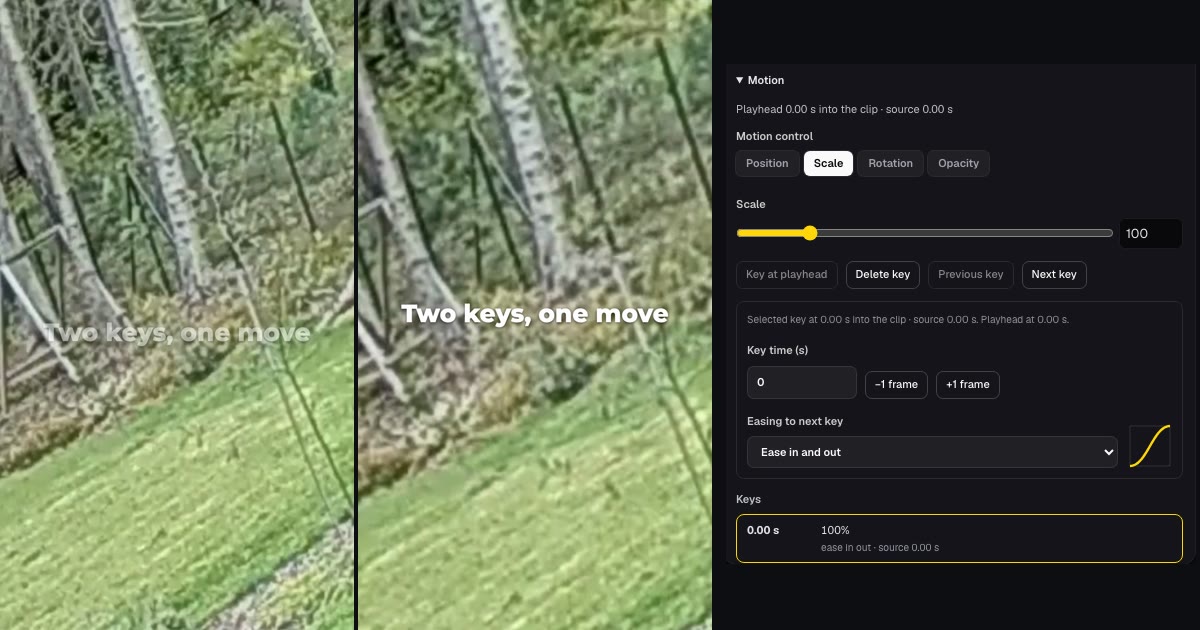
The left frame is the exported MP4 at 0.3 seconds and the middle frame is the same file at 5.9 seconds; the right side is Studio's Scale panel. The clip is a silent six-second garden video, CC0 by its uploader (Commons page). The downloaded file was 1080x1920 H.264 at 30 fps. Enlarging its first frame by 1.30 matched its last frame best, and at 3.0 seconds the best match was 1.15, the 115% midpoint. Modisign publishes this guide and sells Pro; the whole example used a free account.
How do you build the zoom and the title, step by step?
- Set the base framing first. Add the clip, select it and choose the output aspect. Studio switched our landscape clip to 16:9, so we chose 9:16 afterwards. The Frame mode, Zoom slider and any pan set the starting picture.
- Open Motion. In the Edit tab, scroll to Motion and open it. The readout says "Playhead 0.00 s into the clip · source 0.00 s".
- Add the first key. Choose Scale, put the playhead at 0 and click Add key. The panel says a single key holds its value. Typing 100 into the box did nothing for us, because 100% was already the value.
- Add the second key. Move the playhead to 5.9 seconds and type 130 in the Scale box, then press Enter. The clip now grows from 100% to 130%.
- Choose the easing. Put the playhead on the first key and use Easing to next key: Linear, Ease in, Ease out, Ease in and out, Hold or Custom. We picked Ease in and out. The left key's easing governs the stretch up to the next key.
- Animate a title. In the Text tab, click Add title at playhead, type the words and set Duration to 6. Open its Motion, choose Opacity, type 0 at 0 seconds and 100 at 0.6 seconds. Choose Position, type 6 for Y at 0 seconds and 0 at 0.6 seconds. The title fades in while rising 6% of the frame height.
- Export and check. Click Export, choose 1080p or 720p and Export MP4. Look at both endpoints of the downloaded file, not only the preview.
On a phone-sized layout, select the clip, tap More, then Motion. For a title, open More, Text, add the title, tap Done, then Style and its Motion row. We saw this in an emulated 390x844 touch viewport, not on a physical phone.
CapCut documents the same idea: mark a first keyframe, move the playhead, change the value (CapCut keyframes). Use whichever editor holds the rest of your project.
Which easing should you choose?
| Easing on the first key | Scale at 25%, 50%, 75% of the move (100% to 130%) | Feel |
|---|---|---|
| Hold | 100%, 100%, 100%, then 130% at the second key | A jump, not a glide |
| Linear | 107.5%, 115.0%, 122.5% | Constant speed |
| Ease in | 102.8%, 109.5%, 118.7% | Starts slowly |
| Ease out | 111.3%, 120.5%, 127.2% | Starts fast, settles |
| Ease in and out | 103.9%, 115.0%, 126.1% | Slow, fast, slow |
These values were calculated with Studio's own motion function for keys at 0 and 5.9 seconds. Our export confirmed the 100% and 130% endpoints and a 115% midpoint, which Linear and Ease in and out share. We did not export the other curves.
Where do trims, Reset and Undo fit?
Footage keys use source seconds. We trimmed 2 seconds off the start with the trim handle; the clip's keys stayed at source 0 and 5.9 seconds. The readout then said "source 2.00 s", the second key moved to 3.90 s into the clip, and the first key appeared under "Outside the visible span -2.00 s", with "Keys outside the visible span still count and stay editable." The trimmed clip therefore opens at about 107%, calculated from the curve, not at 100%. Undo restored the trim.
Reset scale removes the keys of the current control. Reset motion removes every key on the layer, and Undo brought ours back. Smooth zoom writes 100% to 120% Scale keys across the layer. On empty Scale it applies immediately; on existing keys it says "Replaces the Scale keys (2 now)" and offers Replace with Smooth zoom or Cancel.
| Problem | Check | Fix |
|---|---|---|
| No second key appears | The typed value equals the sampled value | Type a different value, or use Add key |
| Zoom starts partway through | The clip was trimmed | Move the first key inside the visible span, or accept the start value |
| Nothing moves | Only one key exists | Add a key at a later time |
| Keys are hidden | The Motion section is collapsed | Open Motion; its handles appear in Program |
How is this different from a punch-in or Slow zoom?
A punch-in is a hard cut to 110%, 125% or 140% in Fill mode; see adding a punch-in zoom. Slow zoom is a fixed 8% drift on a photo; see making a Reel from photos and videos. Motion keys are outer transforms: Scale, Position, Rotation and Opacity. Studio applies them to the finished layer, after framing and punch-ins, so scaling a Fit clip should also scale its blurred backdrop. We did not test that.
What is free, and what needs Pro?
Keys on footage, photos and basic titles are free. In our test the free export showed no prompt. A non-identity key on a placed catalog overlay is different. We added the free Career truth hook title, typed one Rotation key and the Edit tab changed from Free to Pro. The Export dialog then read "Exporting Pro overlays, overlay motion, title effects... needs Pro." After Reset motion it exported normally again. See Pro pricing if you need it. Captions have no layer motion; for those, see word-by-word caption styles.
Which moves could you try first?
These are suggestions, not tested results:
- Reveal: scale a talking-head clip from 100% to 110% over its first three seconds, then hold.
- Title rise: fade a hook title in over 0.6 seconds while it rises a few percent; see writing a hook title.
- Safe placement: keep the title's final position inside the guides in the text safe-zone guide.
Our test used one short clip on a desktop. It did not measure viewer retention, test Rotation on footage, export a trimmed clip or run on a physical phone.
Frequently asked questions
How many keyframes do I need for a smooth zoom?
Two Scale keys. A single key holds its value for the whole clip. In our test, 100% at 0 seconds and 130% at 5.9 seconds produced a last frame that best matched the first frame enlarged 1.30 times.
Is Smooth zoom a separate effect?
No. It writes ordinary Scale keys, 100% to 120% across the layer, that you can edit afterwards. On a layer that already has Scale keys it asks you to Replace or Cancel first, and Undo restores the old keys.
Does trimming the clip move my keyframes?
Footage keys sit on source seconds. After trimming 2 seconds off the start, our keys stayed at source 0 and 5.9 seconds; the first key became an inactive key outside the visible span, so the clip opens partway through the curve.
Which keyframes make my export Pro?
Keys on footage, photos and basic titles are free. Any non-identity key on a placed catalog overlay makes that overlay Pro, even with an unchanged preset. In our test one Rotation key on a free overlay switched the Export dialog to the Pro prompt.
Can I keyframe captions?
No. Caption layers have no layer motion in Studio. You can keyframe the clip or a basic title you place yourself.
Related reading


Sources and test details
- The garden test clip is the uploader's own work (author Sillerkiil), released under CC0 1.0. — accessed
- CapCut documents keyframes for position, scale, rotation, shape, opacity and color, set by marking a first keyframe, moving the playhead and changing the value. — accessed
Tested in Modisign Studio Local Modisign site, October 2026 on Desktop Chrome on macOS, simulated free signed-in session: On October 23, imported a silent 6-second CC0 garden clip, chose 9:16 (Studio had switched to 16:9 for the landscape clip) and typed two Scale keys: 100% at 0 seconds and 130% at 5.9 seconds, with Ease in and out on the first. Added a 6-second title 'Two keys, one move' with Opacity keys 0% at 0 seconds and 100% at 0.6 seconds and Position Y keys 6% and 0% at the same times. Exported a free 1080x1920 H.264 MP4, 180 frames at 30 fps. Scaling its first frame by 1.22 to 1.36 and comparing it with the last frame gave the best match at 1.30; at 3.0 seconds the best match was 1.15. Also confirmed: Smooth zoom on an empty Scale channel applied at once (100% at 0 seconds, 120% at 6 seconds); on existing Scale keys it asks to Replace or Cancel, Undo restores them; trimming 2 seconds off the start left the keys at source 0 and 5.9 seconds; Reset motion and Undo; a free catalog overlay with one Rotation key changed the Export dialog to the Pro prompt and Reset motion removed it. Not tested: Hold, Linear and custom curves in an export, Rotation or Position on footage in an export, a trimmed export, photos, phones other than the emulated layout, audio with opacity keys.
Tested in Modisign Studio Local Modisign site, October 2026 on Emulated 390x844 touch viewport in desktop Chrome, not a physical phone: On October 23, selected a clip, opened More, then Motion, and saw the same Motion panel. For a title: More, Text, Add title at playhead, Done, Style, then the Motion row opened the Motion sheet. No keys were exported from this layout. No iPhone, Android or Safari test.
Found an error or a changed control? support@modisign.app.