How to Make a Fast-Cut Intro with Labelled Replays
By Modisign
- Published
- Updated
- Last tested
To make a fast-cut intro, open Modisign Studio, put five to seven clips on V1, choose Rapid intro, pick the clips and a teaser length of 3, 4, 5 or 6 frames, type your own descriptions and click Apply rapid intro. Studio plays the first frames of each chosen clip, then your edit unchanged with a label on each chosen clip. One Undo reverses it. The recipe is free.
What do you get, and what did we test?
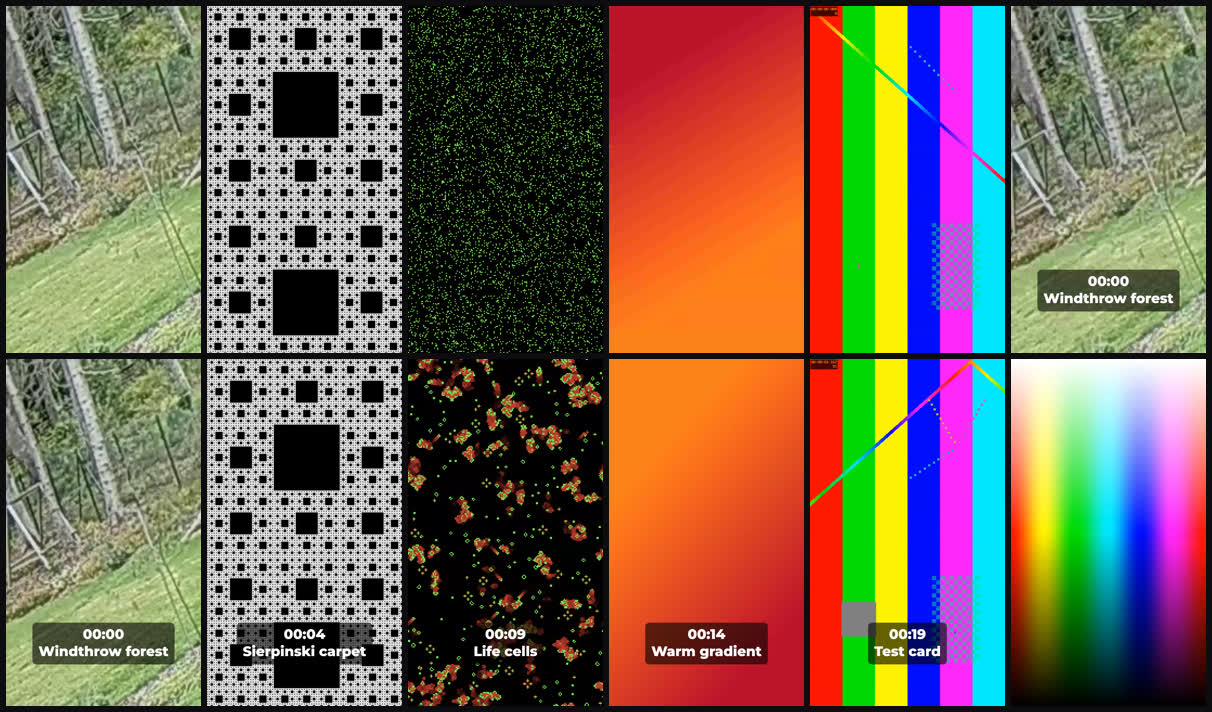
The image is a contact sheet of the file we exported on October 23, 2026. The first five tiles are the first frames of the five teasers; the sixth is the first body frame with its label. The bottom row is one labelled frame from each body clip, and the last clip was left out of the intro on purpose, so it has no label.
The test clips are a vertical crop of a CC0 forest clip by Sillerkiil (Commons page) and five generated patterns. We did not ask any viewer whether it works better than a plain opening. Studio needs a free Google sign-in, and your clips stay in the browser tab.
How do you build it, step by step?
- Put the body on V1. Pick your clips in the order you want the replay: in an empty timeline they join V1 in picker order. Files you import later wait in the Media bin; add them with each clip's plus button. Trim each one to its useful part first. We trimmed the forest clip to start at 2 s.
- Open Rapid intro. On desktop it is a button in the timeline toolbar and opens a dialog. On a phone-sized layout use More, then Rapid intro. It is disabled below five clips on V1.
- Choose five to seven clips. Tick them in the list, or use the Use these 6 clips shortcut, which appears when 5 to 7 V1 clips are long enough for the chosen teaser. It picks them in timeline order and then reads "All 6 clips chosen in timeline order". The numbered list below sets the teaser order; use the arrow buttons to reorder it.
- Type your descriptions. Each chosen clip has a field. Write what the clip shows or does: Studio does not look at pictures and writes nothing for you. For an animated catalog title instead of a plain label, browse hook title animations.
- Choose Teaser length. Pick 3 frames, 4 frames, 5 frames or 6 frames. The dialog prints the sum, for example "5 teasers x 5 frames = 0.83 s".
- Choose Label time: Source time, Timeline time or None. Leave Mute teasers on unless you want the clip audio to play. Captions on teasers is off by default, and Studio then shows no captions on the teasers while the body clips keep theirs. Turn it on only if you want the teasers to show captions from the same speech; Studio warns they can flash for a few frames.
- Click Apply rapid intro once. The dialog closes. Scrub the first teasers, then each labelled body clip.
- Undo if it is wrong. One Undo removed all ten new pieces in our test: five teasers and five labels. Change a choice and apply again.
What do 3, 4, 5 and 6 frames add?
Studio runs at 30 frames per second, so each teaser lasts frames / 30 seconds. The teasers are the first frames of each clip's current trim, placed before the body, which stays unchanged. Five clips at five frames: 5 x 5 / 30 = 0.833 s, which our export confirmed as 25 extra frames.
| Teaser length | One teaser | Five clips | Seven clips |
|---|---|---|---|
| 3 frames | 0.100 s | 0.500 s | 0.700 s |
| 4 frames | 0.133 s | 0.667 s | 0.933 s |
| 5 frames | 0.167 s | 0.833 s | 1.167 s |
| 6 frames | 0.200 s | 1.000 s | 1.400 s |
Anything on an absolute time, such as V2 clips, overlays and explicit titles, moves later by the same total, as the dialog states.
Which label time should you choose?
| Option | What the label shows | What we saw |
|---|---|---|
| Source time | Where the clip starts in the original file (mm:ss) | 00:02 for the trimmed forest clip, 00:00 for the others |
| Timeline time | Where the clip starts in the finished video (mm:ss) | 00:00, 00:04, 00:09, 00:14, 00:19 |
| None | Only your description | Not exported |
Timeline time shows whole seconds, so the first body clip, which starts at 0.833 s, reads 00:00. A label with no description and None selected is not created. A photo has no source time: the dialog says "A chosen photo has no source time; the label uses the timeline time or none."
What did the export contain?
The free-account export was 1080 by 1920, 30 fps, 895 video frames or 29.833 s: the 29 s body plus the 25 teaser frames. The audio was digital silence for the first 0.833 s and carried the clips' test tones from then on, so the muted teasers stayed silent. The first 25 frames were the five teasers in the order chosen. Hard cuts between teasers get no sound of their own: in the Sounds tab, Suggest sounds offered a title sound for each of the five labels but no whoosh at a teaser cut, because only a configured Crossfade or Dip counts.
What should you watch for?
- Flashing. Five picture changes in 0.83 s can be hard to watch. The W3C's flash guidance for web content uses three flashes per second or the luminance thresholds as its limit and lists analysis tools. A cut is not automatically a flash, and we did not analyze ours. Avoid alternating very bright and very dark frames.
- Readability. The three-frame minimum is a technical floor, not a reading time. Nobody reads a title in 0.1 s. The teasers carry no label; the label sits on the body clip for its whole length, so put your words there.
- Distinct shots. Teasers are only the first frames of each trim. Trim so those frames show something recognizable, then check the dialog stills: they show the start of each source file, not your trim.
- Refusals. Studio refuses without changing anything if fewer than five or more than seven clips are chosen, a clip is shorter than the teaser, or the edit would pass 180 seconds or 300 clips.
How should you plan the opening? Three suggestions
- Teaser length: start at 5 frames and drop to 3 only when the first frames of every clip are instantly recognizable.
- Order: open with the shot that explains the topic, as in a hook title premise, and end on the clip you most want replayed.
- Emphasis: add one deliberate punch-in to a body clip rather than to every clip, and keep each label to a few words.
For the basic cutting workflow first, follow the free Reel editing guide.
What are the limits and Free/Pro rules?
Rapid intro, its labels and footage edits are free after sign-in. An export is free only when every overlay equals a free preset with no non-identity overlay motion key, captions are absent or use only Clean, Boxed or Minimal (globally, on every line and in any Scatter style pool) with no manually styled word (Reset all word edits clears them), and no title reveal or person effect is set. Pro Save stores the labels as titles, never your video. There is no automatic shot choice and no retention promise. The same recipe is available through Modisign MCP. Start in Studio.
Frequently asked questions
Does Rapid intro need Pro?
No. The recipe, the labels and the footage edits are free after a free Google sign-in. An export is still free only if every overlay, overlay motion key, caption style, styled caption word and title effect in the edit is free-eligible. Pro Save keeps the labels as titles but not your video.
How long is a teaser of 3, 4, 5 or 6 frames?
Studio works at 30 frames per second, so 3 frames last 0.1 s, 4 last 0.133 s, 5 last 0.167 s and 6 last 0.2 s. Five clips at five frames add 25 frames, about 0.833 s, before your unchanged edit.
Does Studio describe my clips for me?
No. It does not look at pictures, choose shots or write descriptions. Each label is the text you type, plus an optional time stamp. A clip with no text and no stamp gets no label.
Can I use photos in a Rapid intro?
Yes, but a photo has no source time. Choose Timeline time or None for the labels. Studio disables Source time when a chosen clip is a photo.
Will a fast intro keep viewers watching?
We did not test viewer behaviour and cannot promise it. Treat the pattern as an editing choice, check that it stays readable, and keep fast cuts gentle for viewers sensitive to flashing.
Related reading


Sources and test details
- Commons page for the forest clip used in the test: author Sillerkiil, own work, released under the CC0 1.0 Universal Public Dedication, captioned Windthrow in Tammneeme, Estonia. 2020. — accessed
- WCAG 2.2 success criterion 2.3.1: web pages should not contain anything that flashes more than three times in any one-second period, or the flash must be below the general and red flash thresholds. A flash is a pair of opposing changes in relative luminance, and the page lists analysis tools. It is a web accessibility standard, not a social platform rule. — accessed
Tested in Modisign Studio Local Modisign site, October 2026 on Desktop Chrome on macOS, automated 1440 by 1250 window: On October 23, with a simulated free signed-in session on the local development site, imported six 9:16 clips: a vertical crop of a CC0 Wikimedia Commons forest clip, trimmed to start at 2 s, and five generated test clips (pattern, cells, gradient, test card, spectrum), each with a different test tone. Opened Rapid intro, chose five clips, typed a description for each, chose 5 frames and applied. The dialog read 5 teasers x 5 frames = 0.83 s. Source time labels read 00:02 for the trimmed clip and 00:00 for the others; one Undo returned the original six clips and removed all five labels. Applied again with Timeline time and exported on the free account with no Pro prompt. The MP4 was 1080 by 1920 H.264 at 30 fps with 895 video frames (29.833 s), stereo 48 kHz AAC audio, silent for the first 0.833 s and carrying the tones after it. Inspected the frames at each teaser boundary: the first 25 frames were the five teasers in order and the labels began on the body clips. Choosing a photo disabled Source time. No viewer retention or flash analysis was run.
Tested in Modisign Studio phone layout Local Modisign site, October 2026 on Emulated 390 by 844 touch viewport in desktop Chrome, not a physical phone: On October 23, imported five clips, opened More then Rapid intro, used the Use these 5 clips button, typed five descriptions and applied. The edit grew from five to ten clips with five labels and muted 5-frame teasers, and one Undo returned five clips. Did not export from the phone layout and did not test iPhone, Android or Safari.
Tested in Modisign Studio Local Modisign site, October 2026 on Desktop Chrome on macOS, simulated free signed-in session on the local development site: On October 24, after the latest Studio update, imported five generated 4-second 9:16 clips and added them to V1. The Rapid intro dialog showed the Use these 5 clips button, a small still for each chosen clip with the note "Stills show the start of each source file", and Captions on teasers switched off with the note "Teasers show no captions, whether muted or not. Clips in the body keep theirs." Applied once: V1 held ten clips (five teasers and the five body clips). Did not test the Captions on teasers switch turned on, and did not repeat the export.
Found an error or a changed control? support@modisign.app.