How to Choose Word-by-Word Caption Styles in Studio
By Modisign
- Published
- Updated
- Last tested
For word-by-word captions in Modisign Studio, generate an English transcript once, then choose Karaoke to highlight each spoken word within a phrase or Word pop to show one word at a time. Google sign-in, generation and editing are free; those animated styles need Pro to export, while Clean, Boxed and Minimal export free. You can switch styles without regenerating the transcript.
What do the thirteen styles look like?
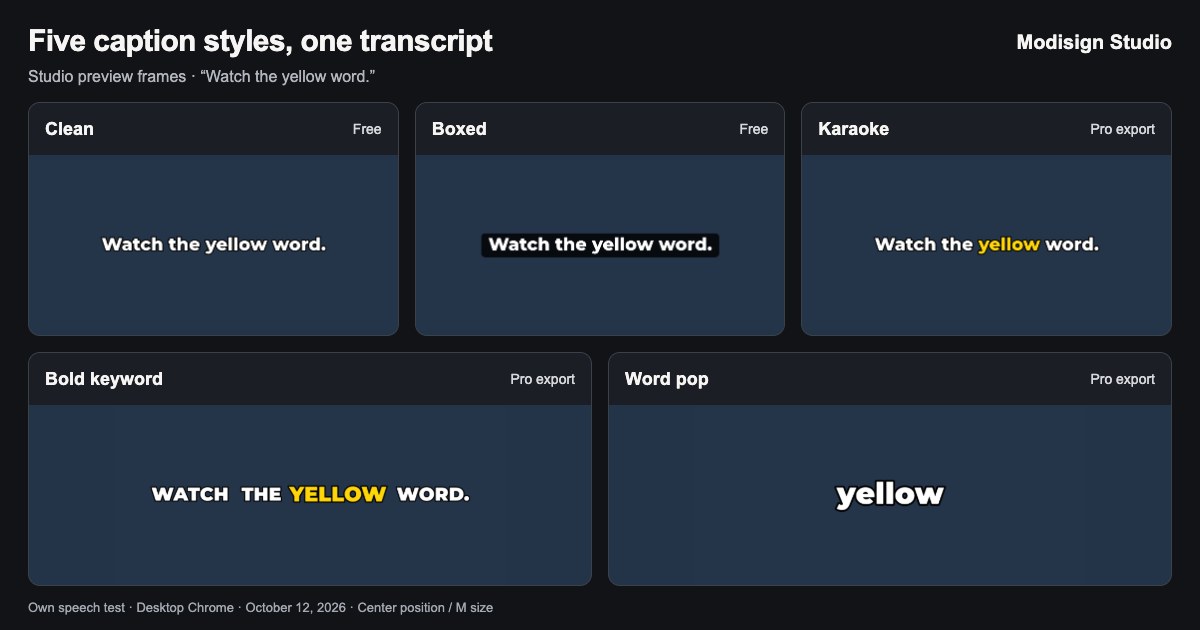
The image above shows the original five styles, not all thirteen. These are our own Studio preview frames from one synthetic English speech clip, captured on October 12, 2026 in desktop Chrome on macOS. The plain background is test footage, so you can compare the lettering. The spoken opening is “Watch the yellow word.” These still frames show appearance only. Generate captions for your own clip and replay it to compare motion and timing. We corrected “sentences” to “sentence,” switched through all five styles without regeneration, opened the SRT/VTT downloads and exported Boxed captions on a free account. The 1080×1920 MP4 had audio, and a frame check showed the corrected opening sentence. This caption-only local test did not cover catalog browsing or overlay integration; we did not test mobile or platform posting.
Have a local video with English speech and a Google account ready. Studio generates English captions on your device. First use needs an approximately 43 MB model download, cached in your browser and removable from the Captions panel. Your video, audio and caption text are never uploaded. Studio currently supports English only.
How do you change caption styles without regenerating?
Prepare a corrected transcript once. Follow the free caption generation and correction workflow, then return here to compare styles. Studio’s editor requires free Google sign-in. Check the words before choosing motion: animation cannot correct a transcription mistake.
Use a phrase style as your baseline. Start with Clean or Boxed and play the corrected passage. Compare the moving picture with the words as a group before switching to a word-by-word treatment.
Click a style card. The Free group offers Clean, Boxed and Minimal; the Pro group offers the other ten styles listed below. The preview changes using the existing transcript. Do not click Regenerate to change the look. Word pop also changes the transcript display into individual words; returning to a phrase style groups them again. Your wording remains available.
Choose Position and Size, then play the result. Position offers Upper, Center and Lower; Size offers S, M and L. Watch with audio to check the active word, then muted to check whether you can follow the meaning. Test the longest phrase and the busiest shot at phone size.
Download your result before closing the tab. Clean, Boxed or Minimal with no Pro overlay configuration gives you a free MP4 export. The ten expressive styles can be previewed free but need Pro to export. Download SRT and Download VTT remain free with any selected style. Pro projects save caption style, position and size when captions are present, but never caption text.
Which animated caption style fits your clip?
The use cases below are design suggestions. Choose by what the viewer needs to read while watching the picture.
| Style | What Studio displays | Suggested use | Export |
|---|---|---|---|
| Clean | White phrase text with a dark outline | Talking head, interview or a quote that needs its surrounding words | Free |
| Boxed | Phrase text over a dark rounded background | Tutorial footage with changing bright and dark areas | Free |
| Minimal | Lowercase medium-weight white text with a soft shadow and a brighter current word | Quiet speech captions when the background permits light lettering | Free |
| Karaoke | A phrase stays visible; the current spoken word turns yellow | Spoken explanation where you want a word-by-word guide through the sentence | Pro |
| Bold keyword | Uppercase phrase text; the current word turns yellow and grows | A short emphatic quote or energetic talking head | Pro |
| Word pop | One larger word at a time, with a brief scale-in | A short joke or deliberately paced statement | Pro |
| Highlight box | Uppercase white words with a rounded yellow box easing to the spoken word | Speech with a clear moving marker | Pro |
| Neon | White sans text with cyan and magenta glow; the active word glows more strongly in magenta | A stylized passage on darker footage | Pro |
| Pop-up | Words appear with a brief scale-in and accumulate until the next phrase | A progressive reveal that keeps earlier words visible | Pro |
| Typewriter | Monospace characters arrive at the word timings, with a blinking caret | A deliberate text-led passage | Pro |
| Outline | Heavy uppercase white outlines; the spoken word fills yellow | An expressive short phrase | Pro |
| Editorial | Mixed-case serif text; the spoken word grows slightly and becomes italic in yellow | A quotation with restrained emphasis | Pro |
| Gradient | Extra-bold orange-to-pink text with a soft dark shadow and a slightly larger active word | A warm, expressive phrase | Pro |
Bold keyword follows spoken timing. It does not give you a control to pick only important nouns or manually mark a keyword. If the intended emphasis is on “yellow,” listen and check that the animation reaches that word at the right moment.
Studio offers thirteen fixed caption styles; font, colour and motion are part of each style rather than separate controls. CapCut offers many more animated styling options: its official pages describe a broad caption-template library, customizable animation and AI-assisted style selection. It also supports multiple languages and translation, giving it a wider scope than Studio’s English-only captions. We did not compare recognition accuracy on noisy audio. CapCut caption templates, caption motion and languages.
Other editors offer broader text-animation controls too. For a short quote you type yourself, Clipchamp documents fade, slide, bounce and typewriter effects with duration and direction controls. That can be a useful native text route; it is not evidence that those effects automatically track spoken words. Clipchamp text animation options.
When does one word at a time become hard to read?
My suggestion is to use Word pop sparingly when a sentence’s meaning depends on several words being visible together. “Do not tighten the screw yet” deserves a check as a complete instruction: a viewer who misses “not” could misunderstand it. Clean, Boxed and Karaoke keep more surrounding words available.
For a talking head, try Clean first, then compare Karaoke on the same passage. For a tutorial, try Boxed and place it away from the hands or tool. For comedy timing, try Word pop on a short punchline, but replay the actual pause: the style follows the existing word timing and does not create a comedic pause for you. A longer spoken quote usually benefits from phrase context.
W3C says automatic captions need accuracy review and that captions convey meaningful non-speech audio as well as dialogue. Our speech-only example does not establish complete accessibility coverage. W3C caption guidance.
| Problem | Check | Suggested fix |
|---|---|---|
| Word pop feels too fast | Play muted without pausing | Switch to a phrase style; larger words alone do not add reading time |
| Highlight falls on the wrong word | Compare the phrase with the audio | Check for a wording error; if the words are right, compare Clean or Boxed |
| Words disappear into the picture | Brightest and busiest shots | Compare Boxed with Clean and try another position |
| Caption covers a face, action or title | Full sequence, including cuts | Move captions or change the competing graphic’s timing |
| Free export asks for Pro | Selected caption style and overlay configuration | Return to Clean, Boxed or Minimal and check for a Pro overlay |
Captions follow trims, splits and reordered clips. Replay around each cut, especially if you split through a spoken word. Position labels do not guarantee clearance from a destination’s interface; use the text safe-zone guide and inspect your destination preview.
Studio also layers motion-graphics elements over your footage. For a tutorial section heading, browse step-title presets, then check the heading and captions together. An unchanged free preset can keep the export free; changing its wording requires Pro to export unless the resulting configuration matches a free preset, independently of the caption style.
A subtitle download carries timed text rather than these visual effects. See SRT versus VTT caption files if you need a separate copy. Export the video when you want the chosen caption appearance in the picture. To compare styles on your own speech, open Studio, generate once and replay the same passage with each style.
Frequently asked questions
Can I change the animated caption style without regenerating?
Yes. Click another style card in Captions. Studio reuses the transcript, including your corrections. Word pop shows individual words in the transcript display; switching back to a phrase style groups them again.
Are word-by-word captions free to export?
The ten expressive caption styles need Pro for video export. Generation, editing and preview are free after Google sign-in, as are SRT/VTT downloads. Clean, Boxed and Minimal video exports are free when the sequence has no Pro overlay configuration.
Does an SRT or VTT download keep the animated style?
These Studio downloads carry timed text, not the yellow highlights, boxes or pop animation. In our test, Word pop produced one-word SRT cues and Boxed produced phrase cues. Export the MP4 to keep the chosen appearance in the video picture.
Will captions be there when I reopen a saved project?
No. Caption text lives only in tab memory and follows trims, splits and clip reorders; Pro projects save style, position and size when captions are present and apply them after you generate captions again. Export and download your timed-text copy before closing or reloading.
Related reading
Sources and test details
- CapCut documents a broad customizable caption-template library, styles such as Glow and Multiline, and AI-assisted style selection; supports its wider caption-styling scope, not an accuracy or performance comparison. — accessed
- CapCut documents multiple caption languages, translation, and adjustable font, color, effects and motion; supports broader language and animated styling options than Studio, not accuracy on noisy audio. — accessed
- Clipchamp documents native text animation effects including fade, slide, bounce and typewriter, with duration and direction controls; this does not establish automatic word-level speech tracking for those effects. — accessed
- W3C says automatic captions need accuracy review and editing, and captions convey meaningful non-speech audio information as well as dialogue. — accessed
Tested in Modisign Studio Local Modisign site, October 2026 on Desktop Chrome on macOS: On October 12, imported a 4.89-second synthetic English speech clip using a temporary local free account. This caption-only local test did not cover catalog browsing or overlay integration. Generated captions, corrected sentences to sentence and the opening punctuation, selected Center position and M size, and switched through all five styles without regenerating. Verified the corrected wording in every style and captured five preview frames at the same point in the opening sentence for a 1200×630 screenshot grid. Played the sequence with Karaoke selected to its end and confirmed the Karaoke Pro export prompt. Downloaded and opened Word pop SRT with one-word cues, then Boxed SRT and VTT with phrase cues. Exported Boxed captions free: 1080×1920 H.264 video at 30 fps and stereo 48 kHz AAC audio, with a 4.971-second container duration. Inspected an exported frame showing Watch the yellow word. inside its black box. Verified removal of the cached speech model. No Pro-style export, mobile export, platform posting, noisy-audio accuracy comparison or caption persistence test was performed.
Tested in Modisign Studio Local Modisign site, October 2026 on Desktop Chrome on macOS, 1440px and 390px viewport checks: On October 13, generated captions from a 3.64-second synthetic English speech clip with a temporary local Pro account and selected all eight added styles without regenerating. Checked keyboard selection and panel scrolling at 390px with no horizontal overflow. Exported Highlight box and Minimal as 1080×1920 H.264 MP4 with stereo 48 kHz AAC and 3.644-second container duration. Compared each exported frame at 0.4 seconds with its monitor canvas: matching placement and lettering, with small encoding differences. Inspected the eight added-style frames and both panel screenshots. Deleted the temporary account and session afterward. No mobile export, platform posting, noisy-audio accuracy or caption persistence test was performed.
Found an error or a changed control? support@modisign.app.