How to Point Out a Detail in a Tutorial Video
By Modisign
- Published
- Updated
- Last tested
To point out one button or part in a tutorial, add a Spotlight or Arrow callout overlay in Studio just before the moment it matters, then move your footage, not the overlay, until the detail sits under the overlay's fixed target. An unchanged free preset exports free; moving or relabelling the overlay makes it Pro. None of these overlays tracks motion or operates the software you are showing.
What does the tested highlight look like?
An overlay is an animated graphic layered on top of your video. Here it is a soft round spotlight that darkens everything except one small area.
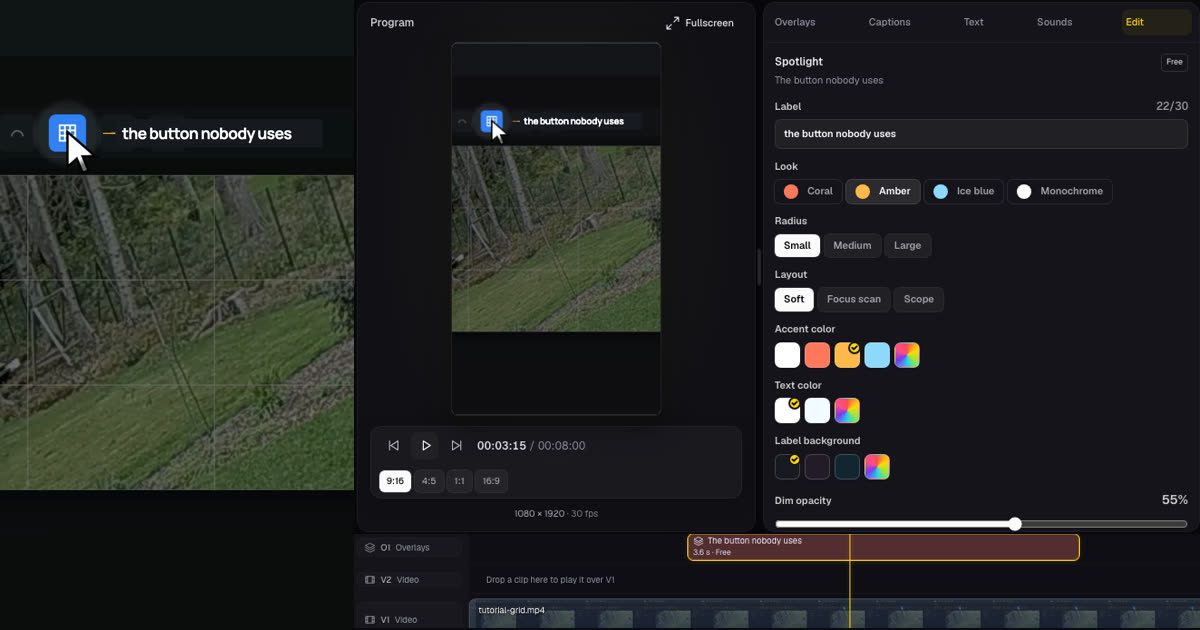
The left side is a frame from the downloaded MP4 at 4 seconds; the right side is a Studio screenshot. The footage is an 8-second landscape screen recording of a mock photo app we built for this test, with a synthetic voice. The cursor clicks a small grid button at 3.0 seconds. The photo inside the app is a frame of a CC0 garden clip (Commons file page).
You need a desktop or phone browser, a free Google sign-in for Studio and a local recording. Your media stays in the browser tab. Modisign publishes this guide and sells Pro; this example used a free account and an unchanged free preset.
Which overlay fits your detail?
Each of the four families has one free preset. Its words and its target position are part of the preset, so choose the one that already fits your shot.
| Overlay | Use it when | Free preset | Where its target sits | What makes it Pro |
|---|---|---|---|---|
| Spotlight | One small control or part, and the rest of the frame can go darker | "The button nobody uses": round spotlight, the rest dimmed to 55%, label "the button nobody uses" | Upper left. In our 1080x1920 export the circle was centred about 19% from the left and 21% from the top, roughly 190 px wide | Any change to Label, Look, Radius, Layout (Soft, Focus scan, Scope), colours, Dim opacity, Vertical, Horizontal or Size |
| Arrow callout | The detail must stay fully bright | "Essential step": hand-drawn arrow pointing down-left into a circle, label "don't skip this step" | Near the bottom centre in the catalog preview (we did not export it) | Any change to Label, Direction, Circle target, Layout (Marker, Pointer flag), stroke, font, position or size |
| Feature callouts | Two or three parts of one product at once | "Desk hub details": three bracket labels, "One cable in", "Two screens out", "Laptop charging" | Three fixed targets; the Brackets layout gives each one its own horizontal and vertical controls | Any change to a label, target, side, colour or position |
| UI action | You want a clean drawing of a setting change instead of pointing at your real screen | "Show file extensions": a settings card where "File extensions" flips from Hidden to Visible, with "No more mystery files" | Lower part of the frame | Changing the Operation (Toggle, Dropdown selection, Slider adjustment, Keyboard shortcut) or any text |
None of them follows anything. Each is drawn at one place in the frame for its duration: if the camera moves or the window scrolls, the highlight stays put. UI action draws a control; it does not click or change anything in the app you are demonstrating.
How do you put the spotlight on the detail, step by step?
- Import the recording and pick 9:16. Open Studio and add the file; it joins the timeline as it imports. Our landscape clip switched the output to 16:9, so we clicked 9:16 under Program. In Fill mode the landscape picture fills the height and loses its sides, which is what leaves room to move it.
- Put the playhead just before the moment. The spotlight started dimming about 0.3 seconds after its start and lifted about 0.4 seconds before its 3.6-second end. Placed at 2.0 seconds, the dim ran from about 2.3 to 5.3 seconds, around our click at 3.0.
- Add the overlay. Open Overlays, search "spotlight" and click the card The button nobody uses, marked Free. It lands at the playhead on an overlay lane, and the Edit tab reads "Spotlight", "The button nobody uses", "Free". You can preview the same free Spotlight preset in the catalog.
- Find the target. Pause where the overlay is fully in; we used 3.5 seconds. At the default framing the label covered our button, because the button sat about 30% across the frame while the circle sat at 19%.
- Move the picture, not the overlay. Select the clip and drag the picture sideways in Program. Our drag moved the clip's horizontal centre from 0.50 to 0.55, and in the export the spotlight's centre and the button's centre were about 7 pixels apart in a 1080x1920 frame. Framing your own footage is free.
- Check the badge and export. The overlay still said Free. Click Export, keep 1080p or choose 720p, then Export MP4. Our file was 1080x1920 H.264 at 30 fps, 8.0 seconds, with stereo AAC.
Portrait footage that already fills a 9:16 frame has no spare edge to drag. In that case raise the clip's Zoom in its Frame section first, which crops the picture; we did not test that route here.
What happens if you move or relabel the overlay instead?
In Studio every control stays editable on a free account; the export decides. We changed the spotlight's Vertical from Upper to Center. Export then showed "Pro overlays and captions" and "Exporting Pro overlays, overlay motion, title effects, expressive caption lines or styled words needs Pro." Reset to preset brought back the normal "Export video" dialog.
The same applies to new label text, another look and motion keys on the overlay. Pro is $9 a month plus tax. An unchanged free export is licensed for your own channels, including monetized posts; client work, ads and sponsored posts need the Pro licence, as the terms explain.
Can you add your own words for free?
Yes, as a native Studio title. Open Text, click Add title at playhead and type. We added "Tap the grid button" beside the spotlight and the Export dialog stayed the free one. A title is plain text with your choice of font, colour, size and position; it does not animate in like the overlay's label. The full method is in adding your own text for free, and numbered steps for longer tutorials are covered in animated step titles.
What can go wrong, and how do you fix it?
| Problem | Check | Fix |
|---|---|---|
| The label covers the detail | Pause where the overlay is fully in | Drag the picture until the detail sits inside the circle |
| The highlight arrives after the click | The dim starts about 0.3 seconds after the overlay's start | Start the overlay half a second to a second earlier |
| The detail moves away mid-highlight | Overlays do not track | Hold the shot still, or let the highlight end before the move |
| The picture will not drag | Fit mode, or a portrait clip that already fills 9:16 | Switch to Fill, or raise Zoom first |
| Export asks for Pro | The overlay's badge says Pro | Click Reset to preset |
| The target sits under platform buttons | The free arrow points near the bottom of the frame | Frame the detail higher, or use the spotlight |
Which overlay could you try first?
These are suggestions, not tested results:
- Screen recording: a Spotlight on the one toolbar button, starting half a second before the click.
- Product close-up: an Arrow callout with its circle on the part, while the product stays still.
- Setting you cannot record cleanly: a UI action card instead of a cluttered real screen, with your voice naming the setting.
Keep the detail away from the areas Reels, Shorts and TikTok cover with their own buttons; see the text safe-zone guide.
This test used one synthetic screen recording on a desktop. We exported only the Spotlight; the other three families were checked in their settings and catalog previews. We did not test a phone, a moving camera or keyframed footage.
Frequently asked questions
Does the spotlight or arrow follow the object when it moves?
No. All four overlays are drawn at a fixed place in the frame for their duration. If the camera moves or the window scrolls, the highlight stays where it was. Keep the shot still while it is on screen, or end the highlight before the detail moves.
Can I move a free overlay to where my detail is?
You can, but changing an overlay's Vertical, Horizontal or Size makes it Pro. In our test, moving the spotlight to Center opened the Pro export gate. The free route is to move your footage instead: dragging the picture in Fill mode is free.
Does the UI action overlay change the setting in my app?
No. It draws a settings card, such as a toggle flipping from Hidden to Visible. It does not click, type or change anything in the software you are demonstrating. Record the real change separately if viewers need to see it.
Can I write my own label without paying?
Yes, as a native Studio title. Text, Add title at playhead, then type. Our title 'Tap the grid button' kept the export free. Editing the overlay's own label makes the overlay Pro.
Related reading


Sources and test details
Tested in Modisign Studio Local Modisign site, October 2026 on Desktop Chrome on macOS, simulated free signed-in session: On October 25, imported an 8-second 1920x1080 screen recording of a mock photo app made for this test (synthetic voice, cursor clicks a grid button at 3.0 seconds), switched the output to 9:16, added the free Spotlight preset 'The button nobody uses' at 2.0 seconds and dragged the picture in Program, which moved the clip's horizontal centre from 0.50 to 0.55. In the 1080p export the spotlight's centre measured 203,403 px and the button's centre 200,396 px; at the default framing the label covered the button. The dim ran from about 2.3 to 5.3 seconds. Both exports were 1080x1920 H.264 at 30 fps, 240 frames, 8.0 seconds, with stereo AAC. Changing the overlay's Vertical to Center opened the Pro export gate; Reset to preset restored the free Export dialog. A native title kept the export free. Arrow callout, Feature callouts and UI action were checked in their settings and catalog previews, not exported; no phone was used.
Found an error or a changed control? support@modisign.app.