How to Position and Style Each Caption Line in a Video
By Modisign
- Published
- Updated
- Last tested
To give each caption line its own spot, generate and correct English captions in Modisign Studio, select a line and change its position, size, rotation or style; only that line changes. Or turn on Scatter to place every short phrase over your footage for you, clear of overlays and titles, and Reroll for a new arrangement. Layout and free-style Scatter export free after Google sign-in; expressive line styles need Pro.
What does a scattered caption edit look like?
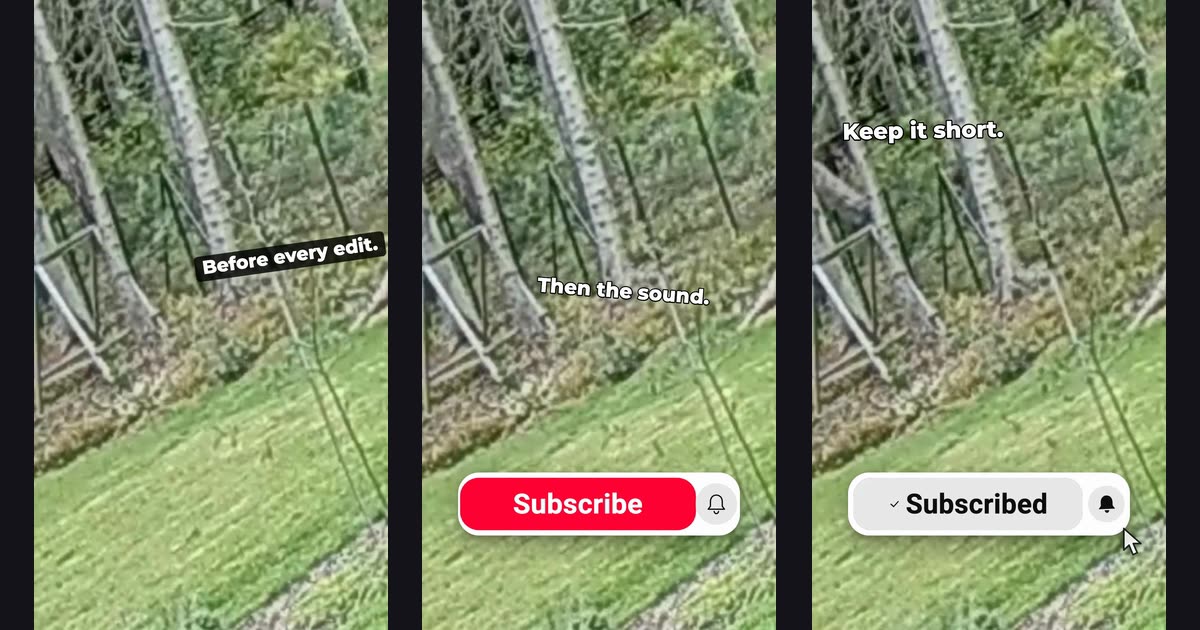
The image shows three frames from one 1080×1920 export. The first line was placed by hand, set to Boxed and tilted -8°; Scatter placed the other two above a free Subscribe button. The picture is a CC0 forest clip from Wikimedia Commons with synthetic English speech added, so this test is about placement, not about recognizing a real voice. We used a simulated free account on the local development site.
You need a local video with English speech, a free Google account for Studio and a current browser; on iPhone and iPad, use Safari with iOS or iPadOS 26 or later. Here a caption is text generated from the speech and burned into the picture, and a line is one timed phrase of about three to five words. A long line can wrap onto two rows, which move together. Your video, audio and caption text are not uploaded.
How do you place and style one caption line?
- Generate and correct the words first. Import your clips, open Captions and click Generate captions. Our 11-second test came back as eight lines in about nine seconds, starting with "3 things I check." We changed it to "Three things I check." in the transcript and pressed Enter. The free caption guide covers corrections.
- Fix the phrase breaks. Recognition split "Last, the opening" from "line." We selected the first and clicked Join next line. Because the two lines sat in different places, Studio asked first, and Join and keep this line's look made one line in one undo step. Split line, with the word chosen in Split before, does the opposite.
- Select the line. Click Line beside it in the transcript, its pill in the CC lane or the caption in Program. The inspector shows, for example, "Line 2 of 7 · 00:02:04 · Free style", with Previous line and Next line.
- Move and resize it. Drag the caption in Program, or drag a corner to change its size. With the box focused, the arrow keys move it by 1% and Shift+arrow by 5%. The same values are number fields: X (%) and Y (%) for the centre of the line, Size (% of the shorter side) from 2 to 14 and Rotation (degrees) from -30 to 30. Each drag was one undo step in our test.
- Give it its own style. Under Style, pick any of the fourteen caption styles for this line only, or Use the global style to match the rest again. We chose Boxed for line 2 and typed -8 in Rotation.
- Reset when it gets busy. Reset line returns that line to the shared look and placement; Reset all line edits clears every hand-placed line.
- Export. Click Export, choose 1080p or 720p, then Export MP4. Watch the file muted at phone size.
On a phone, below 1024 px wide, open Captions and tap Line next to a transcript row. A This line sheet opens with the style cards, without bringing up the keyboard. Its Position & size… link gives Program more room: drag the caption with one finger and drag its corner to resize it; rotation stays a number field. We checked this in a 390×844 touch emulation in desktop Chrome, not on a real phone, and exported a 1080×1920 MP4 from it.
How does Scatter place every line?
Scatter gives each short phrase its own spot, size, small tilt and style, chosen from the styles you allow. Desktop shows it in the Captions panel; on a phone it is under Layout. Set Scatter to On. You can do this before generating: it applies once the words exist, and it also switches Phrase length to Scatter short phrases.
| Setting | Choices | What it changes |
|---|---|---|
| Styles to mix | Clean, Boxed, Minimal (Free); eleven expressive styles (Pro) | The pool each phrase's style comes from |
| Safe zone | Social guide, Frame guide | Where Scatter may put text |
| Intensity | Subtle, Normal | How much size and tilt vary |
| Phrase length | Default, Scatter short phrases | How the speech is cut into lines |
| Reroll | One button | A new seed and a new arrangement, as one undo step |
The same seed and words give the same layout in Program and in the export. In our test, Reroll moved all seven lines at once. Lines you placed or styled by hand stay as they are; Replace N manual lines hands them back to Scatter after a confirmation. Changing Phrase length after hand edits asks first, because regrouping resets those lines.
What happens when you add an overlay or title?
An overlay is an animated element, such as a subscribe button, layered over your footage. Scatter plans around the area each overlay and title actually paints. After we added the free Subscribe button overlay at 5 seconds, Studio said "The overlays, titles, format or captions changed since the captions were placed. Refresh caption placement before exporting." Refresh caption placement took about 27 seconds on our Mac and kept every phrase clear of the button. Export also re-plans an outdated layout first, in a Placing captions step with Cancel.
When no safe spot exists, Studio lists the phrases without safe space instead of hiding words. Keep manual placement leaves those phrases where you or the defaults put them, with every word shown; Cancel keeps the previous edit. Then move the overlay, change the title or place the line yourself.
The Social guide is Modisign's own conservative region for portrait video (8-82% across, 16-65% down in 9:16), not an official platform measurement. Tick Show safe zone on Program to see it, and still check the safe-zone guide and a real platform preview.
What exports free and what needs Pro?
| Edit | Export |
|---|---|
| Move, resize or tilt any line | Free |
| A line in Clean, Boxed or Minimal | Free |
| Scatter with only Clean, Boxed and Minimal | Free |
| A line in Editorial, Mixed or another expressive style | Pro |
| A Scatter pool with any expressive style | Pro, whichever styles the seed picks |
| A hand-styled word, even in a free style | Pro |
We tested the gate on a simulated free account. Scatter with the free styles, plus line 2 dragged, set to Boxed and tilted, opened Export MP4. Switching that line to Editorial changed the dialog to "Pro overlays and captions", and Use the global style brought the free export back. Editing and previewing every style stay free, and overlays keep their own rule: an unchanged free preset stays free. The mixed-font guide covers word styling.
What do saved projects and subtitle files keep?
Pro Save keeps the caption recipe: style, position, size, phrase length and the Scatter seed, safe zone, intensity and styles. Studio's note says hand-placed lines and styles, split or joined lines, corrected wording and word edits stay on this device and are not saved. After reopening, generate captions again; Scatter applies the saved recipe, and hand-placed lines need placing again. We did not test Save.
Download SRT and Download VTT write one cue per caption line, with words and times only. Position, size, rotation and style are not in either file; SRT vs VTT explains the formats.
Can you use it in a fast-cut edit or with an assistant?
Trend edit, in the desktop header and under the phone's More, is an optional guide through Clips, Rapid intro, Captions, Overlays, Sounds and Review and export. Rapid intro teasers start with captions off, so 3-6-frame cuts do not flash text. Captions on teasers turns them on, and body clips keep their captions even when muted.
With Modisign MCP, edit_video accepts captions.scatter (seed, safe zone, intensity and styles) and captions.lines rows that pick a clip and a source-time range and set x, y, size, rotation or style. An example request: "Make these two clips a 9:16 MP4 with English captions scattered in free styles, seed 58, and put the line from 2 to 3.2 seconds in the second clip in a tilted Boxed style." We sent the matching call from a test client, not through an assistant, without signing in. The job finished in about 7 seconds and saved a 720×1280 MP4 with "Keep it short." in a tilted box.
How do other editors handle caption placement?
Instagram's Captions sticker transcribes your reel, lets you edit words and choose a style, and you pinch and drag to reposition the captions (Instagram's Reels guide). CapCut's Apply to all captions gives every auto caption one style, and its help notes that a manually edited caption can detach from that style on mobile (CapCut help). One shared look is the calmer choice for long explanations. Per-line placement suits short spoken phrases that should land in different places. These are suggestions, not measured results:
- Vary position more than style. Keep one or two styles per video so the captions still read as one voice.
- Match intensity to pace. Subtle suits a talking head; Normal suits a fast montage.
- Check the longest line. Play it muted at phone size before posting.
What does this not do?
Studio recognizes English speech only. A line moves as a whole: caption lines have no motion path or keyframes, and Scatter jumps between phrases rather than animating text across the screen. Scatter avoids overlays and titles, not faces or objects in your footage. We did not test a real phone, a real Pro account, saving or a posted video.
Frequently asked questions
Is moving, resizing or tilting a caption line free?
Yes. Position, size and rotation are free on any line, and so are Clean, Boxed and Minimal as line styles. Editorial, Mixed and the other expressive styles, and any hand-styled word, need Pro to export. Editing and previewing every style stay free after Google sign-in.
Does Scatter hide words when an overlay leaves no room?
No. Studio lists the phrases without safe space. Keep manual placement leaves them where you or the caption defaults put them, with every word shown, and Cancel keeps the previous edit. Move the overlay or title, or place the line yourself.
Does a saved project keep my caption positions?
No. Pro Save keeps the caption recipe: style, position, size, phrase length and the Scatter seed, safe zone, intensity and styles. Hand-placed or restyled lines, split or joined lines, corrected wording and word edits stay in the open tab. After reopening, generate captions again and place hand-edited lines again.
Do SRT or VTT files keep caption positions and styles?
No. Studio writes one cue per caption line with its words and times. Position, size, rotation and style exist only in the exported MP4.
Can an AI assistant scatter the captions for me?
Yes, through Modisign MCP. The edit_video tool takes a Scatter recipe (seed, safe zone, intensity and styles) and line rows that set position, size, rotation or style for a clip and source-time range. With only Clean, Boxed and Minimal it renders free without an account.
Related reading


Sources and test details
- The forest test footage, Windthrow in Tammneeme, Estonia, 2020, is own work by Sillerkiil, released under CC0 1.0. — accessed
- Instagram's Captions sticker transcribes the speech in a reel; you can edit words, choose a caption style and pinch and drag to reposition the captions. — accessed
- CapCut's Apply to all captions (help page dated January 30, 2026) applies one style to every auto-generated caption, and on mobile a manually edited caption can become detached from that global style group. — accessed
Tested in Modisign Studio Local Modisign site, October 2026 on Desktop Chrome on macOS, 1440 px wide window: On October 25, on a simulated free account, imported two clips (6 and 5 seconds of CC0 forest footage with synthetic English speech), chose 9:16 and turned Scatter on with the three free styles before generating. Generation took about 9 seconds and returned eight lines; we corrected 3 things I check. to Three things I check. and joined Last, the opening with line. in one undo step, which marked the placement as changed until Refresh caption placement. Reroll moved all seven lines in one undo step. Added the unchanged free Subscribe button, red overlay at 5 seconds; refreshing placement took about 27 seconds and placed all seven phrases with none left at the default. Dragged line 2 (one undo step), set it to Boxed and -8 degrees: Export offered Export MP4. Editorial on that line showed the Pro prompt and Use the global style restored the free export. Exported a 1080x1920 H.264/AAC MP4 at 30 fps, 11 seconds, with every line clear of the button.
Tested in Modisign Studio Local Modisign site, October 2026 on Desktop Chrome emulating a 390x844 touch screen (not a real phone): On October 25, on a simulated free account, imported the same clips, turned Scatter on under Captions, Layout and generated captions. Line on a transcript row opened the This line sheet without focusing a text field. Chose Boxed, opened Position & size, moved the caption with a one-finger drag (one undo step) and widened it from 131 to 195 px with a corner drag (one undo step). The Export sheet offered Export MP4 and saved a 1080x1920 MP4, 11 seconds.
Tested in Modisign MCP Local Modisign MCP build against the local Modisign site, October 2026 on macOS on Apple silicon, scripted MCP client, not signed in: On October 25 called edit_video with the same two clips on V1, 9:16, 720p, Clean captions, scatter seed 58 with clean, boxed and minimal, and one lines row (second clip, 2.0 to 3.2 seconds, Boxed, -6 degrees, size 0.07). The job finished in about 7 seconds and saved a 720x1280 H.264/AAC MP4, 11 seconds; frames showed scattered Clean, Boxed and Minimal lines and Keep it short. in a tilted box.
Found an error or a changed control? support@modisign.app.