How to Add an Animated Overlay to Your Own Video
By Modisign
- Published
- Updated
- Last tested
To put an animated overlay on your own video, open an overlay in Modisign's editor, use Add your video under Format, choose when the overlay starts and click Download this clip. You get one MP4 with your clip's full length and original sound. It works for one video up to 60 seconds, and nothing is uploaded.
What does the finished example look like?
An overlay is an animated graphic, such as a title or a card, that plays on top of your footage. Usually you download it as its own file and stack it in a video editor. Your video skips that step: the editor puts the graphic over your clip and renders both together in the browser.
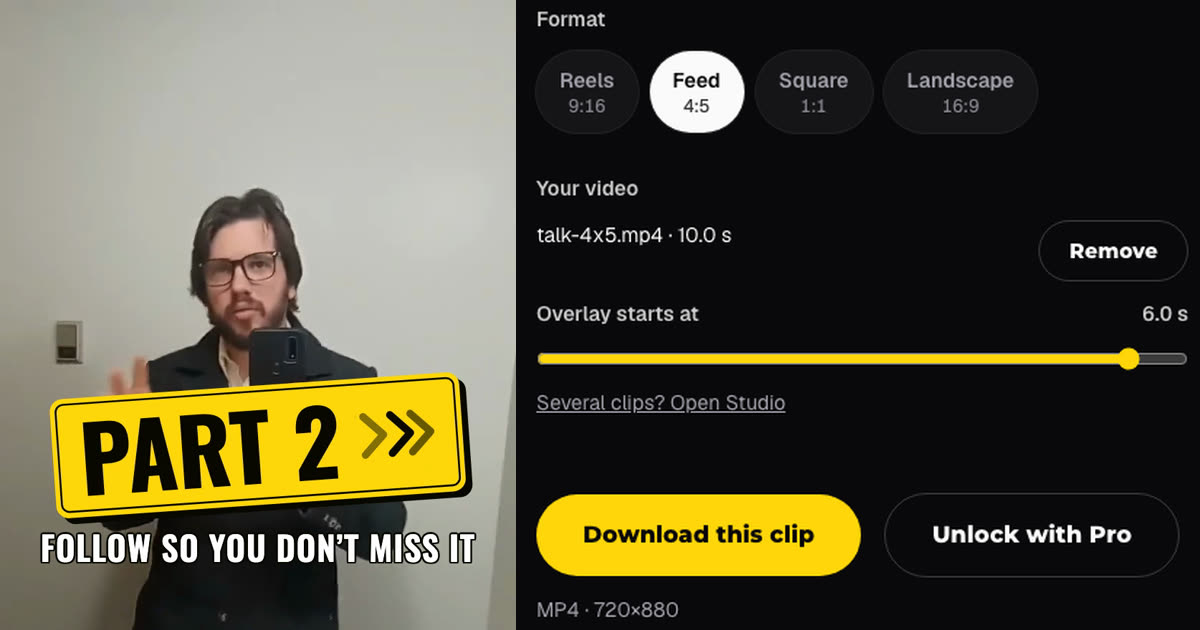
The left side is a frame from the downloaded MP4 at 7.0 seconds; the right side is the editor at the moment we clicked download. The clip is a 10-second excerpt of a CC0 selfie video by its uploader (source). The original carries a platform watermark, so we cropped it to 720x880 before the test.
You need a browser that can decode video (we used desktop Chrome) and one local clip up to 60 seconds. We used the unchanged free Storytime part two preset of the Next part card, without signing in.
Which route should you use?
| You have | Use | What you get |
|---|---|---|
| One clip up to 60 seconds, one overlay | Your video in the overlay editor | One MP4 at your clip's size, with its sound; no sign-in for an unchanged free overlay |
| A longer edit in CapCut, Premiere or another editor | The standalone download | The overlay alone on green, which you remove in your editor (keying, also called chroma key) |
| Several clips, captions, titles or more than one overlay | Studio | A full edit up to 180 seconds; free with Google sign-in |
The standalone route is the one to choose when your video is already in another editor's timeline. Green-screen MP4 vs transparent WebM explains its two file types, and the CapCut guide shows the keying steps. Your video needs neither.
How do you add the overlay, step by step?
- Open a free overlay. Pick an unchanged free overlay from the free picker or open one in the catalog. The page shows a Free badge and the note "Pick a background and format, then download. No sign-in. Text, look and colors are part of Pro."
- Click Add your video. It sits below Format, with the note "Up to 60 seconds. Stays in your browser; never uploaded." Choose your file. The status shows "Reading media…" with Cancel import, then the file name and length: "talk-4x5.mp4 · 10.0 s".
- Check the Format. The editor picks the supported shape closest to your video. Our 720x880 clip moved Format from Reels 9:16 to Feed 4:5. The overlay is scaled to your video's width and centred. The Background control disappears, because your video is now the background.
- Set Overlay starts at. Drag the slider in 0.1-second steps. Its maximum is your video's length minus the overlay's, so a video longer than the animation lets the overlay finish before the video does: 6.5 seconds for our 10-second clip and 3.5-second card. We chose 6.0 seconds. A video shorter than the animation is still accepted, but the start stays at 0, the slider is disabled and the editor says "The overlay ends when your video ends." The export lasts as long as your video, so the overlay is cut off partway; we did not export that case.
- Watch the preview. The phone preview shows your clip with the overlay on top. Move the slider until the card lands where you want it.
- Click Download this clip. The line under the button shows the output, here "MP4 · 720×880". Rendering starts at once: "Rendering your clip", a percentage and "Keep this tab open until it finishes." Ours took about 18 seconds, then "Your clip is ready. Your download has started."
To swap the clip, click Remove and add another. If the clip is too long, see the troubleshooting table below.
What did the downloaded file contain?
We compared the download with the source frame by frame and measured both soundtracks.
| Check | Result |
|---|---|
| Size and length | 720x880, 30 fps, 301 frames, 10.03 seconds: the whole clip, at its own resolution |
| Codec | H.264 video, AAC stereo audio at 48 kHz |
| Sound | Same level as the source (-22.6 dB average), so the speech is untouched |
| Where the overlay appears | From 6.03 to 9.47 seconds; frames before and after matched the source apart from normal re-encoding |
| File name | modisign-next-part-your-video.mp4 |
For comparison, the same preset downloaded without a video was a 1080x1350 MP4 of 3.5 seconds on solid green, with no audio track. That file is the one you key in another editor.
Modisign scales a larger video so its long side is at most 1920 pixels. Our test clip was smaller, so we did not exercise that limit.
What can go wrong?
| Problem | Check | Fix |
|---|---|---|
| "is 75.0 seconds. Choose a video up to 60 seconds." | The clip is over 60 seconds | Trim it first, or use Studio. Retry reads the same file again and fails the same way; Remove clears the message |
| You picked the wrong file | The status still says "Reading media…" | Click Cancel import. We saw "Import canceled. No files were added." |
| The overlay stops short of the end | The overlay plays once for its own length | Move Overlay starts at later; the slider stops where the overlay would run out of video |
| The card sits in the wrong shape | Format changed when you added the clip | That is the closest supported shape to your video; you can still pick another Format |
| You want your own words | The free preset's text is locked | Open another preset and type your text: the preview is free, the download needs Pro |
| You canceled a render | The dialog closed | Your video stays loaded; click Download this clip again |
| "This browser cannot open video." | The browser lacks video decoding | Try Chrome, Edge or Safari, as the message suggests |
Where and when should the overlay appear?
These are suggestions, not tested results:
- Part 2 or follow cards: start in the last few seconds, as we did, so the card is the last thing a viewer sees. For linking the next part properly, read linking part two in YouTube Shorts; the card itself is a picture, not a link.
- Hook titles: start at 0.0 to 0.5 seconds so the promise arrives with the first words.
- Keep it clear of the platform buttons. The text safe-zone guide shows where each app draws its interface.
Is it free?
An unchanged free preset downloads with your video without sign-up or watermark. Its text, look and colours are locked, and Background and Format stay open. Every other configuration can be edited and previewed by anyone, and its download needs Pro, $9 a month plus tax; when we were not signed in, its download button opened Google sign-in first. Free exports are licensed for your own channels and accounts, including monetized posts; client work, ads and brand accounts need Pro's commercial licence. See the licence terms.
Your clip never becomes part of your account: we saw no request carrying it, and the composite is rendered and saved by your browser. For longer projects, the no-upload editing guide covers Studio, which keeps footage on your device in the same way.
This test used one clip on a desktop browser. It did not cover phones, a source above 1920 pixels, a Pro download or publishing to a platform.
Frequently asked questions
Does my video get uploaded?
No. The editor reads the file in your browser tab and renders the MP4 there. While we tested, no request carried the video. A free download also creates no account history record.
Can I use a video longer than 60 seconds?
Not in the overlay editor. A 75-second file was refused with the message that it is 75.0 seconds and to choose a video up to 60 seconds. Trim it first, or use Studio, which takes sequences up to 180 seconds with a free Google sign-in.
Can I change the words on the free overlay?
Not for free. On an unchanged free preset, the text, look and layout controls are locked for visitors without Pro, and Background and Format stay selectable. You can type your own words into any other preset and preview them free, but downloading that configuration needs Pro.
Will the overlay cover my whole video?
No. It plays once, for its own length, from the start time you choose. Our 3.5-second card appeared from 6.03 to 9.47 seconds and every other frame matched the original.
Related reading


Sources and test details
Tested in Modisign overlay editor Local Modisign site, October 2026 on Desktop Chrome on macOS, not signed in: On October 25, opened the unchanged free Storytime part two preset of the Next part card, added a 10-second 720x880 talking clip with speech under Your video, set Overlay starts at to 6.0 seconds and downloaded it without signing in. The MP4 was 720x880 H.264 at 30 fps, 301 frames, 10.03 seconds, with stereo AAC audio at the same level as the source (-22.6 dB). Frames differed from the source only from 6.03 to 9.47 seconds, where the card plays. Format switched itself from 9:16 to 4:5. A 75-second file was refused with Retry and Remove; Retry failed the same way, Remove cleared it, and Cancel during reading added nothing. Canceling a render left the video loaded. No request sent the video anywhere.
Tested in Modisign overlay editor Local Modisign site, October 2026 on Desktop Chrome on macOS, not signed in: For comparison, removed the video and downloaded the same free preset alone: a 1080x1350 H.264 MP4, 3.5 seconds, 105 frames, green background, no audio track.
Found an error or a changed control? support@modisign.app.