How to Link Part Two in YouTube Shorts
By Modisign
- Published
- Updated
- Last tested
Use YouTube Studio’s Related Video setting to connect your Short to part two; advanced feature access is required. Viewers get a clickable link beneath your channel handle, while URLs in Shorts descriptions and comments are non-clickable. Add plain text or a next-part animation over your own footage to explain the destination; the graphic itself does not create navigation. YouTube’s Related Video instructions, clickable-link rules.
Is the PART 2 card for a published or future episode?
An overlay is an extra visual layer above your recording. Here, it supplies a part label and reminder while your footage continues underneath.
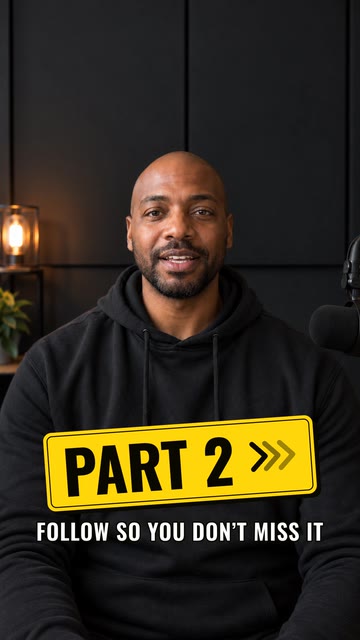
Illustration of the free Storytime part two preset over sample footage. The illustrative creator footage is not included in the download; this is not a receiving-editor or platform test.
For an available sequel, use wording that points to the Related Video link. The tested free card is suitable only for a future-episode reminder. The render verifies the asset; we did not test CapCut import, keying, transparent WebM or YouTube navigation. App steps below follow the official documentation listed below.
Have your footage, the correct next episode, access to your channel in Studio, and an editor ready.
How do you connect the next episode and add its prompt?
Check advanced feature access first. According to YouTube, open Studio → Settings → Channel → Feature eligibility → Advanced features. Access requires phone verification plus sufficient channel history or ID/video verification; ID and video options are not available to every creator. Phone verification alone is not the whole requirement. Check what your account offers before promising navigation. YouTube verification requirements.
Prepare the destination and write one instruction. According to YouTube, Related Video can select your channel’s Videos, Shorts or Live content; the destination must be public or unlisted and comply with Community Guidelines. Destination requirements. My suggestion is to give the episode a recognizable title, such as “Part 2: fixing the loose hinge,” and make the prompt name that continuation.
Choose native text or ready-made animation. According to YouTube, Text adds on-screen words and Timeline controls their start and stop. CapCut also documents Text → Add text. Native text is a valid choice for “Part 2 — tap the video below my handle.” YouTube text timing, CapCut text instructions.
For ready-made motion, browse next-part cards and choose a Free badge, or open the exact tested free Storytime part two configuration. Free elements download as they are as green-screen H.264 MP4, without sign-up or watermark. Background and Format remain selectable; use Green screen and portrait 9:16 here. Keep this preset’s existing words for an appropriate future-episode reminder; custom navigation wording requires Pro for download.
Add the graphic only if its wording fits. For a rendered card, follow the documentation-based CapCut import and green-removal workflow; chroma key removes the selected background color from the layer above your footage. Reserve the tested card’s full 3.5 seconds and review the saved wording at phone size. Native text is the more direct choice for an available Related Video destination. Neither route was tested in a receiving app here.
Set the actual link after uploading the Short. According to YouTube, sign in to Studio, choose Content, open the Short, select Related Video from your channel, then SAVE. This separate setting supplies the clickable destination. Official Studio steps.
Check the viewer journey. Open the Short in the Shorts player, follow its related link and confirm the episode matches the promise. This is a check for you to perform, not a navigation test completed here. Compare the graphic’s words with the destination before considering the edit finished.
Are description or comment URLs a substitute?
According to YouTube’s current sharing-links help, URLs in Shorts descriptions and comments are non-clickable, whereas Related Video links are clickable. YouTube’s link-surface rules. A written address therefore does not provide the same route as the native related link.
My suggestion is to avoid “link in the description” for this next-episode workflow. Name the part and the real control instead. The arrow on a rendered card is only pixels: Modisign does not upload videos, select Related Video, create a link or connect the card to YouTube.
What should you check if viewers cannot reach part two?
These are documentation-based checks and editorial suggestions, not tested account outcomes or a compatibility chart.
| Problem | Check | Next action |
|---|---|---|
| Related Video is unavailable | Advanced feature status | Follow the verification options offered to your channel. |
| Desired episode cannot be selected | Channel ownership and visibility | Confirm it belongs to your channel and is public or unlisted. |
| URL in a comment does nothing | Whether you used a URL instead of Related Video | Configure the native related destination when eligible. |
| Graphic promises a different episode | Saved destination and the words on screen | Correct the setting or wording before sharing. |
| Green remains around the card | Selected layer and sampled color | Re-sample green and balance the keying controls. |
The eligibility check follows YouTube’s verification guide; destination checks follow Related Video requirements. URL behavior follows YouTube’s sharing rules, and edge adjustments follow CapCut’s troubleshooting.
What should the card say, and when should it appear?
Treat these as design suggestions, not distribution tricks or promises of more views:
- Available repair sequel: show “Part 2: the fix” with “Tap the video below my handle” after the first diagnosis is complete. Configure the related destination separately.
- Longer explanation: use “Full walkthrough” and name what it covers. Keep the promised answer consistent with the selected video.
- Future episode: say “Part 2 coming next” rather than “Watch now.” Use native wording or an appropriate follow-reminder overlay; the subscribe/follow animation guide explains those visual reminders.
Leave useful footage behind the whole animation, and keep faces, hands and subtitles clear. Follow the text-placement guide for destination checks rather than copying a universal margin. Read both lines without pausing; shorten the prompt before shrinking it. W3C’s contrast reference specifies 4.5:1 for ordinary text and 3:1 for large text. W3C contrast guidance.
How do you change the card for an available sequel?
For your own part label, navigation instruction and styling, Modisign Pro is $9/month plus applicable tax and unlocks text, look, colors and the available size/position controls for every overlay. This next-part family has Size and Vertical. Anyone can preview custom configurations; downloading them requires sign-in and Pro.
Desktop also offers transparent VP9 WebM with alpha, the information storing transparency, including for unchanged free presets. Receiving-editor import and alpha preservation were not tested here; verify both in your exact editor version before relying on that output. The demonstrated route is green-screen MP4.
Try an unchanged free overlay to check the simple download route; the landing picker does not contain every family. Your editor combines the graphic with your footage, and YouTube’s separate setting provides navigation.
Frequently asked questions
Can part two be another Short rather than a long video?
Yes. According to YouTube’s Related Video help, the destination can be a Short, Video or Live from your own channel. It must be public or unlisted and follow Community Guidelines; a private episode is not an eligible destination.
Will pinning the part-two URL make it clickable?
YouTube’s sharing-links help says URLs in Shorts comments are non-clickable. Pinning a comment is not the documented route to a clickable next episode. Use Related Video when available, and keep any written directions accurate.
What if part two is not ready yet?
Use an honest future-episode reminder instead of promising an available link. The tested free card says Part 2 and Follow so you don’t miss it; native text can use wording suited to your YouTube channel. Finish the next episode before directing viewers to it.
Can I change the free card to say Tap the video below my handle?
Free Modisign presets download as they are, without sign-up or watermark; Background and Format remain selectable. Use native editor text for your own words, or customize the animation with Pro. Customized downloads require sign-in and Pro; changing the graphic still does not configure YouTube navigation.
Can I download the card with transparency instead of green?
Modisign offers transparent VP9 WebM with alpha, the information storing transparency, on desktop, including for unchanged free presets. This run did not test receiving-editor import or alpha preservation. Verify both in your exact editor version before using that output; the demonstrated file is green-screen H.264 MP4.
Related reading
Sources and test details
- YouTube: Related Video setup after upload, advanced access, same-channel Video/Short/Live eligibility, public/unlisted visibility and Community Guidelines; clickable link below the handle. — accessed
- YouTube: Settings/Channel/Feature eligibility/Advanced features; advanced access requires phone verification plus sufficient channel history or ID/video verification, with ID/video unavailable to some creators. — accessed
- YouTube: URLs in Shorts comments and descriptions are non-clickable; Related Video links are clickable. — accessed
- YouTube: native Text for on-screen calls to action, Timeline start/stop controls for text clips, and review before publishing. — accessed
- CapCut: native Text/Add text, mobile Overlay/Add overlay and Export for the edited result. — accessed
- CapCut desktop: upper-track layering, chroma-key color removal, Video/Remove BG/Chroma Key, color sampling, Strength/Shadow controls and edge troubleshooting. — accessed
- CapCut mobile: Edit/Remove BG/Chroma Key, color sampling and Intensity/Shadow adjustments. — accessed
- W3C: WCAG contrast reference of 4.5:1 for ordinary text and 3:1 for large text. — accessed
Tested in Modisign modisign.app, October 2026 on Desktop browser: On October 9, 2026, exported the unchanged free Storytime part two preset with default Green screen: 1080×1920 H.264 MP4, 30 fps, 105 frames, 3.5 s. We checked the file; an extracted frame at 2 seconds showed a yellow PART 2 badge, chevrons and Follow so you don’t miss it against green. No receiving-editor import, keying, transparent WebM or YouTube workflow test was performed.
Tested in Modisign Local Modisign site, October 2026 on Desktop Chrome on macOS: October 14: Checked the Storytime part two illustration, free configuration and placement labels. The card remains a future-episode reminder; YouTube navigation was not tested. Look changes palette colors; Layout changes structure and palette changes preserve wording and placement. Missing catalog images prevented the editor from loading, so no new export or receiving-editor test was completed. Earlier export measurements retain their original dates.
Found an error or a changed control? support@modisign.app.