Modisign Studio vs CapCut for Reel Editing
By Modisign
- Published
- Updated
- Last tested
Choose Modisign Studio for a short Reel combining local videos and photos, Crossfade or Dip to black transitions and ready-made animated elements, while keeping the media on your device. Choose CapCut when you need broader caption languages and styling, effects or a dedicated mobile app; its official guides document those tools. Studio requires free Google sign-in and stops at three minutes, while exports have no watermark when all overlays match free presets and any captions use Clean, Boxed or Minimal. CapCut caption languages and styling, effects, mobile app.
How far does the Studio test support this comparison?
An overlay is an extra visual layer above your recording: a hook title, name card or follow reminder. This comparison is published by Modisign, which sells Pro.
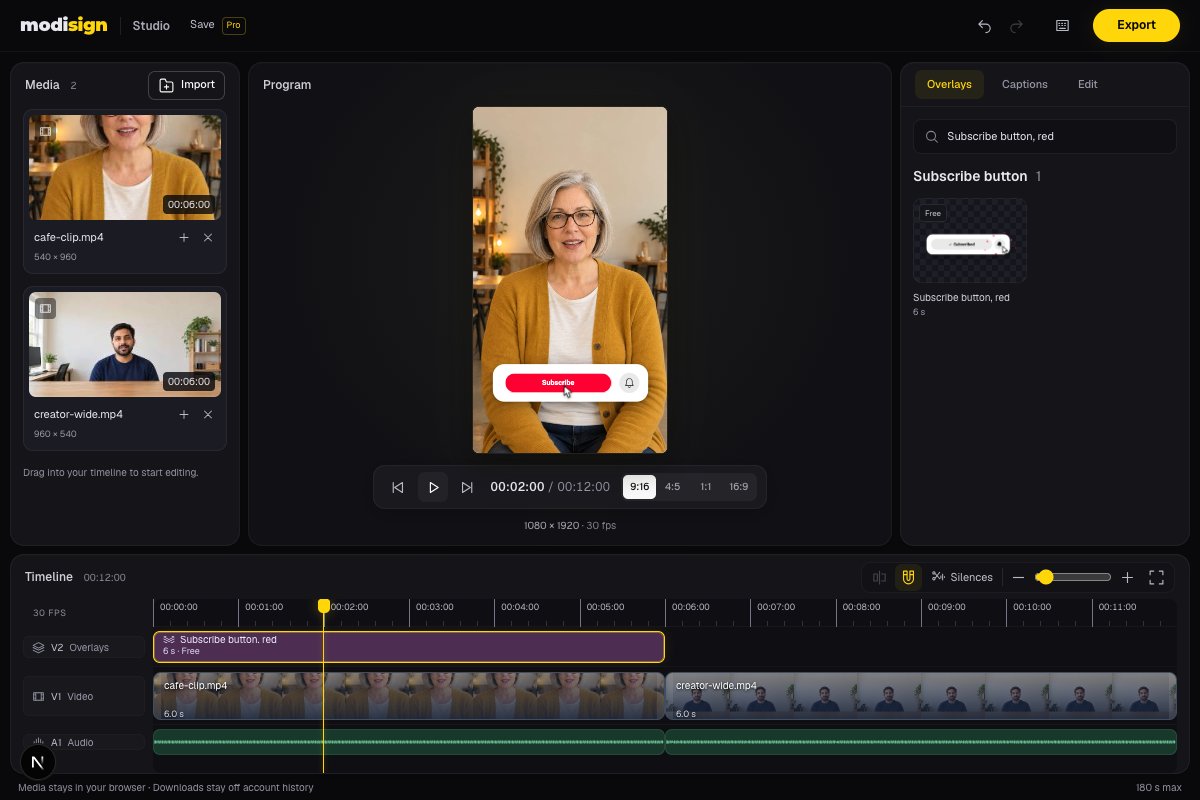
Studio with two local still-based clips of AI-generated fictional creators and the overlay library. The screenshot illustrates a local edit; it is not a competitor or phone test.
The Studio desktop tests covered cuts, framing and free-overlay export; their measurements and limits are recorded in Sources and test details. CapCut facts come from its official documentation, rather than an import or export test in CapCut.
Have your local clips, a Google account and a recent desktop browser ready. Choose a hand-off only when the second tool adds something your edit needs.
How do Studio and CapCut compare on the same criteria?
| What matters for your Reel? | Modisign Studio | CapCut |
|---|---|---|
| Installation | Browser editor; no install | Web needs no install; desktop and mobile apps are separate options. Versions |
| Where footage goes | Imported clips stay in browser memory; preview and export run locally | Its documented web workflow signs into a workspace and uploads media. Web workflow |
| Basic cuts | Trim, split, ripple editing and undo/redo; 180 seconds maximum | Web documents trimming and splitting. A comparable current length limit was not verified. Editing tools |
| Animated overlays | Built-in catalog presets placed directly over your clips | Text, stickers and layered video, with separate effects and transitions. Overlay tools |
| Speech captions | English captions on-device; thirteen styles; free SRT/VTT downloads; Clean/Boxed/Minimal video export is free with free overlay configurations | Generates captions from speech. Auto captions |
| Effects and AI | Catalog graphics, manual punch-ins, photo slow zoom and two transitions: Crossfade and Dip to black | Filters, effects and AI color correction. Effects tools |
| Free download | Finished MP4 without watermark when all overlays match free presets and any captions use Clean, Boxed or Minimal | Web advertises watermark-free output; premium content can trigger a Pro requirement. Free output, export conditions |
| Phone editing | Workspace works best on desktop; phone export not tested here | Dedicated mobile app with templates, auto captions and filters. Mobile features |
No install is shared with CapCut web. Studio's useful difference is combining a browser workflow with local footage and built-in animated Reel overlays. The upload comparison concerns CapCut web's documented route; it does not establish that every desktop or mobile edit uploads footage. CapCut web upload instructions.
When is Studio the better choice?
Pick Modisign Studio when you already have the shots and want a straightforward sequence with a few animated titles or reminders. Ripple editing means later clips close up when you shorten or remove a clip. You can make the cut, place the graphic and download one finished video without managing a separate overlay file.
Studio offers 9:16, 4:5, 1:1 and 16:9, exported as H.264 video with AAC audio in MP4. Each clip supports Fill with zoom/pan or Fit over a blurred backdrop. Check landscape recordings before committing to portrait: something near the edge can disappear.
There is no account-tied media cloud for your Studio footage, but Studio still requires Google sign-in. Free edits live in tab memory, so export before closing or reloading. Pro projects save the timeline structure and settings, never your media or speech-caption text. Reopening means relinking the local files.
Free users can edit the timeline and any overlay. Exporting a Pro overlay configuration or expressive caption style, or saving a project, needs Pro at $9/month plus applicable tax. Select an overlay and open Edit to change its text, look, colors and supported size/position controls. An edited configuration needs Pro to export unless it matches a free preset.
When is CapCut the better choice?
Choose CapCut when a talking-head Reel needs caption languages or styling beyond Studio’s English-only options. Its desktop guide documents Auto captions → Generate, as well as Text → Add text for words you write yourself. Studio also generates English captions on-device, with thirteen styles and free SRT/VTT downloads. Clean, Boxed and Minimal video exports are free when all overlays qualify as free configurations. CapCut documents broader languages, translation and design controls. CapCut caption options. CapCut text and caption controls.
CapCut is also the stronger fit when you need filters, a wider range of transitions and effects than Studio’s Crossfade, Dip to black, punch-ins and photo slow zoom, or a dedicated phone app. Its official pages describe effects and adjustable filters, and a mobile app with ready-made video templates. These are documented capabilities, not speed or quality results from our own test. Effects and filters, mobile templates.
For a simple written title, native editor text is a valid choice. Use a Modisign overlay when its prepared animation is what you want, rather than adding another tool just to display plain words.
Check premium labels before committing to an effect. CapCut's export help says premium assets or settings can require Pro across web, desktop and mobile. We have not compared subscription prices or verified every feature's free allowance. CapCut Pro export help.
How do you keep the Studio side of the edit free?
Use the free Reel editing tutorial for the full sequence. Export is free without a watermark when every overlay configuration matches a free preset and any captions use Clean, Boxed or Minimal. If Export asks for Pro, check each overlay’s current configuration tier in Edit and the caption style. Reset or replace Pro configurations and choose Clean, Boxed or Minimal for free export. Studio composites its overlays directly, with no green background to remove.
Can you use Studio and CapCut together?
Yes: choose which tool owns the main edit, then make one hand-off. These are suggested workflows; we verified Studio's MP4, but not the receiving CapCut version.
Studio first: cut your clips and add free overlays in Studio, export the finished MP4, then try it in CapCut for additional effects or caption features beyond Studio’s English-only options. CapCut documents importing video into a project and generating captions. Test a short file in your version before building a complete workflow around it. Import and caption instructions. The Studio graphic is now part of the picture, so you cannot move it as a separate CapCut layer.
CapCut first: keep your footage edit there and download just a Modisign animation. The unchanged free red subscribe preset can download as a green-screen H.264 MP4 without sign-up or watermark. Background and Format remain selectable; custom wording, looks and colors require Modisign Pro. This standalone download has different sign-in rules from Studio.
CapCut's desktop guide places the green clip above the footage and removes green through Video → Remove BG → Chroma Key. Chroma key removes a selected background color to reveal the layer below. Follow the green-screen overlay walkthrough and check the edges in your version. Official desktop keying guide. We have not verified CapCut's preservation of desktop transparent VP9 WebM output, so do not assume it replaces that keying step.
Where should the graphics go?
These are design suggestions: put an opening hook over spare space in the first shot; show a step label when the action starts; place a follow or subscribe reminder after the useful point. Leave time for the animation to finish and check the text safe-zone guide against your destination preview.
A subscribe graphic is a visual reminder, not a clickable subscription control. If your Reel needs broader caption languages or effects, consider CapCut; if it needs a short local edit with ready-made motion, try Studio with a free overlay.
Frequently asked questions
Is Studio free without a watermark?
Google sign-in is required. Export is free without a watermark when every overlay configuration matches a free preset and any captions use Clean, Boxed or Minimal. Reset or replace Pro configurations and choose Clean, Boxed or Minimal. Both plans have the 180-second limit; saving projects requires Pro.
Does Studio save or upload my footage?
No. Clips stay in tab memory and render locally. Pro projects save the timeline structure and settings, never your media or speech-caption text. Reopening requires relinking the local files; export free edits before leaving the tab.
Can an animated title replace speech captions?
No. A hook or step title summarizes a point; it does not transcribe speech. Studio generates English captions on-device, offers thirteen styles and free SRT/VTT downloads. Clean, Boxed and Minimal video exports are free when no overlay configuration requires Pro.
Can I move a Studio overlay after importing the MP4 elsewhere?
The graphic is part of the exported picture, so it is no longer a separate editable layer. Change its timing in the original Studio edit, or use a standalone overlay download as a separate layer in your receiving editor. CapCut import and keying were not tested for this article.
Related reading
Sources and test details
- CapCut web works without a separate installation; its documented workflow requires sign-in and media upload, offers trim/split and advertises watermark-free output. — accessed
- CapCut premium assets or settings can require Pro at export on web, desktop and mobile; watermark-free web exports using Pro materials require Pro. — accessed
- CapCut offers separate desktop and mobile apps and a browser editor without installation; mobile features include auto captions, templates, filters and sound effects. — accessed
- CapCut documents effects, transitions, animations, adjustable preset filters and AI color correction. — accessed
- CapCut desktop video import, layered video/stickers/text, Text → Add text, Auto captions → Generate and effects/transitions; mobile overlay controls. — accessed
- CapCut desktop places green-screen clips above background footage and uses Video → Remove BG → Chroma Key to sample/remove green. — accessed
- CapCut documents multiple caption languages, translation and editable caption font, color, effects and motion; no receiving-editor or accuracy test was performed. — accessed
Tested in Modisign Studio Local Modisign site, October 2026 on Desktop browser on macOS: On October 10, verified the anonymous Google sign-in gate. With a temporary local free account, imported portrait and landscape clips with audio, trimmed the first from four to three seconds and checked ripple behavior, undo and redo. Exported with the free Subscribe button, red preset: 1080×1920 H.264 MP4 at 30 fps, 210 frames, seven-second video; stereo 48 kHz AAC, 7.083-second container including audio tail. Inspected exported frames showing the subscribe graphic and later centre-cropped landscape clip. Separately checked split/undo, all four aspect selectors and the Pro overlay export gate. No CapCut import/export, phone or full 180-second test.
Tested in Modisign Studio Local Modisign site, October 2026 on Desktop Chrome on macOS: October 14: Imported six-second portrait and wide sample clips with audio and previewed free Subscribe button, red and Career truth overlays in 9:16. Downloaded a free 1080×1920 H.264/AAC MP4 at 30 fps, 360 frames and 12 seconds. Also tested photo Fill/Fit and Slow zoom, Crossfade and Dip to black, silence review with one-step undo, 720p output and temporary punch-ins. Free portrait export offers 1080×1920 or 720×1280. No competitor export, phone export, platform upload or full 180-second project was tested. The screenshot uses AI-generated fictional creators in still-based clips, not recorded footage. Look changes palette colors; Layout changes structure.
Found an error or a changed control? support@modisign.app.