Modisign Studio vs Canva for Vertical Videos
By Modisign
- Published
- Updated
- Last tested
Choose Modisign Studio when you want to combine local videos and photos, Crossfade or Dip to black transitions and ready-made animated elements without uploading the media. Choose Canva when its native text or a complete Reel design fits your brief: its official pages document both. Studio requires free Google sign-in and has a three-minute limit; both tools offer a watermark-free free route with eligible assets. Canva native text, Reel templates, free-export conditions.
Which Studio results were checked, and which Canva claims are documented?
An overlay is an extra visual layer above your recording, such as a title or subscribe reminder. This comparison is published by Modisign, which sells Pro.
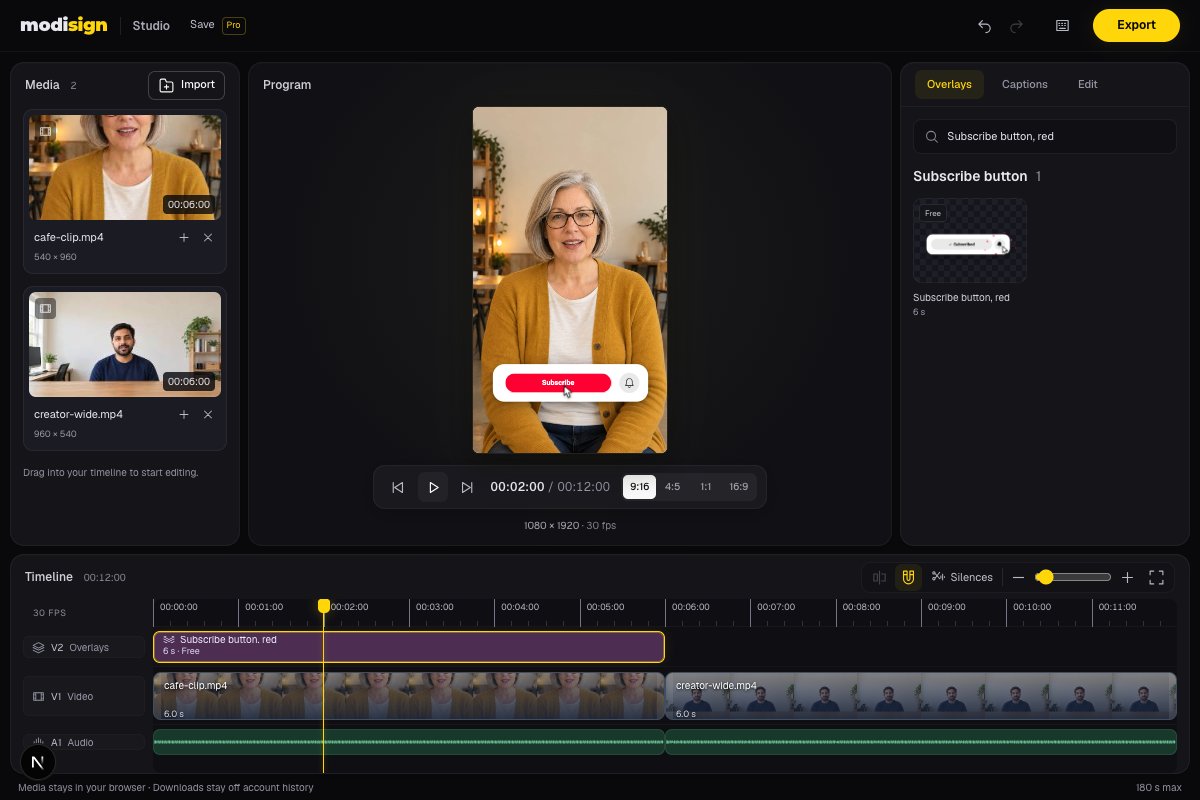
Studio with two local still-based clips of AI-generated fictional creators and the overlay library. The screenshot illustrates a local edit; it is not a competitor or phone test.
Studio was tested with local portrait and landscape clips and the free Subscribe button, red overlay. The export measurements and limits are recorded in Sources and test details. Canva features below come from its official documentation; we did not export in Canva.
How do Studio and Canva compare?
| Your decision | Modisign Studio | Canva |
|---|---|---|
| Install software? | No; runs in your browser | Browser route needs no install. Online tool |
| Upload your footage? | No; clips stay in tab memory and render locally | Documented Reel workflow uploads your clips. Footage workflow |
| Make basic cuts? | Trim, split, ripple editing and undo/redo; 180 seconds maximum | Trim, split and layer clips. Editing tools |
| Add animation? | Catalog elements placed directly over footage | Written text with animation, plus editable whole-Reel designs. Text, templates |
| Caption speech? | On-device English captions; thirteen styles; free transcript editing and SRT/VTT downloads | Free automatic speech captions. Caption tool |
| Export free without watermark? | Yes, when all overlays match free presets and any captions use Clean, Boxed or Minimal | Yes, using free assets; Pro/paid assets add watermarks on Free. Export FAQ |
| Work on a phone? | Desktop is the tested workflow here | Dedicated mobile app. Mobile FAQ |
No install and free watermark-free output are shared benefits. Studio's advantage for this task is local footage combined with built-in animated overlays for Reels, Shorts and TikTok. Canva's documented Reel workflow requires uploading the footage. Canva's upload instructions.
When is Studio the better fit?
Use Modisign Studio when your recorded shots already tell the story and you need to cut them together with a prepared animation. You can keep the edit and graphic in one workspace, then download a finished video. There is no separate overlay file or green background to remove.
Studio offers 9:16, 4:5, 1:1 and 16:9 output as H.264/AAC MP4. Our export used 9:16. Studio supports per-clip Fill with zoom/pan and Fit over a blurred backdrop. Check whether a landscape shot loses the subject at an edge.
The tradeoff for keeping media local is remembering to export before leaving the tab. Pro projects save the timeline structure and settings, never your media or speech-caption text; relink local files when reopening. Free users can edit the timeline and any overlay, but exporting a Pro overlay configuration or expressive caption style, or saving a project, needs Pro at $9/month plus applicable tax.
When is Canva the better fit?
Choose Canva when its documented caption controls fit your edit; Studio also generates English captions locally. A title summarizes a point and does not replace a transcript. Canva’s documented route is Text → Dynamic Text → Captions → Generate captions, followed by editing the result and downloading MP4. Check names and technical words yourself. Canva caption instructions.
For a designed announcement, Canva's editable Reel templates are a stronger starting point. For plain words over footage, its native text tool supports your wording, placement and styling; you do not need a separate animation asset.
Canva also documents AI Highlights and Magic Video. Those give it broader editing options than Studio, although we did not test their results or free allowances. Canva AI feature FAQ. Its video resizer uses a Pro tool; do not assume changing an existing design's shape is free.
Choose Canva when its whole-video designs or native text tools fit the brief. Studio also supports English captions and editable catalog overlays. Choose it when local footage editing and prepared motion graphics fit the task.
What should you check before choosing Studio?
Follow the free Reel editing tutorial for import, cutting, framing and export. Browse subscribe animations or opening hook titles when selecting an individual element. Select the overlay and open Edit to change its wording, look, colors and supported layout controls. Export needs Pro when that configuration no longer matches a free preset.
Export is free without a watermark when every overlay configuration matches a free preset and any captions use Clean, Boxed or Minimal. If an export asks for Pro, check the current overlay tier in Edit and the caption style; reset or replace Pro configurations and use Clean, Boxed or Minimal. For a closer look at media handling, see editing without uploading footage.
Studio sign-in differs from standalone unchanged free overlay downloads, which can download without an account.
Which app should hold the main sequence?
These are design suggestions. For a recorded demonstration, finish the shot order and framing in Studio, then choose an individual title only where it helps explain the footage. For a designed announcement, begin with the complete layout in Canva and check whether its native text fits your message. Its Reel page documents editable designs and uploaded footage. Canva Reel workflow.
If you hand a finished Studio MP4 to another editor, its overlay is already part of the picture. Keep the original Studio edit until you have checked the second tool’s result; you cannot move that rendered graphic as an independent layer there. Canva import and export of our MP4 were not tested.
How should you use the animation over your footage?
These are design suggestions: put an opening title over spare space in the first shot; show a tutorial label when the action begins; place a subscribe reminder after the useful point. Leave room for each animation to finish. Check the text safe-zone guide against your destination preview.
A subscribe graphic is a visual reminder, not a clickable subscription control. A title is a summary, not speech captions. If local editing and a prepared overlay fit your footage, try a free Studio edit; if the video needs a whole-design template or Canva’s text tools, try that documented route.
Frequently asked questions
Is Studio free without a watermark?
Google sign-in is required. Export is free without a watermark when every overlay configuration matches a free preset and any captions use Clean, Boxed or Minimal. Reset or replace Pro configurations and choose Clean, Boxed or Minimal. Both plans have the 180-second limit; saving projects requires Pro.
Does saving a Studio project upload my videos?
No. Pro projects save the timeline structure and settings, never your media or speech-caption text. Reopening requires relinking local files. Free edits and imported media stay in tab memory, so export before closing or reloading.
Can I change overlay wording inside Studio?
Select an overlay and open Edit to change its text, look, colors and supported layout controls. Editing is free; exporting a configuration that no longer matches a free preset requires Pro. The library badge describes the original preset; check the current tier in Edit.
Can I add captions after exporting from Studio?
Studio can caption English speech before export. The download is a finished MP4. Another editor can add captions afterward, but Canva import and captioning of our exported file were not tested here. An overlay in that MP4 is part of the picture, not a separately editable layer.
Related reading
Sources and test details
- Canva allows watermark-free exports with free assets; Pro/paid assets cause watermarks on Free. Documents MP4 output, a mobile app, AI Highlights and Magic Video, and trimming, splitting and layering. — accessed
- Canva offers editable templates for whole Reels and documents uploading existing footage, cropping and splitting it before merging. — accessed
- Canva documents free online speech-caption generation without installation: upload a video, use Text → Dynamic Text → Captions → Generate captions, edit captions and download MP4. — accessed
- Canva supports native written text, placement and font/color/size changes, text animations, and free or premium fonts. — accessed
- Canva video resizing uses its Pro Magic Switch tool; the video-editor FAQ also identifies Magic Resize as Pro. — accessed
Tested in Modisign Studio Local Modisign site, October 2026 on Desktop browser on macOS: On October 10, checked Studio landing and pricing and verified the anonymous Google sign-in gate. With a temporary local free account, imported two four-second portrait and landscape clips with audio, trimmed the first to three seconds, checked ripple movement, undo/redo and split/undo, and exported with the free Subscribe button, red overlay. Download contained 1080×1920 H.264 video at 30 fps, 210 frames and seven seconds, plus stereo 48 kHz AAC; container duration 7.083 seconds. Inspected frames at two and 6.5 seconds showing the graphic and later centre-cropped landscape shot. No Canva export, phone or full 180-second test.
Tested in Modisign Studio Local Modisign site, October 2026 on Desktop Chrome on macOS: October 14: Previewed the free Subscribe button, red and Career truth overlays over two six-second local sample clips in portrait output. Downloaded a free 1080×1920 H.264/AAC MP4 at 30 fps, 360 frames and 12 seconds. Also tested photo Fill/Fit and Slow zoom, Crossfade and Dip to black, silence review with one-step undo, 720p output and temporary punch-ins. Free portrait export offers 1080×1920 or 720×1280. No competitor export, phone export, platform upload or full 180-second project was tested. The screenshot uses AI-generated fictional creators in still-based clips, not recorded footage. Look changes palette colors; Layout changes structure.
Found an error or a changed control? support@modisign.app.