How to Edit a Reel on iPhone Without Installing an App
By Modisign
- Published
- Updated
- Last tested
You can edit a Reel in Safari with Modisign Studio, a browser video editor, so there is nothing to install. You need iOS or iPadOS 26 or later and a free Google sign-in. Add your clips, trim, split and reorder them by touch, frame each clip, add a title or captions, then export a 1080p or 720p MP4 and use Save to Photos. Our test ran in an iPhone-sized emulated screen, not on an iPhone.
What do you need, and what did we test?
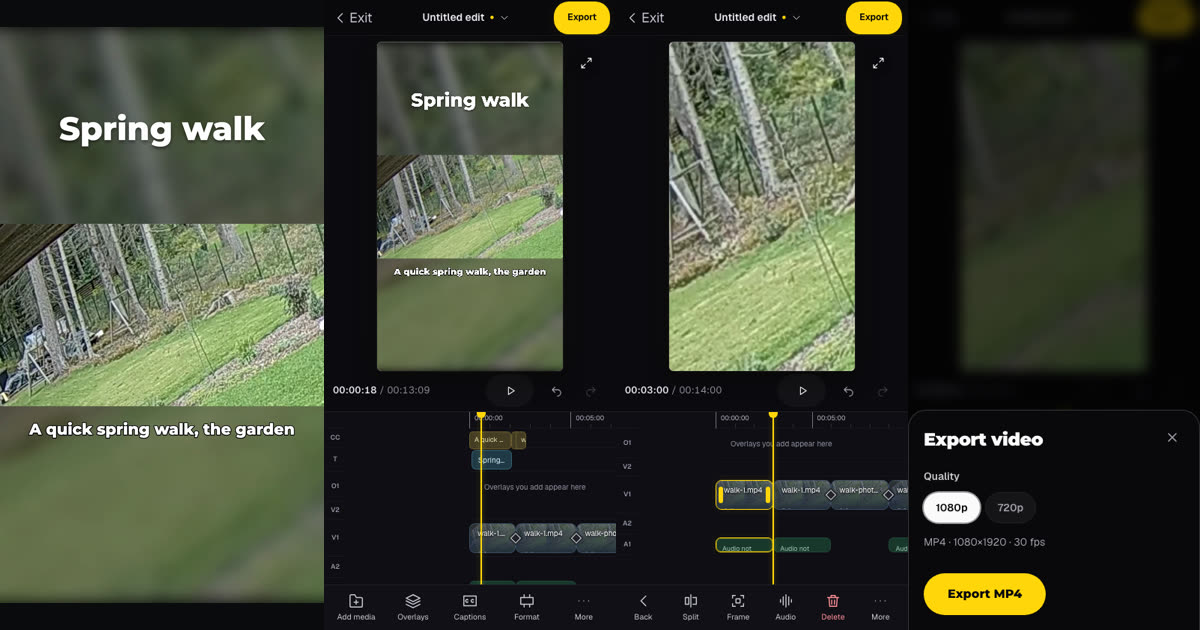
The left image is a frame from our exported MP4; the three screens are Studio at a 390x844 phone size. We used Chrome's touch emulation on a computer, so this guide describes the phone layout and its results there. A real iPhone, Safari's own prompts and the iOS share sheet were not part of the test.
You need:
- Safari on iOS or iPadOS 26 or later. Studio's first screen says "iPhone or iPad? Safari on iOS or iPadOS 26 or later is required."
- A free Google sign-in for Studio.
- Clips up to 3 minutes in total. Videos as MP4, MOV or WebM; photos as JPEG, PNG, WebP or AVIF.
- Time with Safari open. Your clips are never uploaded, and the edit lives in this tab only.
Our footage was two clips of a CC0 garden video (Commons file page) with a synthetic voice added, plus one photo taken from it.
How do you edit the Reel, step by step?
- Add your clips. Open Studio, sign in and tap Add videos or photos. The screen says "They join your sequence in the order you pick them." While a file loads, a status line shows its name and stage, for example "walk-1.mp4 · 1 of 3 Reading media…", with Cancel import.
- Choose 9:16. Our first clip was landscape, so Studio switched the edit to 16:9. Tap Format and choose 9:16; the sheet then reads "1080 × 1920 · 30 fps".
- Reorder by holding. Touch and hold a clip on the timeline until it lifts, then slide it to its new place. One reorder is one undo step; Undo sits beside Play.
- Split at the playhead. The playhead stays fixed in the middle of the timeline; swipe the timeline to move time under it. Tap a clip to select it, and the toolbar changes to Back, Split, Frame, Audio, Delete and More. We swiped to 2.99 seconds and tapped Split, which cut at 3.00.
- Trim with the handles. A selected clip has a handle at each end. While we dragged the end handle, the timeline showed "Source 0.00–2.50 s"; the clip ended at 2.3 seconds.
- Frame each clip. Tap Frame. In Fill the clip covers the vertical frame and you drag the picture in the preview to choose what stays; our drag shifted the visible part sideways as one undo step. Fit "shows the whole picture" over a blurred copy of itself, which suits landscape footage you do not want to crop.
- Add a title or captions. For a title, tap Back, then More, Text, Add title at playhead, type and tap Done; Style sets the size and position. For captions, tap Captions, then Generate captions. They are made on the phone from the main track's audio, in English. We got five lines, and you can edit each one.
- Export. Tap Export, keep 1080p or choose 720p, then Export MP4. The sheet says "Keep Studio open and your screen on until it finishes. Locking the phone or switching apps can stop the export."
- Save to Photos. On an iPhone the finished sheet says "Tap Save Video in the share sheet to add it to Photos." and offers Save to Photos and Download file instead. A plain download goes to the Downloads folder in the Files app (Apple Support).
We could only simulate step 9. With an iPhone browser signal, tapping Save to Photos handed one MP4 file to the share function; we did not see the iOS share sheet or the video in Photos. In a normal browser without sharing, Studio downloads the file and says "Your download has started."
Captions follow your cuts. Our voice said "The garden woke up this week", but "up this" fell in the part we trimmed away, so the captions read "woke" and then "week." Check the lines after trimming. The full captioning guide is adding captions to Reels for free.
Which settings should you choose?
| Choice | Option | What we saw |
|---|---|---|
| Quality | 1080p (default) | 1080x1920, 8.4 MB for 13.3 seconds |
| Quality | 720p | 720x1280, 3.8 MB for the same edit |
| Landscape clip | Fill | Covers the frame; you choose the crop by dragging |
| Landscape clip | Fit | Whole picture, blurred copy above and below |
| Words | Title | Your own text, placed where you choose |
| Words | Captions | Spoken words, generated from the main track's audio |
Both files were H.264 video at 30 fps with stereo AAC sound. Both qualities, titles and the default Clean caption style are free; our exports started without a Pro prompt. An animated hook from Overlays keeps the export free only as an unchanged free preset, such as the free Career truth hook title; we did not add one here.
What can go wrong, and how do you fix it?
| Problem | What Studio says | Fix |
|---|---|---|
| A video is refused | "isn't a video format this browser can read. Choose an MP4, MOV or WebM video." | Tap Remove, then add a copy in one of those formats |
| A photo is refused | "isn't supported in Studio. Choose a JPEG, PNG, WebP or AVIF photo." | HEIC is not accepted. Settings, Camera, Formats, Most Compatible makes new iPhone photos JPEG (Apple Support) |
| Export will not start | "Export is waiting. Studio is still preparing your media." | Wait for the import, or cancel it |
| Generate captions is greyed out | "Wait for the import to finish before generating captions." | Let the import finish first |
| Play is greyed out | Another job is running | A phone runs one import, caption job or export at a time |
| You canceled an import | "Import canceled. No files were added." | Clips already added stay on the timeline |
| The video is in Files, not Photos | You used Download file instead | Export again and use Save to Photos |
We tested the refusals with a damaged file and with a photo renamed to HEIC. Whether Safari converts a HEIC photo to JPEG as you pick it was not checked on a device.
What should you know before you rely on it?
These are suggestions, not test results:
- Work in short sessions. The edit exists only in the open tab. Export before you switch apps for long.
- Generate captions on Wi-Fi the first time. The speech model downloads once, then stays cached in the browser. Our test browser already had it.
- Keep text clear of app buttons. Reels, Shorts and TikTok cover parts of the frame; see the text safe-zone guide.
For the same workflow on a computer, see editing a Reel online for free; for mixing photos and clips, see making a Reel from photos and videos.
This guide was tested in an emulated phone screen on a desktop computer. We did not test a physical iPhone, Safari, the on-screen keyboard, real finger gestures, playback sound, the iOS share sheet or an upload to Instagram.
Frequently asked questions
Which iPhone do I need?
Any iPhone or iPad that runs iOS or iPadOS 26 or later, using Safari. Studio says so on its first screen: 'iPhone or iPad? Safari on iOS or iPadOS 26 or later is required.' Older versions lack browser video and audio features Studio relies on.
Is editing on a phone free?
Yes, after a free Google sign-in. Trims, splits, framing, titles, Clean captions and both export qualities are free. Pro overlays, expressive caption styles and title effects need Pro.
Are my clips uploaded?
No. Studio reads and renders your clips inside the browser tab. The edit also lives only in that tab, so keep Safari open until you have exported.
Why does the video end up in Files instead of Photos?
A plain download on iPhone goes to the Downloads folder in Files. Use the Save to Photos button on the finished sheet, then Save Video in the share sheet, to put it in Photos.
Related reading


Sources and test details
- The garden test footage is the uploader's own work (author Sillerkiil), released under CC0 1.0. — accessed
- Files downloaded from the internet on iPhone or iPad are in the Downloads folder of the Files app, and Safari has a Downloads button next to its search field. — accessed
- Settings, Camera, Formats, Most Compatible makes new iPhone photos and videos use JPEG or H.264 instead of HEIF or HEVC. — accessed
Tested in Modisign Studio Local Modisign site, October 2026 on Emulated 390x844 touch viewport in desktop Chrome on macOS, simulated free signed-in session; not a physical iPhone and not Safari: On October 25, imported two 1280x720 garden clips with a synthetic voice and one JPEG photo through the phone picker input; they joined the timeline in picker order and the landscape clip switched the edit to 16:9, which Format changed to 9:16. Held a clip to lift and reorder it, swiped the timeline to 2.99 seconds and split at 3.00, dragged a trim handle (readout 'Source 0.00-2.50 s', result 2.3 seconds), dragged the picture in Frame and switched one clip to Fit, added a title from More, Text and generated five English caption lines. Exported 1080p and 720p: 1080x1920 and 720x1280 H.264 at 30 fps, 399 frames, 13.3 seconds, stereo AAC, 8.4 MB and 3.8 MB. A damaged file, a renamed HEIC photo, a canceled import and an export started during an import were also checked. Save to Photos was reached only with a simulated iPhone browser signal; the share sheet, Photos, the keyboard and real touch were not exercised.
Found an error or a changed control? support@modisign.app.