Best Free Online Video Editor for Reels, Shorts and TikTok
By Modisign
- Published
- Updated
- Last tested
For a Reel, Short or TikTok under three minutes, Modisign Studio is my pick for animated overlays over your footage without uploading it: sign in with Google, edit in the browser and export without a watermark when all overlays match free presets and any captions use Clean, Boxed or Minimal. If you need more caption languages or a longer timeline, start with Clipchamp; for a whole-video design, consider Canva. There is no single winner for every creator.
The comparison criteria are free-export conditions and watermarks, timeline limits, sign-in, media handling, vertical formats, animated text and caption tools. Studio export results come from our desktop tests; the competitor features come from their official documentation, rather than side-by-side exports.
How were these five editors compared?
An overlay is an extra visual layer above your recording, such as an animated title or subscribe reminder. This comparison is written by Modisign, which sells Pro.
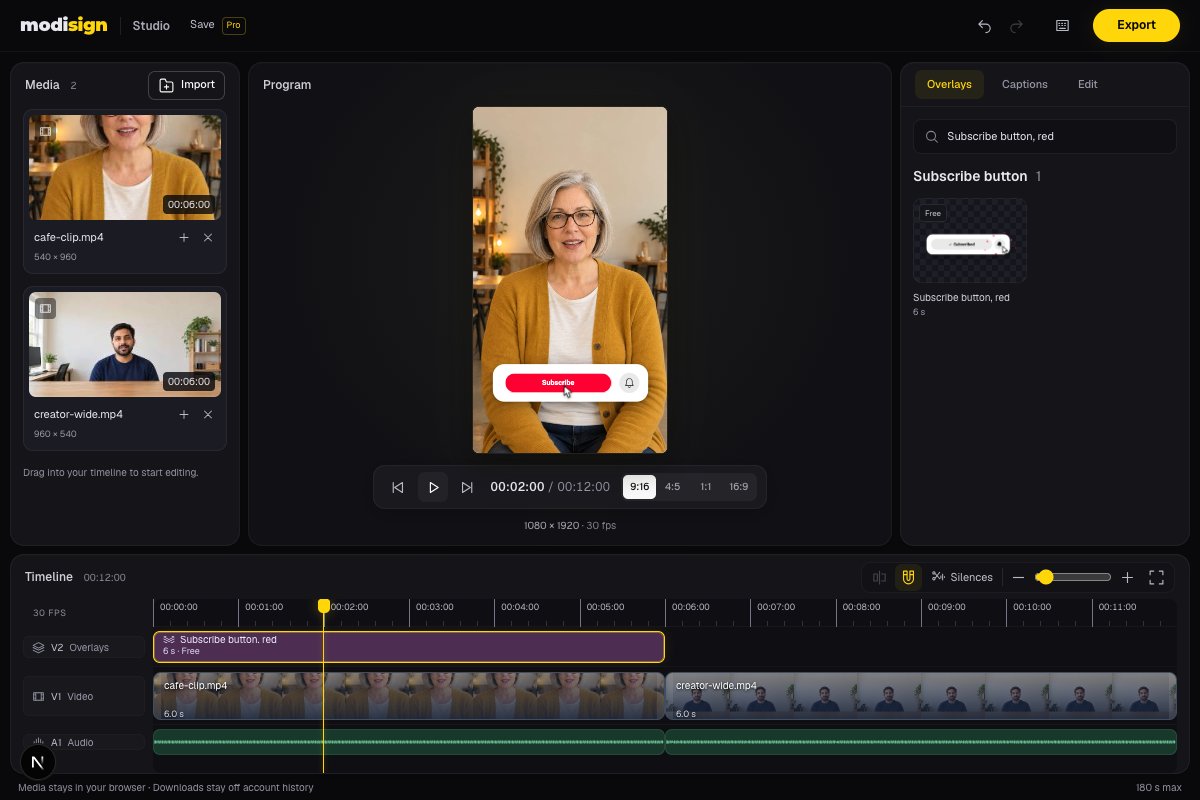
Studio with two local still-based clips of AI-generated fictional creators and the overlay library. The screenshot illustrates a local edit; it is not a competitor or phone test.
The Studio tests covered sign-in, trimming, splitting, undo and free-overlay export. Measurements and limits are recorded in Sources and test details. Competitor rows are documentation comparisons: no project was exported in those editors.
Which editor gives you a usable free export?
“Free” depends on the assets and features you select. Check the export gate early, before building an entire video around a paid effect.
| Browser editor | Free export and watermark | Maximum finished length | Sign-in route |
|---|---|---|---|
| Modisign Studio | MP4 without watermark when all overlays match free presets and any captions use Clean, Boxed or Minimal | 180 seconds | Google required |
| CapCut web | Advertises watermark-free editing; Pro content can require payment for unrestricted export. Editor, export help | A common web free-plan cap was not verified | Account required in its documented upload workflow. Workflow |
| Canva | Watermark-free with free assets; Pro/paid elements change that. Video FAQ | A common free-plan cap was not verified | Free Canva account for the documented watermark-free route. Video FAQ |
| Clipchamp personal | Up to 1080p, no watermark using free features. Plans | No enforced project-length limit; Microsoft recommends ten minutes or less for performance. Length help | Personal Microsoft account. Plans |
| Kapwing | 720p with watermark; pricing table lists 30 minutes of exports monthly. Plans | Pricing says four minutes; subscription FAQ says one minute. Confirm in your workspace. Plans, FAQ | Google or email account. Account help |
An unverified cap does not mean unlimited exports. Kapwing’s pricing page also conflicts internally: its summary advertises unlimited watermarked exports, while its table lists 30 monthly export minutes. Confirm both allowances in your workspace before committing to a longer edit. Kapwing pricing.
Will your footage leave your device, and can you edit vertically?
All five offer a browser route, so none requires installing its desktop or mobile app for the workflows compared here. Their media handling differs.
| Editor | Footage handling | Vertical formats | Animated overlays or text |
|---|---|---|---|
| Modisign Studio | Clips remain in browser memory; rendered locally, never uploaded | 9:16, 4:5, 1:1 and 16:9 | Built-in catalog presets layered over your clips |
| CapCut web | Documented workflow uploads footage to a cloud workspace. Editor | Includes 9:16, 4:5 and 1:1. Resizer | Text, stickers and effects; check Pro badges. Editor, Pro help |
| Canva | Upload your clips into its online editor. Reel workflow | Reel designs; changing an existing design through Magic Resize is Pro. Reel maker, video FAQ | Text/graphic animation and whole-Reel templates. Video editor, Reel maker |
| Clipchamp personal | Local preview/export; enabling content backup stores media online. Work accounts back up media by default. Autocaptions use Azure to process audio. Autocaption help Storage help | Includes 9:16, 4:5, 1:1 and 16:9. Aspect guide | Free animated text and titles. Plans |
| Kapwing | Cloud workflow with uploaded footage. Editor | 9:16 presets and custom canvas sizes. Resizer | Text animations and layered editing. Text tool, editor |
No install is convenient, but it is shared across this shortlist. Studio’s specific appeal is local footage handling combined with ready-made motion graphics. Clipchamp also documents local processing, so choosing between them should depend on the editing features you need.
Who should pick each tool?
Modisign Studio: short edits with ready-made animation
Pick Modisign Studio when your footage needs trimming and a hook, title or reminder layered on top. The timeline supports trim, split, ripple editing and undo/redo; ripple editing closes the gap after shortening or removing a clip. Output is a finished H.264/AAC MP4, so you do not need to remove a green background in another editor.
Studio has a three-minute limit, English-only captions and a desktop-tested workflow. It offers thirteen caption styles and free transcript editing and SRT/VTT downloads. Free users can place and edit any preset. A configuration that no longer matches a free preset, or an expressive caption style, requires Pro to export. Saving projects also needs Pro at $9/month plus applicable tax. Pro projects save the timeline structure and settings, never your media or speech-caption text; relink local files when reopening. For speech in another language, choose an editor that documents it.
CapCut web: captions and a broader effects workflow
CapCut documents automatic subtitles, text-to-speech, background removal, text and effects in its online editor. My verdict: choose it when those tools matter more than keeping footage out of a cloud workspace. Its documented workflow requires sign-in and upload. CapCut online workflow.
Do a draft export before relying on a particular effect or template. CapCut’s help says Pro-tagged content can trigger an upgrade requirement even at 1080p; its general watermark-free claim is not a guarantee for every configuration. Pro export explanation.
Canva: a designed Reel from a complete template
Canva offers editable Reel templates and a mobile app as well as laptop editing. My verdict: choose it when you want a layout for the entire video, rather than individual animated elements over an existing sequence. Canva Reel maker.
Its editor also documents captions and text/graphic animations. Free-asset videos can export without watermarks, while paid elements and Magic Resize have separate conditions. Check those before choosing a design or planning several output shapes. Canva video FAQ.
Clipchamp: longer timelines and multilingual captions
Clipchamp’s personal free plan combines watermark-free 1080p output, animated titles and AI subtitles. My verdict: start here if more caption languages or a timeline beyond three minutes are essential. Clipchamp supports longer projects and more caption languages; Studio supports local English caption generation. Clipchamp plans, caption languages.
It also processes footage locally for editing and export; content backup changes where media is stored. Check whether you are using the personal or work version, because their backup behavior differs. Microsoft storage explanation.
Kapwing: cloud collaboration and subtitle-led editing
Kapwing documents collaborative editing, automatic subtitles and editing through a transcript. My verdict: consider it when sharing an online project or editing spoken content matters more than a watermark-free free download. Kapwing editor.
Its free pricing lists 720p output with a watermark and limited subtitle usage. Test a small project before relying on its conflicting length documentation. Kapwing plans.
What should you verify in a free Studio trial?
Use the free Reel editing tutorial for import, cuts, overlays and export. Studio offers per-clip Fill with zoom/pan and Fit over a blurred backdrop. Select an overlay and open Edit for text and styling; a free library badge describes the starting preset, not a later custom configuration.
Export is free without a watermark when every overlay configuration matches a free preset and any captions use Clean, Boxed or Minimal. Try a short export with representative audio and framing, then inspect the downloaded MP4. Browse subscribe-button presets or hook-title presets when ready-made motion fits. For media handling, read editing without uploading footage.
How should you time the overlays?
These are design suggestions: introduce a hook over an opening shot with spare space; show a step label as the action begins; put a subscribe reminder after the useful point is complete. Use one graphic at a time if overlapping motion makes the video harder to follow.
A title does not replace captions, and a subscribe graphic is a visual reminder, not a clickable subscription control. Check the text safe-zone guide against your destination preview.
For your first check, use a short sequence and a Free overlay. Start a free Studio edit when local footage and ready-made animation fit your task; choose another editor when its languages, timeline length or design tools fit better.
Frequently asked questions
Is Studio free without a watermark?
Google sign-in is required. Export is free without a watermark when every overlay configuration matches a free preset and any captions use Clean, Boxed or Minimal. Reset or replace Pro configurations and choose Clean, Boxed or Minimal. Both plans have the 180-second limit; saving projects requires Pro.
Can Studio generate captions for speech?
Yes. Studio generates English captions on-device. Generation, editing and SRT/VTT downloads are free; Clean, Boxed and Minimal video exports are free when no overlay configuration requires Pro. A hook or step title remains a summary, not a transcript.
Will saving a Studio project upload my clips?
No. Pro projects save the timeline structure and settings, never your media or speech-caption text. Reopening requires you to relink the local files. Free projects and media remain in tab memory, so export before leaving.
Do I need to remove a green background from Studio overlays?
No. Studio combines catalog overlays directly with your footage and exports a finished MP4. Standalone Modisign overlay downloads have a different workflow; unchanged free overlays can download without sign-in, while Studio itself requires Google sign-in.
Related reading
Sources and test details
- CapCut web: no separate installation; sign-in and cloud upload workflow, watermark-free claim, text, effects, subtitles and other AI tools. — accessed
- CapCut web: Pro-tagged templates, effects and other premium content can require Pro for unrestricted watermark-free export even at 1080p. — accessed
- CapCut online: aspect choices include 9:16, 4:5 and 1:1. — accessed
- Canva: watermark-free export with free assets, watermarks with Pro/paid assets on Free, automatic captions, text/graphic animation and Pro Magic Resize; checked page does not establish a common free export duration cap. — accessed
- Canva: browser Reel maker with uploaded footage, whole-Reel editable templates and a mobile app. — accessed
- Clipchamp personal: Microsoft sign-in, no required installation, free watermark-free exports up to 1080p, animated titles and AI subtitles. — accessed
- Clipchamp: local preview/export processing; personal media uploaded when content backup is enabled, work media backed up by default. — accessed
- Clipchamp: no enforced project length limit; ten minutes or less recommended for performance. — accessed
- Clipchamp: aspect presets include 9:16, 4:5, 1:1 and 16:9. — accessed
- Kapwing Free pricing summary lists four-minute 720p watermarked exports and unlimited exports, while the table lists 30 monthly export minutes; the monthly allowance is conflicting. — accessed
- Kapwing subscription FAQ states a one-minute Free export limit, conflicting with its current four-minute pricing page. — accessed
- Kapwing: account creation with Google or email. — accessed
- Kapwing: browser editor, cloud footage upload, layers, collaborative editing, automatic subtitles and transcript editing. — accessed
- Kapwing: 9:16 canvas presets and custom sizes. — accessed
- Kapwing: animated text layered over video. — accessed
- Clipchamp autocaptions use Azure to process video audio and support multiple selectable languages; local preview/export does not imply local caption generation. — accessed
Tested in Modisign Studio Local Modisign site, October 2026 on Desktop browser on macOS: On October 10, 2026, verified anonymous Google sign-in gate. Using a temporary local free account, imported portrait and landscape clips with audio, trimmed the first from 4 to 3 seconds, checked undo/redo and exported with the free Subscribe button, red preset. Output: 1080×1920 H.264 MP4, 30 fps, 210 frames, 7.000-second video track; stereo 48 kHz AAC, 7.083-second container including audio tail. Extracted frames showed the overlay and subsequent centre-cropped landscape clip. Checked split and Pro export gate separately. No competitor export, full 180-second or phone test.
Tested in Modisign Studio Local Modisign site, October 2026 on Desktop Chrome on macOS: October 14: Checked the free Studio route with two six-second portrait and wide clips with audio and free Subscribe button, red and Career truth overlays. Downloaded a free 1080×1920 H.264/AAC MP4 at 30 fps, 360 frames and 12 seconds. Also tested photo Fill/Fit and Slow zoom, Crossfade and Dip to black, silence review with one-step undo, 720p output and temporary punch-ins. Free portrait export offers 1080×1920 or 720×1280. No competitor export, phone export, platform upload or full 180-second project was tested. The screenshot uses AI-generated fictional creators in still-based clips, not recorded footage. Look changes palette colors; Layout changes structure.
Found an error or a changed control? support@modisign.app.