How to Add a Comment-Keyword CTA to an Instagram Reel
By Modisign
- Published
- Updated
- Last tested
Write a short prompt that names one keyword and the resource you will actually deliver, then place it as readable text or an animated layer over your own Reel footage. Give the words time to settle and keep them clear of the action and subtitles. A Modisign comment graphic supplies the visual prompt; you must fulfill requests manually or configure a separate messaging tool.
What does the CHECKLIST prompt promise?
A CTA, or call to action, asks the viewer to do something specific. An overlay is an extra visual layer above your recording.
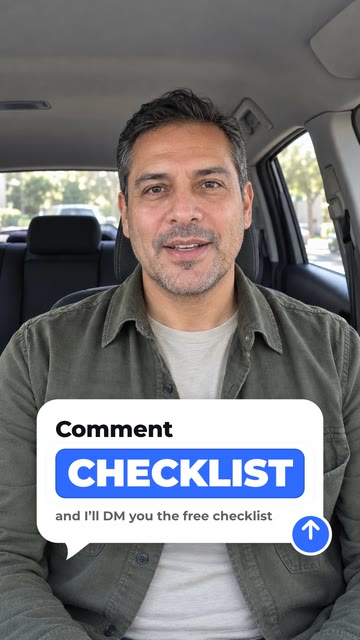
Illustration of the free Free checklist preset over sample footage. The illustrative creator footage is not included in the download; this is not a receiving-editor or platform test. The graphic does not send messages.
The asset export did not test CapCut import, keying, transparent WebM, Instagram posting or DM delivery. App controls below follow the official documentation listed below.
Have your footage, finished resource, working link, editor and fulfillment plan ready.
How should you choose the keyword and promise?
Choose a familiar word naming the offer: CHECKLIST, RECIPE or GEAR. Keep one spelling across the graphic, speech and delivery plan. These are writing suggestions, not engagement formulas.
Pair the action with a concrete result: “Comment RECIPE and I’ll send the ingredient list.” Use “free” only for a free resource; name extra requirements before asking for a comment. Prepare the resource before publishing.
The tested preset already promises a free checklist by DM. Use it unchanged only when that describes your offer. For another resource, native text lets you write an accurate prompt without adapting your offer to sample copy. Modisign’s Keyword field accepts up to ten characters.
How do you add the prompt over your footage?
Choose the moment and offer. Show the resource or result, and write the promise before styling it.
Choose native text or ready-made motion. According to CapCut, Text → Add text adds your own wording. Use it for a plain prompt; choose a rendered element when you want the bubble and typing animation. CapCut text instructions.
Browse comment-keyword animations, choose a Free badge, or open the tested free checklist configuration. Free elements download as they are as green-screen H.264 MP4, without sign-up or watermark. Background and Format remain selectable; use Green screen and portrait 9:16 here.
Layer and key the downloaded graphic. Follow the documentation-based CapCut overlay import and green-removal workflow. Chroma key removes the sampled green background from the animation layer above your footage. Keep the two clips overlapping for the whole animation; skip this asset step if you chose native text. These receiving-editor steps were not tested here.
Position and time the complete bubble. According to CapCut, mobile supports dragging and pinch resizing; desktop resizing uses corner points. Positioning instructions. My suggestion is to check the smaller promise line as carefully as the keyword. Reserve the tested file’s full 4.5 seconds, including entrance and exit; that is its duration, not a universal reading requirement.
Export and inspect the saved video. According to CapCut, Export saves the edited result. Export instructions. Read the prompt at phone size without pausing, check its exit, then inspect the intended destination preview.
What should you fix if the prompt is unclear?
These are suggested checks, not editor-compatibility results.
| Problem | Check | Suggested fix |
|---|---|---|
| Viewers cannot tell what they receive | Resource named in the promise | Replace vague wording with the actual checklist, recipe or list. |
| Keyword dominates but the promise is tiny | Phone-size playback | Shorten the promise and move the layer before shrinking it. |
| Text competes with subtitles or hands | Full interval and next shot | Choose open space or a later moment. |
| Green fringes remain | Bubble edge and moving arrow | Re-sample green and balance keying controls. |
| Offer says DM but nothing is ready to send | Resource and fulfillment plan | Prepare delivery or change the request before publishing. |
The edge adjustment follows CapCut’s troubleshooting guidance. For lettering, W3C’s WCAG contrast reference specifies 4.5:1 for ordinary text and 3:1 for large text. Use it to evaluate the words against their plate; a contrast check alone does not certify video accessibility. W3C contrast guidance.
Where and when should the CTA appear?
Treat these as design suggestions, not Instagram placement rules or promises of more comments:
- A checklist tutorial: show the completed task first, then the prompt in open space beside the result.
- A recipe demonstration: let the final dish remain visible while asking for the recipe; keep the bubble away from food details.
- A spoken explanation: introduce the resource after explaining its purpose, with the prompt clear of the longest subtitle line.
Use the guide to text clear of platform controls for your destination check. Do not assume the preset’s Lower position establishes safe placement for your footage. Prefer one request; if the video already contains everything useful, a visual save reminder may be a more honest choice than promising an extra resource.
Does the graphic send a DM, and how do you fulfill requests?
No. The typed keyword, bubble and arrow are rendered graphics. Modisign does not detect comments, submit them, create links or connect to messaging services.
Manual delivery comes first. Review requests, send the resource through the messaging option available to you, and record completed replies to avoid duplicates. Suggested wording: “Here’s the checklist from the video: [your resource link].” Check the link before sending.
Do not assume every commenter can receive a message: Meta documents Instagram controls that can switch off messages from people an account does not follow. Respect the available controls; if delivery is unavailable, offer an alternative without promising success. Meta message controls.
Separate automation needs separate setup. According to Manychat, connecting Instagram requires a professional Business or Creator account. That connection is outside Modisign. Manychat connection requirements.
According to Manychat’s comments-trigger guide, select User comments on your Post or Reel, choose the post and keyword filter, then add an Instagram message marked Send as a Private Reply. Use Preview before Set Live. The guide says the trigger runs only for a user’s first comment on that post or Reel; another keyword comment does not repeat it. It also says the initial private reply alone does not open the follow-up messaging window: interaction is required, and a website-link click does not count as opt-in. Manychat trigger setup and limits.
Verify a complete request and delivery before promising automation; this article did not test messaging. If you direct viewers to a profile link instead, check that the destination exists and works before showing the prompt.
When does your comment prompt need custom wording?
For your own keyword, promise and styling, Modisign Pro is $9/month plus applicable tax unlocks text, look, colors and the available size/position controls for every overlay. This comment family has Size, Vertical and Horizontal controls. Customized downloads require sign-in and Pro.
Desktop offers transparent VP9 WebM with alpha, the information storing transparency, including for unchanged free presets. Receiving-editor alpha support was not tested here; read transparent video versus green screen and verify import plus the saved composite in your exact editor version before relying on it.
To check the simple route, try an unchanged free overlay; the landing selection does not contain every family.
Frequently asked questions
Can I change CHECKLIST to my own keyword in the free animation?
The free preset downloads as it is, without sign-up or watermark; Background and Format remain selectable. For different words, use native editor text or customize the Modisign animation with Pro. A customized download requires sign-in and Pro.
Is the arrow in the bubble a real Send button?
No. The arrow, typing and bubble are rendered graphics. They do not submit a comment, detect a keyword, open a chat or send a DM. Viewers use the platform’s own controls, and you arrange resource delivery separately.
Should I promise an instant DM?
Only use timing you can actually fulfill. For manual delivery, avoid promising an instant response. For separate automation, test the complete recipient experience before describing it as automatic; this article did not perform a messaging test.
Can I download a transparent comment bubble?
Modisign offers transparent VP9 WebM with alpha, the information storing transparency, on desktop, including for unchanged free presets. Receiving-editor import and alpha preservation were not tested here. Verify both in your exact editor version; the demonstrated file is green-screen H.264 MP4.
Related reading
Sources and test details
- CapCut: native Text/Add text, mobile Overlay/Add overlay, upper-track layering, mobile drag/pinch positioning, desktop corner-point resizing and Export. — accessed
- CapCut desktop: chroma-key definition, Video/Remove BG/Chroma Key, color sampling, Strength/Shadow and edge troubleshooting. — accessed
- CapCut mobile: Edit/Remove BG/Chroma Key, color sampling and Intensity/Shadow adjustment. — accessed
- W3C WCAG 2.2 contrast reference: 4.5:1 for ordinary text and 3:1 for large text. — accessed
- Meta: Instagram message controls can switch off messages from people an account does not follow; delivery cannot be assumed. — accessed
- Manychat: connecting Instagram requires a professional Business or Creator account and a separate account connection. — accessed
- Manychat: post/Reel selection, keyword filters, Private Reply message setup, Preview/Set Live, first-comment limitation and interaction before follow-up messaging. — accessed
Tested in Modisign modisign.app, October 2026 on Desktop browser: On October 9, 2026, exported the unchanged free Free checklist preset with default Green screen: 1080×1920 H.264 MP4, 30 fps, 135 frames, 4.5 s. We checked the file; an extracted frame at 2.5 seconds showed Comment CHECKLIST and the free-checklist DM promise on a white bubble with a blue keyword chip against green. No receiving-editor import, keying, transparent WebM, platform or messaging test was performed.
Tested in Modisign Local Modisign site, October 2026 on Desktop Chrome on macOS: October 14: Checked the Free checklist illustration, free configuration and placement labels. The illustrated CHECKLIST prompt retains its DM promise; no messaging behavior was tested. Look changes palette colors; Layout changes structure and palette changes preserve wording and placement. Missing catalog images prevented the editor from loading, so no new export or receiving-editor test was completed. Earlier export measurements retain their original dates.
Found an error or a changed control? support@modisign.app.