How to Add a Lower Third to a Vertical Video in CapCut
By Modisign
- Published
- Updated
- Last tested
Put a short name-and-role title in open space below or beside your face, keeping subtitles clear, then check its whole appearance at phone size. Use native text for your own words, or layer a rendered animation over your footage and remove its green background. Placement depends on your shot and destination preview; an unchanged free animation keeps its sample identity, so a custom name needs native text or Pro customization.
What do you need for a name-and-role title?
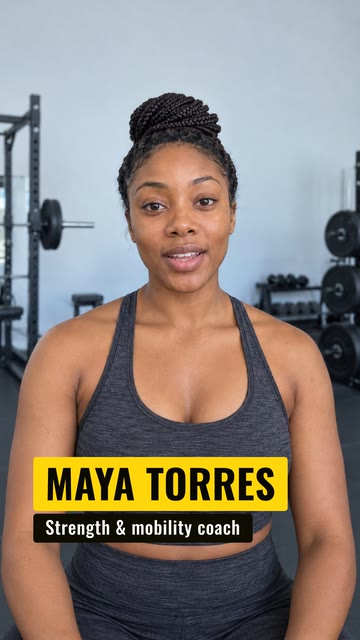
Illustration of the free Fitness coach preset over sample footage. The illustrative creator footage is not included in the download; this is not a receiving-editor or platform test.
We verified the animation file; the name-title import, keying and placement steps follow CapCut documentation and were not tested in CapCut. Transparent WebM and Instagram, TikTok or YouTube playback were not tested either.
Have your portrait footage, the speaker’s correct name and role, subtitles if needed, and an editor ready.
What is a lower third, and what information belongs in it?
According to Adobe, a lower third is a text or graphic overlay conventionally placed in the lower screen area; it can identify someone by name and title. An overlay is an extra visual layer above your recording. Adobe’s lower-third explanation.
My suggestion is to use a name plus one relevant role. For a cooking demonstration, “Luca Bianchi / Chef” is enough; a guest interview might need “Hannah Brooks / Personal finance educator.” These are wording examples, not credentials to copy onto another person.
Give the name priority, with a quieter role underneath. Leave out a biography, unrelated handles and qualifications you cannot substantiate. The lower third identifies the speaker; keep subtitles available for their spoken words. If the name alone supplies enough context, omit the role.
How do you add the name title in CapCut?
Find a clear introduction moment. Choose footage where the speaker is visible and there is room for the title. My suggested check is to include the longest subtitle line and the next shot before deciding where it fits. Expect both the identity and the conversation to remain readable.
Choose native text or a rendered element. According to CapCut, Text → Add text adds your own words on mobile or desktop. Native text is a valid route for a simple name and role. CapCut text instructions.
For ready-made motion, browse lower-third animations, choose a Free badge, or open the exact tested free Fitness coach configuration. Free elements download as they are as green-screen H.264 MP4, without sign-up or watermark; Background and Format remain selectable. Choose Green screen and portrait 9:16 for this example. Its sample identity is useful for checking the workflow, rather than introducing yourself. Custom wording requires Pro for download.
Layer and key the downloaded graphic. Follow the documentation-based CapCut overlay import and green-removal workflow. Chroma key removes the sampled green background from the animation layer above your footage. Keep the two clips overlapping for the whole animation; skip this asset step if you chose native text. These receiving-editor steps were not tested here.
Position the complete lower third. According to CapCut, mobile overlays support dragging and pinch resizing; desktop resizing uses corner points. CapCut positioning instructions. My suggestion is to move the card away from the face and subtitles before shrinking it. Check the role plate and moving entrance too, so the name stays readable throughout.
Allow an entrance, readable state and exit. The tested file lasts five seconds in total. Reserve that interval over suitable footage, then read both lines without pausing. This is a review procedure, not a measured universal reading time. If it feels rushed, shorten your wording or use native text with a different interval.
Export and review the saved composite. According to CapCut, Export saves the combined video. CapCut export instructions. Watch your saved result at phone size, checking spelling, face clearance, subtitles and edges. Inspect the destination preview separately before posting; the asset render does not verify that placement.
What should you fix if the title is hard to read?
These are suggested checks, not receiving-editor test results. For green edges, CapCut recommends re-sampling the background and balancing removal controls. CapCut edge troubleshooting.
| Problem | Check | Suggested fix |
|---|---|---|
| Name covers the speaker | Entire interval, including head movement | Move the complete layer into open space. |
| Role competes with subtitles | Longest subtitle while both are visible | Raise the card or introduce it at another moment. |
| Long role makes the letters tiny | Phone-size playback after entrance | Shorten the role before reducing the title’s size. |
| Green fringe remains | Plate corners and lettering during motion | Re-sample green and balance removal controls. |
| Exit is cut off | End of the graphic and footage beneath it | Leave room for the complete animation. |
For contrast, W3C’s WCAG reference specifies 4.5:1 for ordinary text and 3:1 for large text. Use it when choosing lettering against its plate; this alone does not certify video accessibility. W3C contrast guidance.
Where should it sit, and how long should it stay?
Treat these as design suggestions, with no fixed platform margin or promised performance gain:
- Centered speaker: try the title below the face and above your subtitle area. Recheck a gesturing hand before accepting the position.
- Speaker to one side: use the open space beside them. Keep the graphic inward from the edge, and inspect its full entrance.
- Hands-on demonstration: introduce the speaker before close-up work begins, then clear the title so tools and instructions have room.
Use the guide to text clear of platform controls for the destination check. This article establishes no organic safe-zone dimensions for Instagram or TikTok.
Keep the title long enough to read the actual words comfortably, then clear it when it stops adding context. Five seconds here includes animation; it is not five seconds of stationary text. For a native Shorts alternative, according to YouTube, Timeline lets you drag text clips’ start and stop points and review them before publishing. Those controls concern native text, not words already rendered into an imported video. YouTube text-timing guidance.
How do you reuse a consistent style?
My suggestion is to keep a small reference: name treatment, role treatment, accent color, alignment and a phone-size example. Reuse those choices across episodes, but check each new shot. A longer guest name may need different wording or positioning even when the style stays consistent.
For custom animation names and roles, Modisign Pro is $9/month plus applicable tax and unlocks text, look, colors and the available size/position controls for every overlay. The lower-third family has Size and Horizontal (Left, Center, Right or Custom), with no Vertical control; move the downloaded layer in your editor for vertical placement. Anyone can preview custom configurations; their download requires sign-in and Pro. Keep the configuration URL as your own reference; saved brand defaults are not a feature.
Desktop also offers transparent VP9 WebM with alpha, the information describing pixel transparency, including for unchanged free presets. WebM alpha explanation. Receiving-editor alpha support was not tested here: read transparent video versus green screen and verify import plus the saved composite in your exact version before relying on it.
To check the simple green-screen route first, try an unchanged free overlay. The landing selection does not contain every family. Modisign supplies the animated graphic; your editor combines it with your footage.
October 14 correction: The FAQ now lists all four Horizontal choices and correctly states that this overlay has no Vertical control.
Frequently asked questions
Does a lower third have to sit at the bottom of a portrait video?
The name describes its conventional placement, but this guide recommends choosing open space in your actual shot. Try below or beside the face, then check subtitles, the next shot and the destination preview. No fixed margin for Reels, TikTok or Shorts is established here.
Can I put my own name into the free Fitness coach animation?
It downloads as it is, with the sample name Maya Torres and role Strength & mobility coach. Background and Format remain selectable, without sign-up or watermark. For your own identity, use native editor text or customize the Modisign animation with Pro; do not publish the sample name as yours.
Is five seconds the required reading time?
No. Five seconds is the measured total length of the tested asset, including motion. Read your actual name and role at phone size without pausing. If that feels rushed, shorten the role or choose a different text treatment and timing.
Can I move the free lower third after downloading?
CapCut documents moving and resizing overlay layers; those controls were not tested in this run. Positioning the downloaded file in your editor is separate from editing a preset in Modisign’s standalone free editor. The lower-third controls are Size and Horizontal (Left, Center, Right or Custom), with no Vertical control. Changing size or horizontal placement in Modisign requires Pro to download.
Can I use a transparent lower third instead?
Modisign offers transparent VP9 WebM with alpha on desktop, including for unchanged free presets. Alpha stores transparency. This run did not test receiving-editor import or alpha preservation; verify both in your exact editor version before relying on that output.
Related reading
Sources and test details
- Adobe: a lower third is a text title or graphic overlay in the lower region of the screen; name and title can identify an interview subject. — accessed
- CapCut: native Text/Add text, mobile Overlay/Add overlay, higher-track layering, mobile drag/pinch positioning, desktop corner-point resizing and Export. — accessed
- CapCut desktop: Video/Remove BG/Chroma Key, green color sampling, Strength/Shadow controls and re-sampling for edge problems. — accessed
- CapCut mobile: Edit/Remove BG/Chroma Key, color sampling and gradual Intensity/Shadow adjustment. — accessed
- YouTube: native Shorts text timing through Timeline start/stop points and review before publishing; not controls for an imported animation. — accessed
- W3C WCAG 2.2 contrast reference: 4.5:1 for ordinary text and 3:1 for large text. — accessed
- WebM Project: alpha describes per-pixel transparency; this source does not verify CapCut VP9-alpha import. — accessed
Tested in Modisign modisign.app, October 2026 on Desktop browser: On October 9, 2026, exported the unchanged free Fitness coach preset with default Green screen: 1080×1920 H.264 MP4, 30 fps, 150 frames, 5 s. We checked the file; an extracted frame at 2.5 seconds showed Maya Torres on a yellow name plate and Strength & mobility coach on a dark role plate against green. No receiving-editor import, keying, transparent WebM or platform test was performed.
Tested in Modisign Local Modisign site, October 2026 on Desktop Chrome on macOS: October 14: Checked the Fitness coach illustration and free configuration. Corrected the lower-third control descriptions to Size and Horizontal (Left, Center, Right or Custom), with no Vertical control. Look changes palette colors; Layout changes structure and palette changes preserve wording and placement. Missing catalog images prevented the editor from loading, so no new export or receiving-editor test was completed. Earlier export measurements retain their original dates.
Found an error or a changed control? support@modisign.app.